EasyManua.ls Logo

Asus K20DA - User Manual

Asus K20DA
70 pages
Print Icon
To Next Page IconTo Next Page
Loading...
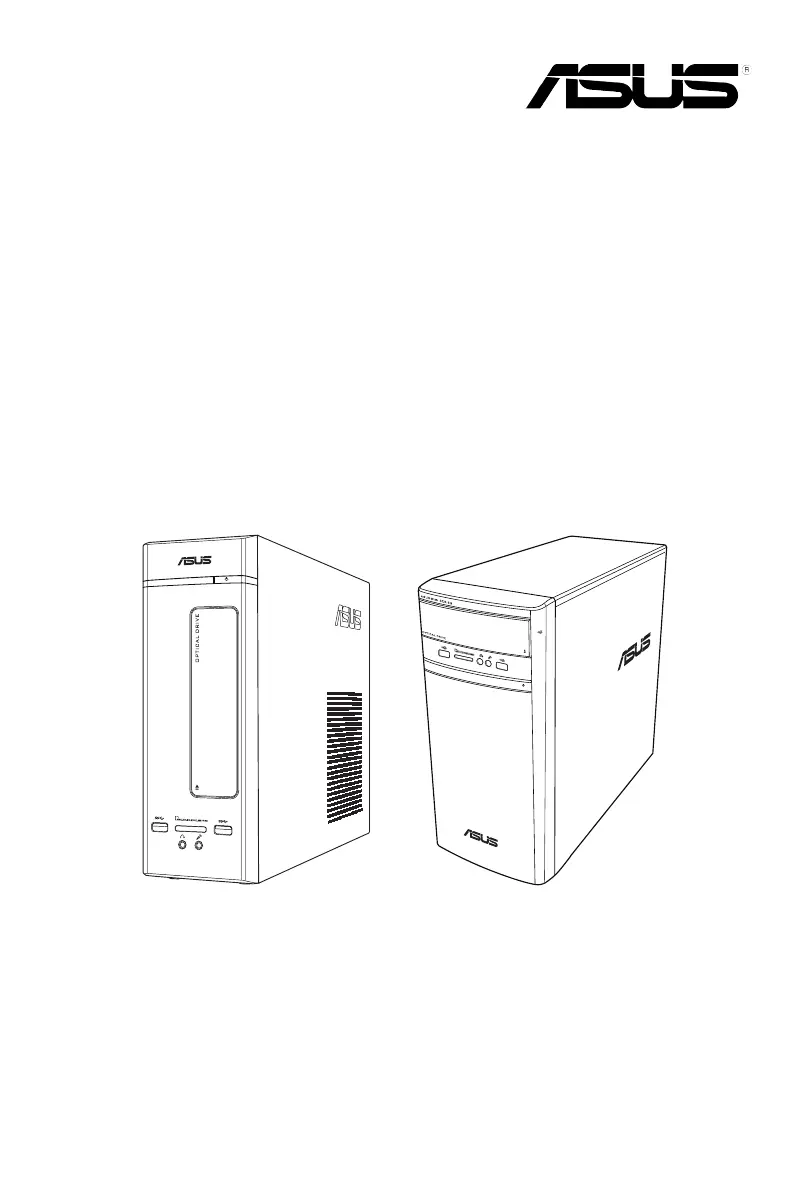
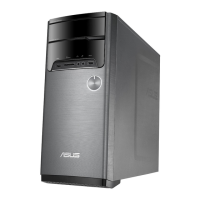
Desktop PC
K20DA / A20DA / F20DA
K31DA / A31DA / F31DA
K31DAG / A31DAG / F31DAG
User Guide
K20DA / A20DA / F20DA K31DA / A31DA / F31DA
K31DAG / A31DAG / F31DAG

Questions and Answers

  • N
    Nathaniel KimSep 10, 2025
    Why is my Asus K20DA Desktop too noisy right after turning it on?
    • U
      ualvarezSep 12, 2025
      If your Asus Desktop is very noisy immediately after being turned on: * It's normal for the fan to run at full speed during startup and slow down after the OS loads. * The BIOS settings may have been changed. Restore the BIOS to its default settings. * The BIOS version may be outdated. Update the BIOS to the latest version.
  • A
    Aimee HodgesAug 23, 2025
    How to fix Asus Desktop that won't turn on?
    • A
      Amy JacobsAug 23, 2025
      If your Asus Desktop isn't powering on and the front panel LED is off: * Check that the computer is correctly connected to the power source. * Confirm that the wall outlet is working. * Ensure the Power Supply Unit (PSU) is switched on.
  • J
    juliesheltonAug 25, 2025
    Why is my Asus K20DA Desktop running so slow?
    • L
      Lindsey MartinezAug 25, 2025
      If your Asus Desktop is running slowly, it could be due to: * Too many programs running simultaneously. Try closing some programs. * A computer virus attack. Use anti-virus software to scan for viruses and repair your computer.
  • J
    Jackie BurkeAug 26, 2025
    What to do if there is no display on my Asus K20DA Desktop monitor?
    • S
      Sarah ColemanAug 27, 2025
      If you have no display on your monitor, check the following: 1. Ensure the monitor is powered on. 2. Verify the monitor is properly connected to the video output port on your computer. 3. If your computer has a discrete graphics card, make sure the monitor is connected to a video output port on the discrete graphics card. 4. Inspect the monitor video connector for bent pins. If found, replace the monitor video connector cable. 5. Confirm that your monitor is properly plugged into a power source.
  • T
    Taylor HernandezAug 27, 2025
    Why Asus Desktop has no power and the power indicator is off?
    • T
      Terry WiseAug 28, 2025
      If your Asus Desktop has no power and the power indicator is off, it could be due to several reasons: * Incorrect power voltage: Set your computer’s power voltage switch to your area’s power requirements. * The computer is not turned on: Press the power key on the front panel to ensure that your computer is turned on. * The power cord is not properly connected: Ensure that the power cord is properly connected. * PSU (Power supply unit) problems: Contact the ASUS Service Center about installing another PSU on your computer.
  • S
    Steven PorterAug 29, 2025
    What to do if my Asus Desktop has no display output after turning it on?
    • B
      Brian WilliamsAug 29, 2025
      If your Asus Desktop shows no display output (black screen) after turning it on: * Ensure the signal cable is connected to the correct display port (onboard VGA or discrete VGA port). * If the connection is correct, try connecting to another monitor to rule out signal cable problems.
  • N
    norman66Sep 18, 2025
    How to troubleshoot no audio on Asus K20DA?
    • M
      Michael MaciasSep 18, 2025
      If you're experiencing no audio on your Asus Desktop: * Refer to your computer’s User Guide for the correct port to connect your speaker or headphone. * Try using another speaker or headphone. * Try both the front and back audio ports. * Reinstall the audio driver.
  • A
    Andrea ReevesSep 12, 2025
    How to make arrow keys work on Asus K20DA number pad?
    • C
      Christine SmithSep 12, 2025
      If the arrow keys on your Asus Desktop number keypad aren't working, check if the Number Lock LED is off. When the Number Lock LED is on, the number keypad is used for number input only. Press the Number Lock key to turn the LED off if you want to use the arrow keys.
  • K
    Katie BaileySep 8, 2025
    What to do if Asus Desktop cannot detect USB storage device?
    • W
      williamssheriSep 8, 2025
      If your Asus Desktop isn't detecting your USB storage device: * When you first connect a USB storage device, Windows automatically installs a driver. Wait a moment and check 'My Computer' to see if it's detected. * Connect the USB storage device to another computer to see if the USB storage device is broken or malfunctions.
  • A
    agarciaSep 5, 2025
    Why is my Asus K20DA Desktop computer so noisy when in use?
    • W
      William WilsonSep 5, 2025
      If your Asus Desktop is too noisy during use, it might be because: * The CPU fan has been replaced. Ensure that you are using a compatible or ASUS-recommended CPU fan. * There is not enough air ventilation for the computer. Ensure that your computer is working in an area with good air flow. * The system temperature is too high. Update the BIOS.

Summary

Safety Information

General Safety Precautions and Warnings

Essential safety guidelines and 'DO NOT' instructions for operating the PC.

Hazardous Moving Parts Warning

Warning to keep clear of moving parts within the computer during operation or servicing.

Package Contents

Overview of Included Components

Lists all standard and optional items included in the computer package.

Chapter 1: Getting Started

Front Panel Ports and Controls (K20 DA;A20 DA;F20 DA)

Identifies and describes front panel ports and buttons for specific models.

Front Panel Ports and Controls (K31 DA;A31 DA;F31 DA;K31 DAG;A31 DAG;F31 DAG)

Identifies and describes front panel ports and buttons for specific models.

Rear Panel Ports and Features (K20 DA;A20 DA;F20 DA)

Identifies and describes rear panel ports and features for specific models.

Setting Up Your Computer: Connecting a Monitor

Guides on connecting an external monitor to the PC.

Using Onboard Display Output Ports

Instructions for connecting monitors to the computer's integrated graphics ports.

Powering Your Computer On and Off

Instructions on how to turn the computer on and off.

Chapter 2: Connecting Devices to Your Computer

Chapter 3: Using Your Computer

Chapter 4: Connecting to the Internet

Connecting via DSL;Cable Modem

Steps to connect the PC to a DSL or cable modem for internet access.

Connecting via Local Area Network (LAN)

Steps to connect the PC to a LAN for network access.

Chapter 5: Troubleshooting

Common Troubleshooting Scenarios

Presents common problems and provides solutions for the desktop PC.

Troubleshooting Power Issues

Solutions for problems related to the computer's power indicator or lack of power.

Troubleshooting Display and LAN Issues

Solutions for common display problems and inability to access the internet via LAN.

Troubleshooting Audio and System Issues

Solutions for audio problems and system performance issues like hanging or freezing.

Appendix: Windows 8.1 User Manual

Recovering Your System

Procedures for restoring the PC to factory default settings or creating recovery media.

Asus K20DA Specifications

General IconGeneral
Form FactorTower
MemoryDDR3
Storage Capacity500GB
Operating SystemWindows 8.1
Network10/100/1000 Mbps
Optical DriveSuperMulti DVD RW
USB Ports6 (2 x USB 3.0, 4 x USB 2.0)

Related product manuals