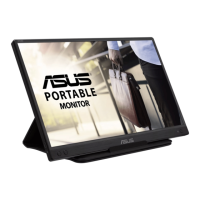
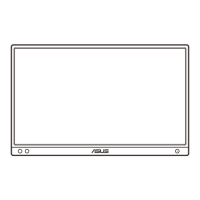
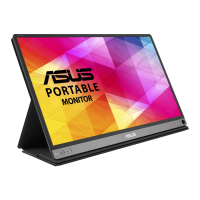
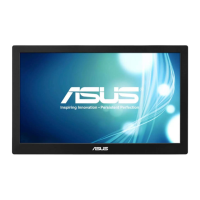
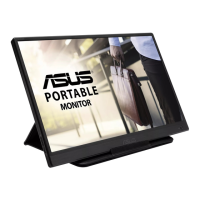
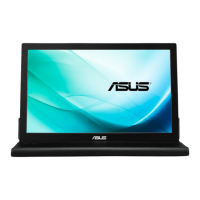
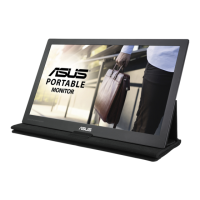
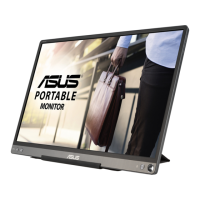
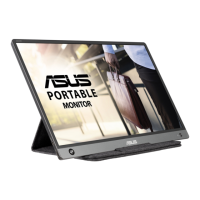
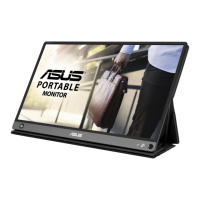
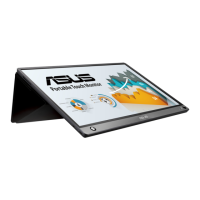
The ASUS MB166B is a portable USB monitor designed to enhance your daily viewing experience with its great portability and simplicity. This user guide provides comprehensive information on setting up, using, and maintaining your monitor.
Function Description
The ASUS MB166B functions as a secondary display that connects to your PC or laptop via a USB cable. It is particularly useful for users who require an extended screen for productivity, entertainment, or presentations on the go. The monitor is equipped with a G-sensor, enabling an auto-rotate feature that automatically switches the screen orientation between landscape and portrait modes based on its physical position. This functionality is supported by the DisplayWidget Lite software, which needs to be installed on a Windows operating system. The monitor is powered directly through the USB connection, making it convenient for mobile use without the need for an additional power adapter. For instances where the primary USB 3.2 connection does not provide sufficient power, an additional Micro B USB 2.0 port is available to draw extra power from an adapter, PC, laptop, or power bank.
Usage Features
The MB166B offers several user-friendly features to optimize your experience.
- Power Button/Power Indicator: A single button controls the monitor's power. The power indicator light changes color to reflect the monitor's status: blue for ON, amber for standby mode, and dark when OFF.
- USB Connectivity: The monitor primarily connects via a Micro B USB 3.2 Port. It is crucial to download and install the appropriate driver from the ASUS official website before connecting the monitor to your PC/laptop to ensure proper activation and functionality. The driver installation process is straightforward, guiding you through selecting your operating system and executing the driver file. A restart of your Windows system may be required after installation.
- Brightness Adjustment: Dedicated "+" and "-" buttons allow for easy adjustment of the monitor's brightness, enabling you to customize the display to your preferred viewing conditions.
- Auto-Rotate Functionality: Thanks to its built-in G-sensor, the MB166B can automatically detect its real-time position and adjust the screen orientation accordingly. This feature is particularly beneficial for tasks that require frequent switching between landscape and portrait views, such as reading documents or viewing web pages. To enable this, the DisplayWidget Lite software must be installed on a Windows OS.
- Standing Positions: The monitor comes with a protective sleeve that doubles as a versatile stand, allowing for various standing positions. This enables you to set up the monitor at different angles for optimal viewing comfort, whether you prefer a more upright position for productivity or a reclined angle for media consumption. The user guide illustrates how to fold the sleeve to achieve different stable configurations, offering flexibility in how you use your portable display.
- DisplayWidget Lite Software: This software, available for download from the ASUS website, is essential for unlocking the auto-rotation and contrast adjustment features of the MB166B. While other functions within the software may be greyed out, these two core functionalities significantly enhance the monitor's adaptability and user experience.
Maintenance Features
Proper care and cleaning are essential to ensure the longevity and optimal performance of your ASUS MB166B monitor.
- Cleaning: Always turn off and unplug the monitor before cleaning. Use a lint-free, non-abrasive cloth to clean the monitor surface. For stubborn stains, a cloth dampened with a mild cleaner is recommended. It is crucial to avoid cleaners containing alcohol or acetone, and to use only cleaners specifically intended for LCDs. Never spray cleaner directly onto the screen, as this can cause liquid to drip inside the monitor and potentially lead to an electric shock.
- Environmental Considerations: To prevent damage and ensure stable operation, avoid exposing the monitor to dust, humidity, and extreme temperatures. Do not place the monitor in areas where it may become wet, and always place it on a stable surface.
- Safety Precautions: Never attempt to open the monitor cabinet. Ensure all cables are correctly connected and undamaged before use. If any damage is detected, contact your dealer immediately. Avoid pushing objects or spilling liquid into the monitor's slots. If you encounter technical problems, contact a qualified service technician or your retailer; do not attempt to repair the screen yourself. The monitor is powered by a USB port that complies with LPS and SELV circuit according to IEC60950-1:2005, ensuring safe power delivery.
- Troubleshooting: The user guide includes a comprehensive troubleshooting section to help resolve common issues. For example, if the power LED is not on, check the power button and cable connections. If the screen is blank but the power LED is amber, verify monitor and computer power, USB cable connection, and inspect the signal cable for bent pins. If the screen continuously turns on and off, ensure the USB 3.2 port connection is secure and consider providing extra power via the USB 2.0 port. For screen image bounces or wave patterns, check the USB cable and move any electrical devices causing interference. If color defects are present, inspect the USB cable for bent pins.
- Product Stability: To prevent serious personal injury or death from the product falling, always ensure it is securely attached to the floor/wall in accordance with installation instructions. When using cabinets or stands, ensure they are recommended by the manufacturer and can safely support the product. Educate children about the dangers of climbing on furniture to reach the product or its controls. Route cords and cables to prevent tripping hazards. Never place the product in an unstable location or on tall furniture without proper anchoring. Avoid placing cloth or other materials between the product and supporting furniture. Do not place items that might tempt children to climb on the product or furniture. These considerations also apply if the product is being retained and relocated.
- Hazardous Substances: The product complies with the "India E-Waste (Management) Rules, 2016" and prohibits the use of certain hazardous substances above specified concentrations, except for listed exemptions.
- Recycling and Takeback Services: ASUS is committed to environmental protection and offers recycling and takeback programs for its products, batteries, and packaging materials. Detailed recycling information for different regions can be found on the ASUS CSR website.
The ASUS MB166B is designed for users who value portability, ease of use, and a flexible display solution, making it an excellent companion for various computing needs.

 Need help?
 General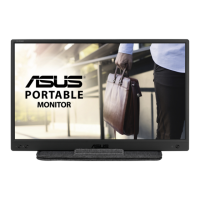

 To Next Page