Need help?
Do you have a question about the Asus MB168B and is the answer not in the manual?
Device compliance with FCC rules, operation conditions for interference. Reasonable protection against harmful interference.
Digital apparatus compliance with Canadian Class B limits for radio noise emissions.
Official website for updated product and software information.
Additional documents included by dealer, not part of the standard package.
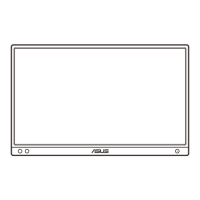
Details the front panel components and indicators of the monitor.
Explains the G-sensor feature for automatic screen orientation changes.
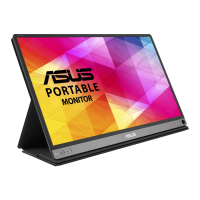
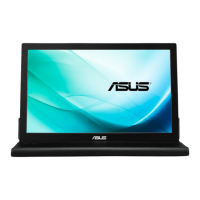
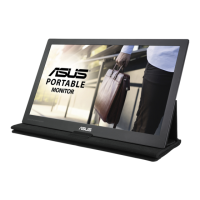
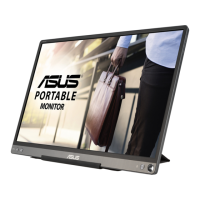
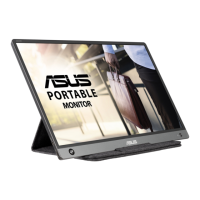
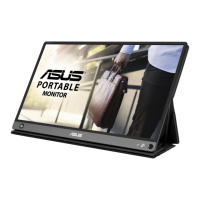
The ASUS MB168B/MB168B+/MB168B-J is a portable USB monitor designed to enhance your daily viewing experience with its great portability and simplicity. This user guide provides comprehensive information on setting up, using, and maintaining your USB monitor.
The ASUS USB monitor serves as an external display that connects to your computer via a USB 3.0 cable. It is designed to extend your desktop, providing additional screen real estate for increased productivity or a more immersive viewing experience. The monitor is powered directly through the USB port, eliminating the need for a separate power adapter, which contributes to its portability.
A key feature of this monitor is its auto-rotate function, which is enabled by a built-in G-sensor. This sensor detects the monitor's real-time physical orientation, allowing the screen content to automatically switch between landscape and portrait modes. This functionality is particularly useful for tasks that benefit from a vertical display, such as reading documents or browsing web pages, and ensures optimal viewing regardless of how the monitor is positioned. The auto-rotation feature is supported by the DisplayWidget software, which needs to be downloaded and installed from the ASUS product page.
The monitor also includes a power button/power indicator, which allows you to easily turn the monitor on or off. The color of the power indicator provides visual feedback on the monitor's status: white for ON, and amber for Standby mode or OFF.
Setting up the ASUS USB monitor is straightforward. After unboxing, you should first check the package contents to ensure all items are present and undamaged, including the USB monitor itself, a Quick Start Guide, Warranty Card, USB 3.0 Cable, and a Leather Case/Stand. If any items are missing or damaged, it is recommended to contact your retailer immediately.
The monitor requires a computer running Windows 10. To connect the monitor, simply plug one end of the provided USB 3.0 cable into the monitor's Micro B USB 3.0 port and the other end into an available USB port on your computer.
Before using the monitor, it is crucial to install the necessary drivers. These drivers can be downloaded from the ASUS product page (www.asus.com). You will need to select your operating system (OS) and then download and install the appropriate driver. Additionally, for the auto-rotate function and brightness adjustment to work correctly, you will need to download and install the latest DisplayWidget software (V3.1.0.014 or newer) from the ASUS support site. This software provides a user interface to control these features, especially since the physical brightness adjustment buttons may not function after OS Windows 10 due to IC limitations.
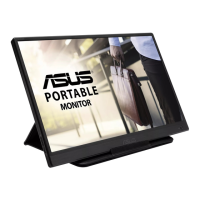
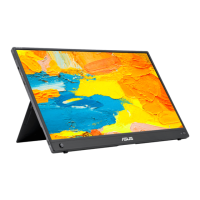
The included leather case doubles as a stand, offering two adjustable viewing angles. For an upright position, you should use the far side strip from the top cover of the case. For a more tilted-back position, use the other strip. This flexibility allows you to adjust the monitor to the most comfortable angle for optimal viewing. It is recommended to position the monitor so that you are looking at its full face, then adjust the angle as needed.
When encountering issues such as the power LED not turning on, no screen image despite the LED being amber, or screen image problems (too light/dark, bouncing, or color defects), the troubleshooting section of the user guide provides helpful solutions. These include checking cable connections, ensuring the monitor and computer are in ON mode, inspecting signal cables for bent pins, connecting to another monitor to verify computer functionality, adjusting brightness settings via OSD (if applicable, or DisplayWidget for Windows 10), and moving electrical devices that might cause interference.
Proper care and cleaning are essential to maintain the longevity and performance of your ASUS USB monitor. Before cleaning, always turn off the monitor and unplug the USB cable. The monitor surface should be cleaned with a lint-free, non-abrasive cloth. For stubborn stains, a cloth dampened with a mild cleaner can be used. It is important to avoid cleaners containing alcohol or acetone, and to use a cleaner specifically intended for LCDs. Never spray cleaner directly onto the screen, as liquid could drip inside the monitor and cause an electric shock.
To ensure safe operation, several safety guidelines must be followed. Always read the documentation that came with the package before setting up the monitor. To prevent fire or shock hazards, never expose the monitor to rain or moisture, and never attempt to open the monitor cabinet. Before use, verify that all cables are correctly connected and undamaged. If any damage is detected, contact your dealer immediately.
The monitor should be placed on a stable surface, away from dust, humidity, and extreme temperatures. Avoid placing it in areas where it might get wet. Never push objects or spill liquid into the slots on the monitor cabinet. If you encounter any technical problems, contact a qualified service technician or your retailer; do not attempt to repair the screen yourself. The monitor is powered by a USB port that complies with LPS and SELV circuit according to IEC60950-1:2005, ensuring safe power delivery.
It is normal to observe slight uneven brightness on the screen depending on the desktop pattern used. Also, if the same image is displayed for extended periods, an afterimage of the previous screen might temporarily remain after switching images; this usually recovers slowly or can be resolved by turning off the monitor for a few hours.
ASUS also offers recycling and takeback programs, reflecting its commitment to environmental protection. Information on how to responsibly recycle your product, batteries, and other components can be found on the ASUS CSR website (http://csr.asus.com/english/Takeback.htm).
The user guide also includes important notices regarding Federal Communications Commission (FCC) and Canadian Department of Communications statements, ensuring compliance with regulatory standards. The device complies with FCC rules, meaning it should not cause harmful interference and must accept any interference received. This equipment has been tested and found to comply with Class B digital device limits, designed to provide reasonable protection against harmful interference in residential installations. If interference occurs, measures like reorienting the receiving antenna, increasing separation between equipment and receiver, connecting to a different circuit, or consulting a radio/TV technician are suggested. The Canadian statement confirms compliance with Class B limits for radio noise emissions.
 General
| HD type | WXGA |
|---|---|
| Panel type | TN |
| Pixel pitch | 0.252 x 0.252 mm |
| Screen shape | Flat |
| Response time | 11 ms |
| Display diagonal | 15.6 \ |
| Anti-glare screen | Yes |
| Display resolution | 1366 x 768 pixels |
| Display technology | LED |
| Native aspect ratio | 16:9 |
| Maximum refresh rate | 60 Hz |
| Viewing angle, vertical | 65 ° |
| Contrast ratio (dynamic) | - |
| Contrast ratio (typical) | 500:1 |
| Display number of colors | 260000 colours |
| Viewing angle, horizontal | 90 ° |
| Display brightness (typical) | 200 cd/m² |
| USB hub version | 3.2 Gen 1 (3.1 Gen 1) |
| VGA (D-Sub) ports quantity | 0 |
| USB Type-A downstream ports quantity | 1 |
| AC input voltage | 100 - 240 V |
| AC input frequency | 50 - 60 Hz |
| Energy efficiency scale | A to G |
| Power consumption (standby) | - W |
| Power consumption (typical) | 7.5 W |
| Certification | BSMI, CB, CCC, CE, C-Tick, CU, FCC, PSE, RoHS, UL/cUL, VCCI, WEEE, WHQL (Windows 7) |
| Product color | Black, Silver |
| Package type | Box |
| Package depth | 57 mm |
| Package width | 435 mm |
| Package height | 297 mm |
| Package weight | 2000 g |
| Cables included | USB Type-A |
| Harmonized System (HS) code | 85285210 |
 Weight and Dimensions
| Depth (with stand) | 8 mm |
|---|---|
| Width (with stand) | 379 mm |
| Height (with stand) | 236 mm |
| Weight (with stand) | 800 g |

 To Next Page