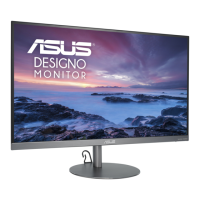
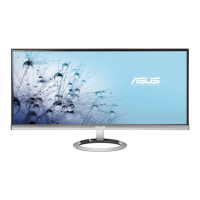
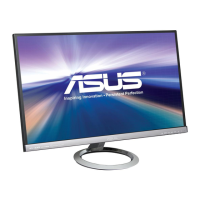
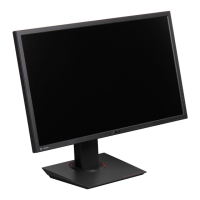
The ASUS MZ279HL Series LCD Monitor is a widescreen display designed to provide a crisp, broader, and brighter viewing experience with a host of features to enhance user interaction. This monitor is suitable for various applications, from document editing and photo viewing to gaming and movie watching.
Function Description
The monitor's primary function is to display visual content from connected devices. It supports multiple input sources, including HDMI and VGA, allowing for flexible connectivity with computers and other multimedia devices. The display offers a range of image adjustment capabilities through its On-Screen Display (OSD) menu, enabling users to customize the visual output to their preferences.
A key feature of the MZ279HL Series is the Splendid Video Intelligence Technology, which provides eight preset display modes optimized for different content types:
- Scenery mode: Best for displaying scenery photos.
- Standard Mode: Ideal for document editing.
- Theater Mode: Optimized for movie watching.
- Game Mode: Enhances the experience for game playing.
- Night View Mode: Suitable for dark-scene games or movies.
- sRGB Mode: Best for viewing photos and graphics from PCs.
- Reading Mode: Designed for comfortable book reading.
- Darkroom Mode: Optimized for environments with weak ambient light.
Each Splendid mode includes a Reset option, allowing users to either maintain their custom settings or revert to the preset configuration.
The monitor also incorporates Blue Light Filter technology, which helps reduce harmful blue light emissions. This feature has four levels, with higher levels scattering less blue light. Level 4 is an optimized setting that complies with TUV Low Blue Light Certification, and its brightness function is not user-configurable. This feature is particularly beneficial for users who spend long hours in front of the display, aiming to minimize eye strain and dryness.
For color management, the monitor offers Color adjustments, including Brightness, Contrast, Saturation, Color Temp., and Skin Tone. Users can fine-tune these parameters to achieve their desired color output. The Color Temp. options include Cool, Normal, Warm, and a User Mode where Red, Green, and Blue colors can be individually adjusted. Skin Tone can be set to Reddish, Natural, or Yellowish.
The Image function provides further control over display characteristics such as Sharpness, Trace Free, Aspect Control, VividPixel, ASCR, Adaptive-Sync, Position, Focus, and Auto Adjust.
- Sharpness: Adjusts the picture sharpness.
- Trace Free: Speeds up response time using Over Drive technology, ranging from lower 0 to faster 100.
- Aspect Control: Allows adjustment of the aspect ratio to Full, 4:3, or OverScan. The 4:3 option is available only when the input source is in 4:3 format, and OverScan is exclusive to HDMI input.
- VividPixel: An ASUS exclusive technology that enhances visuals for crystal-clear and detail-oriented enjoyment.
- ASCR (ASUS Smart Contrast Ratio): Enables or disables the dynamic contrast ratio function.
- Adaptive-Sync: For compatible graphics sources (HDMI), this feature dynamically adjusts the display refresh rate based on content frame rates, promoting power efficiency, stutter-free visuals, and low-latency updates.
- Position: Adjusts the horizontal and vertical position of the image (available for VGA input).
- Focus: Reduces horizontal and vertical line noise by adjusting Phase and Clock (available for VGA input).
- Auto Adjust: Automatically performs image adjustments (available for VGA input).
The monitor also includes Sound settings, allowing users to adjust the output volume and select from preset AudioWizard sound modes: Music Mode, Movie Mode, Gaming Mode, and User Mode. In User Mode, equalizer settings can be customized.
Usage Features
The MZ279HL Series is designed for user convenience and an enhanced visual experience.
- 5-way button: A single intuitive 5-way button located on the back of the monitor serves as the primary control for navigating the OSD menu and activating various functions. Pushing it once brings up the button functions menu, and twice enters the OSD menu. Moving it left closes the button functions menu, and moving it right powers off the monitor. It also serves as a shortcut key for Volume and Blue Light Filter by default.
- QuickFit Function: This unique feature allows users to preview documents or photo layouts directly on screen without needing to print test copies. It offers three patterns:
- Grid pattern: Helps designers organize content and layout for a consistent look.
- Paper size: Enables viewing documents in real size (e.g., A4, B5, Letter).
- Photo size: Allows photographers to accurately view and edit photos in real size (e.g., 4x6, 3x5, 2x2, 8x10, 5x7).
- EyeCheck Function: This function includes three patterns to assist with eye health:
- Snellen Chart: A standard eye chart for vision assessment.
- Amslter Grid: Helps check for straightness of lines, useful for detecting certain visual distortions.
- Astigmatism: A pattern to check if all lines appear to be the same width, assisting in identifying astigmatism.
- GamePlus: This toolkit provides features to enhance the gaming environment. It includes a Crosshair function, specifically designed for new gamers or beginners in First Person Shooter (FPS) games, as well as Timer and FPS Counter functions.
- Adjustable Monitor Stand: The monitor offers ergonomic adjustments for optimal viewing comfort:
- Tilt angle: -5° to +22°
- Swiveling angle: +30° to -30°
- Adjustable height: 100mm
These adjustments allow users to position the monitor to their most comfortable angle, reducing strain during prolonged use.
Maintenance Features
Proper care and maintenance are essential for the longevity and optimal performance of the monitor.
- Cleaning: The monitor surface should be cleaned with a lint-free, non-abrasive cloth after turning it off and unplugging the power cord. Stubborn stains can be removed with a cloth dampened with a mild cleaner. It is crucial to avoid cleaners containing alcohol or acetone and never to spray cleaner directly on the screen to prevent damage or electric shock.
- Power Management: The product implements power management functionality, automatically entering sleep/standby mode if no signal input is detected after 10 seconds, contributing to energy saving.
- Troubleshooting Guide: The manual provides a troubleshooting section (FAQ) to help users resolve common issues such as the power LED not turning on, no screen image, screen image quality problems (too light/dark, bouncing, color defects), or sound issues. This guide offers practical solutions like checking cable connections, adjusting OSD settings, and performing a reset.
- Key Lock Function: The monitor includes a Key Lock function, which can be activated by pressing the second button on the right for more than five seconds, preventing accidental changes to settings.
- Power Key Lock: This feature allows users to disable or enable the power key, preventing unintended power off.
- All Reset: An "All Reset" option in the OSD menu allows users to revert all settings to the factory default mode, useful for troubleshooting or restoring original configurations.
- Environmental Considerations: The monitor is designed to comply with various environmental regulations, including Energy Star guidelines for energy efficiency, and includes features like ECO Mode for power saving.
- Safety Information: The manual emphasizes safety precautions, such as not opening the monitor cabinet due to high voltages, contacting qualified service technicians for repairs, ensuring correct cable connections, and avoiding blocking ventilation slots. It also advises against exposing the monitor to rain, moisture, excessive dust, humidity, or temperature extremes. Unplugging the unit during lightning storms or extended periods of disuse is recommended to protect against power surges.
The ASUS MZ279HL Series LCD Monitor is a versatile and user-friendly display, offering a rich set of features for diverse applications while prioritizing user comfort and ease of maintenance.

 Need help?
 General

 To Next Page