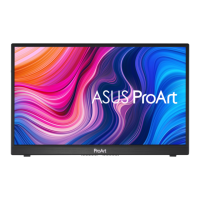
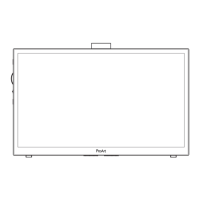
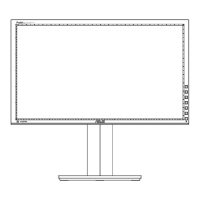
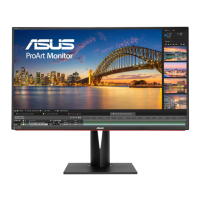
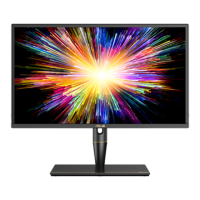
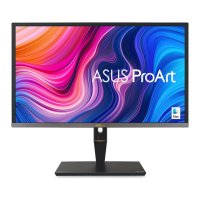
The ASUS PA147CDV Series LCD Monitor is a widescreen display designed to enhance your viewing experience with a crisp, broader, and brighter image. This monitor is equipped with a variety of features for both general use and specialized tasks, particularly those requiring precise color adjustments and touch interaction.
Function Description
The PA147CDV is an LCD monitor that serves as an external display for computers and other compatible devices. Its primary function is to present visual information with enhanced clarity and color accuracy. It supports various input sources, including HDMI and USB Type-C, allowing for flexible connectivity with different systems. The monitor also integrates touch panel technology, enabling interactive control and input, especially beneficial for operating systems like Windows 10 that support multi-touch gestures.
Usage Features
The monitor offers a comprehensive set of features to customize the display and user interaction.
Display Adjustments:
The monitor can be physically adjusted to an angle between 25° and 70°, providing flexibility for comfortable viewing in various setups.
The OSD menu is the central hub for configuring the monitor's settings. It is activated by pressing the Exit/Back button and navigated using the OK/Dial button.
-
ProArtPreset: This function provides nine sub-functions tailored for different viewing scenarios:
- Standard Mode: Ideal for general document editing.
- sRGB Mode: Compatible with the sRGB color space, also best for document editing.
- Rec. 709 Mode: Compatible with the Rec. 709 color space.
- DCI-P3 Mode: Compatible with the DCI-P3 color space.
- Scenery Mode: Optimized for displaying scenery photos.
- Reading Mode: Designed for comfortable book reading.
- Darkroom Mode: Best suited for environments with weak ambient light.
- User Mode 1 & 2: Allow users to make custom color adjustments in the Advanced Setting, providing personalized display configurations.
-
Blue Light Filter: This feature allows adjustment of the blue light energy emitted from the LED backlight, aiming to reduce eye strain.
- Level 0: No blue light filtering.
- Levels 1-3: Allow user-configurable brightness.
- Level 4: An optimized setting compliant with TUV Low Blue Light Certification, where brightness is not user-configurable. When the Blue Light Filter is active, the default settings of Standard Mode are automatically applied.
-
ProArtPalette: This advanced color adjustment suite provides granular control over various display parameters:
- Brightness: Adjusts the overall luminance of the display (range 0-100).
- Contrast: Adjusts the difference between the lightest and darkest areas of the image (range 0-100).
- Saturation: Adjusts the intensity of colors (range 0-100).
- Hue: Shifts the image color between green and purple.
- Color Temp.: Offers five preset color temperature modes: 9300K, 6500K, 5500K, 5000K, and P3-Theater (P3-Theater is only available when DCI-P3 Mode is selected).
- Gamma: Provides five gamma modes: 1.8, 2.0, 2.2, 2.4, 2.6.
- Black Level: Adjusts the initialized first signal level of the darkest gray level.
- Color: Allows for six-axis Hue and Saturation adjustments, as well as gain and offset adjustments for Red, Green, and Blue channels.
- Color Reset: Enables resetting color settings for the current mode or all modes to their factory default values.
-
Image Settings:
- Sharpness: Adjusts the picture sharpness (range 0-100).
- Trace Free: Utilizes Over Drive technology to speed up the response time (range 0-100).
- Aspect Control: Adjusts the aspect ratio to Full or 4:3 (4:3 is only available when the input source is in 4:3 format).
- Input Range: Adjusts the input range to Auto, Full, or Limited 16-235.
- ASCR (ASUS Smart Contrast Ratio): Enables or disables the dynamic contrast ratio function.
-
Sound Settings:
- Volume: Adjusts the output volume level.
- Mute: Toggles audio mute on or off.
-
Input Select: Allows users to manually select the input source from HDMI, USB Type-C1, or USB Type-C2.
-
System Setup:
- Auto Rotation: Enables or disables automatic image rotation. This function requires Windows OS and the Chroma Tune software to be installed.
- Touch Screen: The PA147CDV is a 10-point touch monitor, compatible with modern operating systems like Windows 10. It supports single-finger or multi-finger touch up to 10 simultaneous touch points. First-time setup involves configuring Tablet PC Settings in the Control Panel.
- OSD Setup: Adjusts OSD Timeout, DDC/CI, and Transparency of the OSD screen.
- QuickFit: This feature provides on-screen templates for document and photo layouts, allowing users to preview content without printing. It includes:
- Alignment Grid: Helps designers organize content and layout.
- Ruler: Displays a physical ruler on the top and left sides, with measurements switchable between metric and imperial.
- Square: Shows a square in the center of the screen.
- Key Lock: Disables all key functions. It can be activated by pressing the Exit/Back button for more than five seconds.
- Power Indicator: Toggles the power LED indicator on or off.
- Information: Displays monitor information.
- Language: Allows selection of the OSD language from a wide range of options including English, French, German, Spanish, Italian, Dutch, Russian, Polish, Czech, Croatian, Hungarian, Romanian, Portuguese, Turkish, Simplified Chinese, Traditional Chinese, Japanese, Korean, Persian, Thai, and Indonesian.
- ECO Mode: Activates a power-saving mode.
- All Reset: Reverts all settings to the factory default mode.
Maintenance Features
The manual provides guidelines for the care and cleaning of the monitor to ensure its longevity and proper functioning.
- General Care: Before moving the monitor, it is recommended to disconnect all cables and the power cord. When lifting or carrying, grasp the edges of the monitor, not the stand or cord.
- Cleaning: The monitor surface should be cleaned with a lint-free, non-abrasive cloth after turning it off and unplugging the power cord. Stubborn stains can be removed with a cloth dampened with a mild cleaner. Avoid cleaners containing alcohol or acetone, and never spray cleaner directly onto the screen to prevent liquid from dripping inside.
- Environmental Considerations: The monitor should be kept away from dust, humidity, and extreme temperatures. It should not be placed in areas where it might get wet and should always be on a stable surface. Proper ventilation is crucial; avoid blocking the ventilation slots and placing the product near radiators or heat sources.
- Power Management: Use the appropriate power plug for your local standard and avoid overloading power strips or extension cords. Unplug the unit during lightning storms or if it will not be used for extended periods to protect against power surges.
- Troubleshooting: The manual includes a troubleshooting section (FAQ) to help users resolve common issues such as the power LED not turning on, no screen image, image quality problems (too light/dark, bouncing, color defects), or no sound. This section guides users through checks like cable connections, OSD settings, and basic electrical interference. For technical problems that cannot be resolved, users are advised to contact a qualified service technician or retailer.
- Safety Information: Emphasizes not attempting to open the monitor cabinet due to high voltages, and not trying to fix a broken power supply independently. It also advises against pushing objects or spilling liquid into the monitor's slots.
The ASUS PA147CDV is designed to be a versatile and user-friendly display, offering both standard monitor functionalities and advanced features for creative professionals and general users alike, with a strong emphasis on user customization and eye comfort.

 Need help?
 General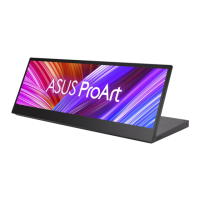

 To Next Page