
 Need help?
Do you have a question about the Asus PA238Q and is the answer not in the manual?
Step-by-step guide to navigate and change settings within the OSD menu.
Explains the different Splendid video preset modes for image enhancement.
Detailed explanation of color adjustments, including brightness, contrast, and temperature.
Adjustments for sharpness, aspect ratio, and other image-related parameters.
Settings for demo modes, volume, OSD, language, and power indicator.
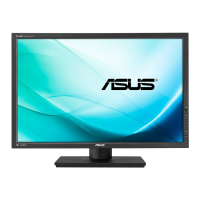
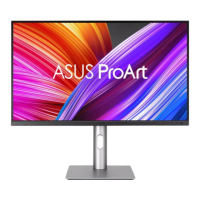
The ASUS PA238Q Series LED Monitor is a widescreen display designed to provide a crisp, broad, and bright visual experience, enhanced by a host of user-centric features. This monitor is suitable for various applications, from document editing to professional photo and video work, offering flexibility and control over the display.
The primary function of the ASUS PA238Q is to serve as a high-quality visual output device for computers and other video sources. It supports multiple input types, including VGA, DVI, HDMI, and DisplayPort, allowing for broad compatibility with different systems. The monitor is equipped with an On-Screen Display (OSD) menu, which provides comprehensive control over various display settings, enabling users to customize their viewing experience.
A key feature of this monitor is the Splendid Video Enhancement Technology, which offers five preset video modes: Standard, sRGB, Scenery, Theater, and User Mode. These modes are optimized for different content types, ensuring the best possible visual quality. For instance, Standard Mode is ideal for document editing, while Scenery Mode enhances photo displays, and Theater Mode is designed for movies. The sRGB Mode ensures color accuracy, compatible with the sRGB color space, making it a suitable choice for tasks requiring precise color representation. Each mode includes a Reset option, allowing users to revert to default settings or maintain their customized preferences.
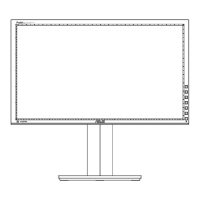
The monitor also incorporates QuickFit Functionality, a unique tool that aids designers and users in organizing content and achieving a consistent look and feel on the screen. QuickFit provides three types of patterns: Grid, Paper Size, and Photo Size. The Grid patterns, available in centimeters and inches, help with layout and alignment. The Paper Size patterns display commonly used standard paper sizes (like A4 and Letter) in real size, allowing users to preview documents accurately. The Photo Size patterns (e.g., 4x6, 3x5, 2x2, 8x10, 5x7) enable photographers to view and edit their images at their actual dimensions on the screen.
For enhanced multitasking, the ASUS PA238Q supports Picture-in-Picture (PIP) and Picture-by-Picture (PBP) modes. These modes allow the monitor to display two different video sources simultaneously, with one source appearing as a main window and the other as a sub-window. Users can select the input source for both the main and sub-windows, adjust the size of the PIP sub-window (Small, Middle, Large), and change its position (Right-Top, Left-Top, Right-Bottom, Left-Bottom). The monitor also allows for swapping the main and sub-window sources, providing flexibility in how content is viewed.
The monitor includes USB downstream ports, facilitating connections with various USB devices such as keyboards, mice, and flash drives. An upstream USB port is also available for connecting the monitor to a computer, enabling the functionality of the downstream ports. An earphone jack is provided for audio output when an HDMI or DisplayPort signal is fed, offering a convenient audio solution.
The ASUS PA238Q is designed with user convenience in mind, offering several features for easy adjustment and interaction.
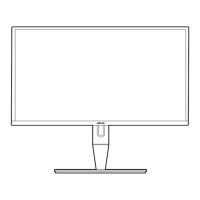
Physical Adjustments: The monitor stand is highly versatile, allowing for optimal viewing angles and ergonomic positioning. Users can adjust the monitor's angle from +20° to -5° (tilt) and swivel it 60° to either the left or right. The height of the monitor can also be adjusted within a +/- 10cm range. For pivoting the monitor, users are instructed to lift it to the highest position, tilt it to its maximum angle, and then pivot it clockwise to the desired orientation. The stand is detachable, making the monitor compatible with VESA wall mounts (100 x 100 mm), which can be purchased separately. This allows for greater flexibility in mounting options.
OSD Menu Navigation: The OSD menu is intuitive, accessed via dedicated buttons on the monitor. The [MENU] button activates the OSD. Users can navigate through functions using the [/▲] and [0/V] buttons, and select options by pressing [MENU]. Settings can be changed using the [/▲] and [0/V] buttons. The [S/A] button is used to exit the OSD menu.
Hotkey Functions: Several buttons double as hotkeys for quick access to frequently used functions. The [/▲] button serves as a hotkey for Brightness adjustment, while the [0/V] button is a hotkey for Contrast. The [S/A] button acts as a hotkey for selecting preset Splendid modes and also provides an auto-adjustment function for VGA mode, optimizing the image's position, clock, and phase with a long press (2-4 seconds). The QuickFit button directly activates the QuickFit function, providing immediate access to grid, paper, and photo patterns.
Image and Color Control: Within the OSD, users have granular control over image and color settings. The Color menu allows adjustment of Brightness, Contrast, Saturation, Hue, Color Temperature (with modes like 9300K, 6500K, 5500K, and 5000K), and Gamma (2.2 or 1.8). Advanced settings include Six-axis Hue and Six-axis Saturation adjustments, along with options to adjust gain levels for R, G, B and black level offset values. Color Reset options are available for both the current mode and all modes, allowing users to revert to factory defaults. The Image menu offers control over Sharpness, Trace Free (response time), Aspect Control (Full, 4:3, 1:1, Over Scan), ASCR (ASUS Smart Contrast Ratio), Position (H-Position, V-Position for VGA), Focus (Phase, Clock for VGA), and Auto Adjust (for VGA).
Input Selection: The Input Select menu allows users to manually choose the desired video input source (VGA, DVI, HDMI, or DisplayPort). The VGA and DVI inputs also support an "Auto scan" function for convenience.
System Setup: The System Setup menu provides general configuration options. This includes Splendid Demo Mode (for comparing Splendid modes), Volume control for the earphone output (disabled for VGA/DVI inputs), OSD Setup (H-Position, V-Position, OSD Timeout, DDC/CI, Transparency), Information (to show monitor details), Language selection (10 languages available), Power Indicator control (on/off), and All Reset (to restore default settings).
Proper care and maintenance are essential for the longevity and optimal performance of the ASUS PA238Q monitor.
Cleaning: Before cleaning or repositioning the monitor, it is recommended to disconnect all cables and the power cord. The monitor surface should be cleaned with a lint-free, non-abrasive cloth. For stubborn stains, a cloth dampened with a mild cleaner can be used. It is crucial to avoid cleaners containing alcohol or acetone and to use only cleaners intended for LCDs. Never spray cleaner directly onto the screen, as it may drip inside and cause electrical shock.
Safety Precautions: The manual emphasizes several safety guidelines. Users should never attempt to open the monitor cabinet due to dangerous high voltages inside. If the power supply is broken, professional service is required. All cables must be correctly connected and undamaged before use. Ventilation slots should not be blocked, and the monitor should not be placed near radiators or heat sources without proper ventilation. The monitor should be operated only from the specified power source, and the appropriate power plug for the local standard should be used. Overloading power strips and extension cords should be avoided to prevent fire or electric shock.
Environmental Considerations: The monitor should be protected from dust, humidity, and extreme temperatures. It should not be placed in areas where it might get wet and should always be on a stable surface. During lightning storms or extended periods of non-use, unplugging the unit is advised to protect against power surges. Objects or liquids should never be pushed or spilled into the monitor's cabinet slots.
Troubleshooting Guidance: The manual includes a troubleshooting section (FAQ) to help users resolve common issues. This section provides solutions for problems such as the power LED not being on, no screen image despite the power LED being amber, screen image being too light or dark, improper centering or sizing, image bouncing or wave patterns, color defects, blurry or fuzzy images, and no or low sound. These solutions often involve checking cable connections, adjusting OSD settings (Brightness, Contrast, H-Position, V-Position, Phase, Clock, R/G/B color, Color Temperature), or performing an All Reset. For audio issues, checking the computer's sound card driver and input source is recommended, noting that audio functions are disabled for VGA or DVI input sources.
By adhering to these usage and maintenance guidelines, users can ensure a reliable and high-quality viewing experience with the ASUS PA238Q Series LED Monitor.
 General
| 3D | No |
|---|---|
| Pixel pitch | 0.2652 x 0.2652 mm |
| Aspect ratio | 16:9 |
| Response time | 6 ms |
| Display diagonal | 23 \ |
| Supported video modes | 1080p |
| Viewable size diagonal | 584 mm |
| Contrast ratio (dynamic) | 50000000:1 |
| Contrast ratio (typical) | - |
| Display number of colors | 16.78 million colors |
| Digital vertical frequency | 50 - 75 Hz |
| Digital horizontal frequency | 24 - 83 kHz |
| Display brightness (typical) | 250 cd/m² |
| Supported graphics resolutions | 1920 x 1080 (HD 1080) |
| HDCP | Yes |
| USB hub version | 2.0 |
| Headphone connectivity | 3.5 mm |
| USB Type-A downstream ports quantity | 5 |
| Certification | UL/cUL, CB, CE, ErP, FCC(Class B), CCC, BSMI, Gost-R, C-Tick, VCCI, TCO5.2, TUV-GS, TUV-Ergo, ISO-9241-307, PSB, J-MOSS, RoHS, WEEE |
| Product color | Black |
| Market positioning | Graphics design |
| Tilt angle range | 20 - -5 ° |
| Cable lock slot type | Kensington |
| Panel mounting interface | 100 x 100 mm |
| Power consumption (off) | 0 W |
| Power consumption (typical) | 33 W |
| Power consumption (PowerSave) | 1 W |
| Package depth | 253 mm |
| Package width | 671 mm |
| Package height | 386 mm |
| Package weight | 7800 g |
| Cables included | AC, AV, DisplayPort, DVI, USB, VGA |
| Sustainability certificates | ENERGY STAR |
 Weight and Dimensions
| Depth (without stand) | 201 mm |
|---|---|
| Width (without stand) | 548.8 mm |
| Height (without stand) | 495.7 mm |
| Weight (without stand) | 5500 g |



 To Next Page