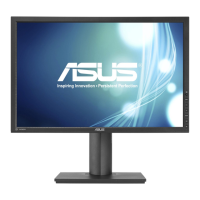
Need help?
Do you have a question about the Asus PB277 Series and is the answer not in the manual?
Statements regarding FCC and Canadian electromagnetic compatibility.
Critical safety instructions for operating the monitor.
Procedures for cleaning the monitor surface and safe handling.
Explanation of symbols and conventions used in the user guide.
Guidance on accessing ASUS websites and optional documentation.
Lists included items and provides steps for assembling the monitor.
Details on connecting cables and using features like QuickFit.
Instructions for detaching the stand and adjusting monitor position and angle.
How to navigate and change settings using the On-Screen Display (OSD) menu.
Explanation of OSD features: Splendid, Blue Light Filter, Color, Image, Sound, PIP/PBP, Input Select, System Setup.
Detailed technical specifications of the ASUS PB277 LCD Monitor.
Solutions for common problems like power issues, image quality, and sound.
Lists supported display resolutions and refresh rates for optimal performance.
Official declarations of product compliance with EU and FCC regulations.
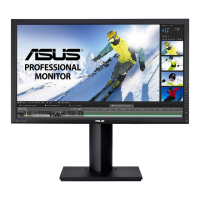
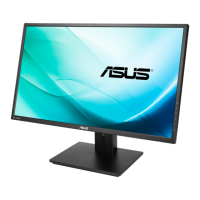
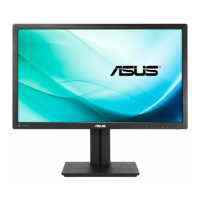
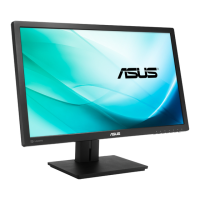
This document is a user guide for the ASUS PB277 Series LCD Monitor, providing comprehensive instructions for setup, operation, and maintenance. It is designed to help users maximize their viewing experience with this widescreen LCD monitor, which offers a crisp, broader, and brighter display alongside a variety of enhancing features.
The monitor's primary function is to provide a visual display for computers and other video sources. It supports multiple input types, including VGA, DVI, HDMI, and DisplayPort, making it versatile for various setups. The monitor is designed for ease of assembly and offers ergonomic adjustments to ensure user comfort.
The ASUS PB277 Series LCD Monitor is equipped with several features to enhance usability and viewing quality.
The monitor is designed for straightforward assembly. Users can easily attach the monitor base to the display and secure it with a screw. A cable clip is provided to help manage cables and maintain a tidy workspace. The monitor offers extensive ergonomic adjustments, including:
The OSD menu is accessed via a 5-way button located on the back of the monitor, allowing users to navigate and adjust various settings. The menu is intuitive, with options highlighted as the user moves through them. Key OSD functions include:
Splendid: This feature offers eight sub-functions for optimizing the display based on content type. These modes include Scenery Mode, Standard Mode, Theater Mode, Game Mode, Night View Mode, sRGB Mode, Reading Mode, and Darkroom Mode. Each mode has a Reset option to revert to preset settings. For instance, Scenery Mode is ideal for displaying photos, while Game Mode enhances the experience for gaming. Some functions like Saturation, SkinTone, Sharpness, and ASCR may not be user-configurable in certain Splendid modes (e.g., Standard, sRGB, or Reading Mode).
Blue Light Filter: This function allows users to adjust the energy level of blue light emitted from the LED backlight, with levels ranging from 0 (no change) to 4 (maximum reduction). Higher levels reduce more blue light, which can help alleviate eye strain. Levels 1 to 3 allow brightness adjustment, while Level 4 is an optimized setting compliant with TUV Low Blue Light Certification, where brightness is not user-configurable. The manual also provides recommendations for alleviating eye strain, such as taking regular breaks and performing eye exercises.
Color Settings: Users can adjust various color parameters, including Brightness, Contrast, and Saturation, all with an adjusting range from 0 to 100. Color Temp. offers three preset modes (Cool, Normal, Warm) and a User Mode, where Red, Green, and Blue colors can be individually configured. Skin Tone provides Reddish, Natural, and Yellowish options. Smart View offers versatile viewing positions.
Image Settings: This section allows fine-tuning of image quality. Options include:
Sound Settings: Users can adjust the output Volume, Mute the sound, and select the audio Source (Line In, HDMI, or DisplayPort).
PIP/PBP Setting: This feature allows the monitor to display two pictures from two different video sources simultaneously. Users can select PIP (Picture-in-Picture) or PBP (Picture-by-Picture) mode, choose the video input source for the sub-window (VGA, DVI, HDMI, or DisplayPort), adjust the PIP size (Small, Middle, Large), set the sub-window Position (Right-Top, Left-Top, Right-Bottom, Left-Bottom), control the Aspect Control of the PIP window, and Swap the main and sub-window sources.
Input Select: A dedicated hotkey and OSD option allow users to switch between VGA, DVI, HDMI, or DisplayPort input signals.
System Setup: This section configures system-level settings:
The QuickFit button is a hotkey that activates a function designed for alignment. It offers three patterns:
Proper care and cleaning are essential for the longevity and optimal performance of the ASUS PB277 Series LCD Monitor.
The user guide emphasizes several safety precautions:
The guide also outlines normal operating characteristics that are not indicative of a fault:
The monitor's detachable stand is specifically designed for VESA wall mounting (100 x 100 mm). To detach the arm/stand, users need to disconnect cables, place the monitor face down on a soft cloth, remove four screws from the arm, and then detach the arm/stand. It is recommended to use a UL Listed Wall Mount Bracket with a minimum weight/load of 28.8 kg and M4 x 10 mm screws.
 General
| Screen Size | 27 inches |
|---|---|
| Refresh Rate | 75 Hz |
| Response Time | 1 ms (GTG) |
| Brightness | 350 cd/m² |
| Viewing Angle | 170° (H) / 160° (V) |
| Color Support | 16.7 Million Colors |
| Aspect Ratio | 16:9 |
| Resolution | 2560 x 1440 (QHD) |
| Panel Type | TN |
| Contrast Ratio | 1000:1 |
| Ports | DisplayPort 1.2, HDMI 1.4, D-Sub |
| VESA Mount Compatible | 100 x 100 mm |

 To Next Page