Need help?
Do you have a question about the Asus PB278Q and is the answer not in the manual?
Device complies with FCC Part 15 rules regarding radio frequency emissions and interference.
Product meets Energy Star guidelines for energy efficiency.
Apparatus complies with Canadian ICES-003 for digital apparatus radio noise emissions.
Describes common and normal monitor behaviors like screen flicker and afterimages.
Explanation of symbols used for warnings, cautions, and important notes in the manual.
Official ASUS website for product information and software updates.
Information about supplementary documents that may be included with the product.
Introduction to the monitor and a list of items included in the package.
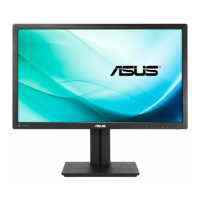
Details the controls and indicators on the front of the ASUS PB278Q monitor.
Identifies the input/output ports on the rear panel of the monitor.
Explains the QuickFit feature for on-screen alignment grids and paper/photo sizes.
Instructions on how to detach the monitor stand for VESA wall mounting.
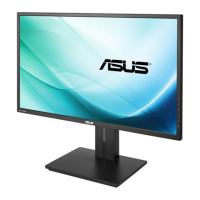
Details how to adjust the monitor's tilt, swivel, and height for optimal viewing.
Instructions for connecting power, video, and audio cables to the monitor.
How to access and navigate the On-Screen Display (OSD) menu using monitor buttons.
Description of available Splendid picture modes for image optimization.
Adjustments for color, brightness, contrast, sharpness, and other image parameters.
Managing audio settings and selecting video input sources.
Settings for OSD, language, power indicator, and factory reset.
Comprehensive list of technical specifications for the ASUS PB278Q monitor.
Addresses frequent issues like power, screen display, and sound problems with possible solutions.
Lists supported resolutions, refresh rates, and horizontal frequencies for PC and IBM modes.
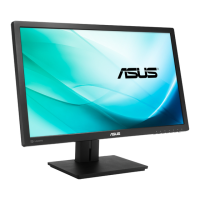
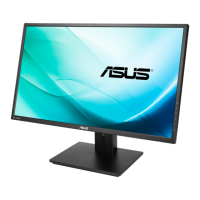
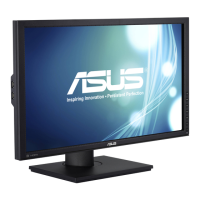
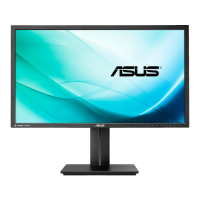
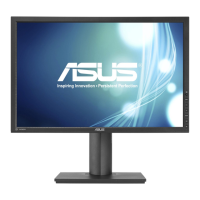
The ASUS PB278Q Series LCD Monitor is a widescreen display designed to provide a crisp, broad, and bright viewing experience with a host of features to enhance user interaction. This monitor is suitable for various applications, from document editing to movie watching and photo display.
The monitor's primary function is to display visual content from a connected computer or other compatible devices. It features multiple input options, including VGA, DVI, HDMI, and DisplayPort, allowing for flexible connectivity with a wide range of systems. The monitor is equipped with an On-Screen Display (OSD) menu, which provides comprehensive control over various display settings, enabling users to customize their viewing experience.
A notable feature is the SPLENDID™ Video Intelligence technology, which offers five preset modes: Standard, sRGB, Scenery, Theater, and User Mode. These modes are optimized for different content types, ensuring the best possible image quality. For instance, Standard Mode is ideal for document editing, sRGB Mode is compatible with the sRGB color space and also suitable for document editing, Scenery Mode enhances scenery photos, and Theater Mode is designed for movie watching. The User Mode allows for more granular adjustments in the Color menu.
The monitor also includes a QuickFit function, which is a unique alignment tool. This function provides three types of patterns: Grid, Paper size, and Photo size. The Grid patterns assist designers and users in organizing content and layout, ensuring a consistent look and feel. The Paper size patterns allow users to view documents in their real size on the screen, offering commonly used standard paper sizes. The Photo size patterns enable photographers and other users to accurately view and edit photos in their real sizes on the screen, with options like 4x6, 3x5, 2x2, 8x10, and 5x7.
Audio capabilities are integrated into the monitor, featuring built-in satellite speakers and an earphone jack. Users can adjust the output volume, mute the sound, and select the audio source (Line In, HDMI, or DisplayPort) through the OSD menu.
The ASUS PB278Q monitor is designed for ease of use and ergonomic comfort. The physical controls on the front panel include a Power Button/Power Indicator, Input Select Button, Brightness hotkey, MENU Button, and Volume hotkey. These buttons provide quick access to essential functions and OSD menu navigation.
The power indicator changes color to show the monitor's status: blue for ON, amber for Standby mode, and off when the monitor is off. The Input Select button allows users to quickly switch between connected video sources. The Brightness hotkey provides direct access to brightness adjustment. The MENU button activates the OSD menu, and the navigation buttons (left/down and right/up) are used to browse and adjust settings within the OSD. The Volume hotkey offers quick volume control.
Ergonomic adjustments are a key aspect of this monitor. The stand allows for a wide range of motion to ensure optimal viewing comfort. Users can adjust the monitor's angle from +20° to -5° (tilt), swivel it 60° to either the left or right, and adjust its height within a range of +/- 12cm. The monitor can also be pivoted clockwise to a desired angle, which is useful for displaying content in portrait orientation. To pivot the monitor, users must first lift it to its highest position and tilt it to its maximum angle.
For users who prefer wall mounting, the detachable stand is VESA wall mount compatible (100 x 100 mm). The process involves disconnecting cables, placing the monitor face down on a soft cloth, and removing four screws to detach the arm/stand. This flexibility allows the monitor to be integrated into various workspace setups.
The OSD menu offers extensive customization. Under the "Color" function, users can adjust brightness, contrast, saturation, hue, and color temperature, with options like 9300K, 6500K, 5500K, and 5000K. Gamma settings (2.2 or 1.8) and advanced settings for R, G, B gain levels and black level offset values are also available. The "Image" function allows adjustments for sharpness, Trace Free (response time), Aspect Control (Full, 4:3, 1:1, Over Scan), ASCR (ASUS Smart Contrast Ratio), Position (H-Position and V-Position for VGA input), Focus (Phase and Clock for VGA input), and AUTO Adjust (for VGA input).
The "System Setup" menu provides options for Splendid Demo Mode (for comparing Splendid modes), OSD Setup (H-Position, V-Position, Timeout, DDC/CI, and Transparency of the OSD screen), Information (displaying monitor details), Language selection (multiple languages supported), Power Indicator on/off, and All Reset (to revert all settings to factory defaults).
The manual provides clear guidelines for the care and maintenance of the monitor to ensure its longevity and safe operation. Before repositioning or cleaning the monitor, it is recommended to disconnect all cables and the power cord. When lifting or carrying the monitor, users should grasp the edges of the monitor, avoiding the stand or the cord.
For cleaning, the monitor should be turned off and unplugged. The surface should be cleaned with a lint-free, non-abrasive cloth. Stubborn stains can be removed with a cloth dampened with a mild cleaner. It is crucial to avoid cleaners containing alcohol or acetone and never to spray cleaner directly on the screen, as this could cause an electric shock or internal damage.
The manual also outlines important safety information to prevent hazards. Users are advised not to open the monitor cabinet due to high voltages inside. If the power supply is broken, a qualified service technician or retailer should be contacted. Proper ventilation is emphasized, with instructions not to block the ventilation slots. The monitor should be operated from the specified power source, and appropriate power plugs should be used. Overloading power strips and extension cords should be avoided to prevent fire or electric shock.
Environmental considerations include avoiding dust, humidity, and extreme temperatures, and placing the monitor on a stable surface. During lightning storms or extended periods of disuse, the unit should be unplugged to protect against power surges. Objects or liquids should never be pushed or spilled into the monitor cabinet. For satisfactory operation with a PC, the computer should have appropriately configured receptacles marked between 100-240V AC. In case of technical problems, users are directed to contact a qualified service technician or retailer. The wall socket should be easily accessible.
The manual also addresses normal symptoms that may occur with the monitor, such as screen flicker during initial use (which can be resolved by turning the power switch off and on), slightly uneven brightness depending on the desktop pattern, and afterimages when the same image is displayed for hours (which will recover slowly or by turning off the power switch). If the screen becomes black, flashes, or stops working, users are instructed to contact their dealer or service center and not to attempt repairs themselves.
 General
| Color | black |
|---|---|
| Screen Type | led |
| Tiltable | yes |
| Wall Mount | 100mm x 100mm |
| Touch Screen | no |
| Webcam | no |
| OS Compatibility | mac, windows |
| Screen Size | 27 inches |
| Panel Type | ips |
| Aspect Ratio | 16:9 |
| Resolution | 2560 x 1440 |
| Native Resolution | 2560 x 1440 |
| Refresh Rate | 60hz |
| Response Time | 5 milliseconds |
| Brightness | 300 candela per square meter |
| Contrast Ratio | 80, 000, 000:1 |
| Synchronization | not applicable |
| Horizontal Scan Rate | 89 kilohertz |
| HDR | no |
| Built-In Speakers | yes |
| Interface Connectors | 1 x vga, 1 x hdmi |
| HDMI Ports | 1 |
| VGA Ports | 1 |
| DVI | 1 |
| Power Consumption | 60 watts |
| Depth with Stand | 8.6 inches |
| Width with Stand | 25.3 inches |
| Net Weight without Stand | 19.4 pounds |

 To Next Page