EasyManua.ls Logo

Asus RT-N12E - User Manual

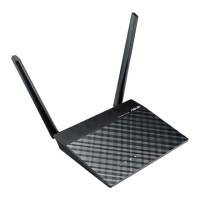
Asus RT-N12E
26 pages
Print Icon
To Next Page IconTo Next Page
Loading...
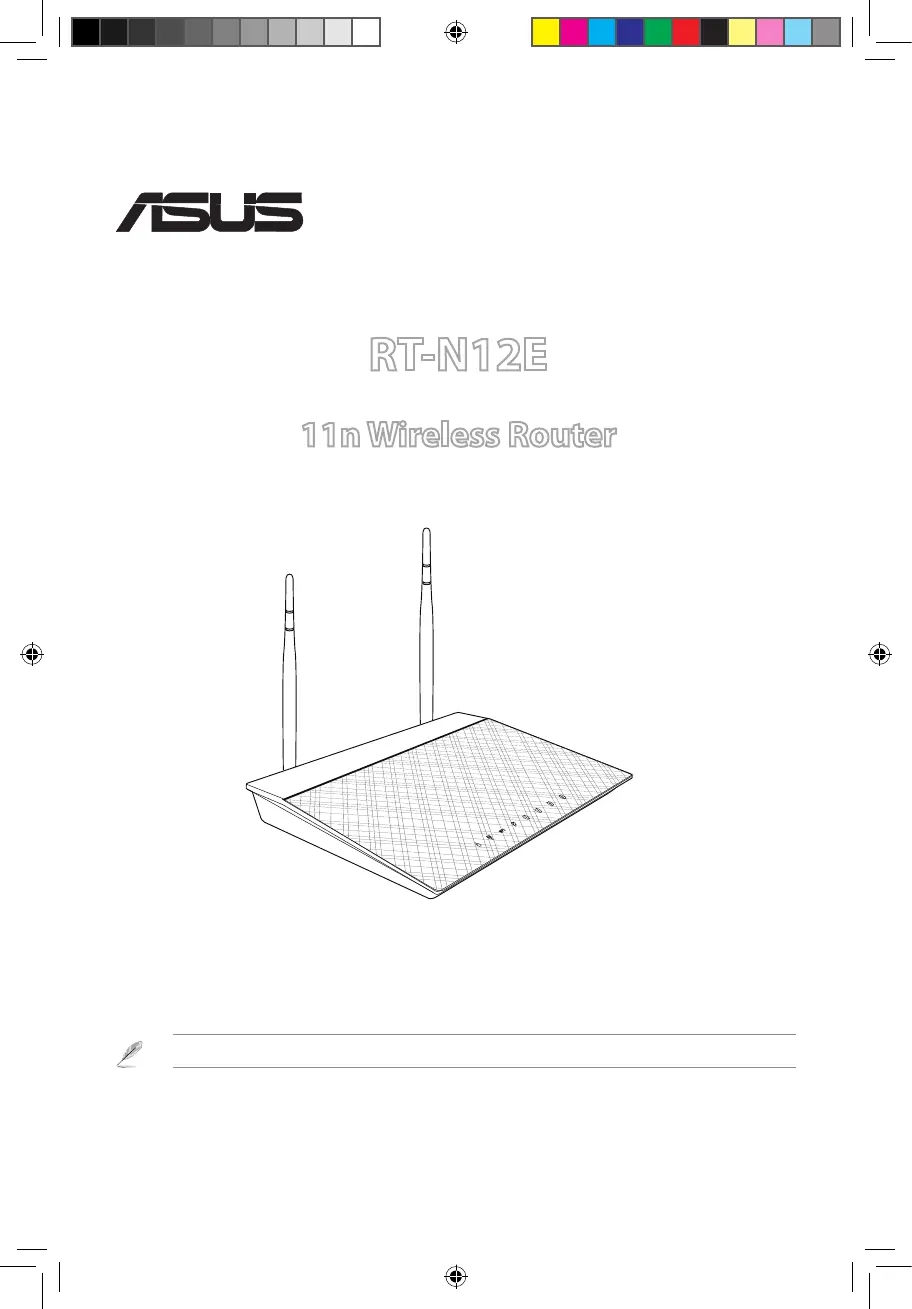
Quick Start Guide
RT-N12E
11n Wireless Router
Q8205 / second Edition / March 2013
®
Note: For more details on the features of the wireless router, please refer to the user manual included in the support CD.
Q8205_RT-N12E_QSG_v2.indd 1 3/28/13 5:13:01 PM

Questions and Answers

  • P
    Patrick DanielsJul 26, 2025
    How to restore Asus RT-N12E Wireless Router to its default settings?
    • S
      Stephen MartinJul 26, 2025
      To restore your Asus Wireless Router to its default settings, press the Restore button on the rear panel for more than five seconds. The default settings are: User Name: admin, Password: admin, Enable DHCP: Yes (if WAN cable is plugged in), IP address: 192.168.1.1, Domain Name: (Blank), Subnet Mask: 255.255.255.0, DNS Server 1: 192.168.1.1, DNS Server 2: (Blank), SSID: ASUS.
  • E
    Eric HansonJul 31, 2025
    What to do if ADSL “LINK” light blinks continuously on Asus RT-N12E Wireless Router?
    • D
      Dylan MontoyaJul 31, 2025
      If your ADSL “LINK” light blinks continuously or stays off, it means your Asus Wireless Router can't connect to the ADSL network, and Internet access is not possible. Ensure all cables are properly connected. Disconnect the power cord from the ADSL or cable modem, wait a few minutes, then reconnect it. If the ADSL light continues to blink or stays off, contact your ADSL service provider.
  • D
    David BooneAug 4, 2025
    What to do if I cannot access the Internet via wireless LAN adapter on Asus RT-N12E Wireless Router?
    • N
      Nicholas CooperAug 4, 2025
      If you cannot access the Internet via your Asus Wireless Router, check if the wireless adapter is connected to the correct wireless router. Also, verify whether the wireless channel in use conforms to the channels available in your country/area. Check the encryption settings and ensure the ADSL or Cable connection is correct. You may also try using another Ethernet cable and move the router closer to the wireless client.
  • J
    Jackson FullerAug 8, 2025
    Why client cannot establish a wireless connection with Asus RT-N12E?
    • N
      nicholas12Aug 8, 2025
      If your client cannot establish a wireless connection with the Asus Wireless Router, it might be due to several reasons. You could be out of range, so try moving the router closer to the wireless client or change the channel settings. Authentication issues might also be the cause, in which case you can use a wired connection to connect to the router, check the wireless security settings, or press the Restore button on the rear panel for more than five seconds. If you cannot find the router, try pressing the Restore button or check the settings in the wireless adapter, such as SSID and encryption settings.
  • J
    Jesus MurrayAug 13, 2025
    What to do if ADSL Modem “Link” light is ON on Asus RT-N12E Wireless Router?
    • G
      greerkaitlynAug 13, 2025
      If the ADSL Modem “Link” light is ON (not blinking) on your Asus Wireless Router, it means Internet Access is possible. In this case, try restarting your computer. Reconfigure the settings by referring to the Quick Start Guide. Check if the WAN LED on the wireless router is ON. Verify the wireless encryption settings. Ensure that your computer can get the IP address (via both wired and wireless networks) and that your web browser is configured to use the local LAN, not a proxy server.
  • M
    Mark CampbellAug 17, 2025
    What to do if I forgot Network name or encryption keys of Asus Wireless Router?
    • D
      Diane YangAug 17, 2025
      If you've forgotten the network name or encryption keys for your Asus Wireless Router, try setting up a wired connection and configuring the wireless encryption again. Alternatively, press the Restore button on the rear panel of the wireless router for more than five seconds.
  • M
    Michael AguirreAug 21, 2025
    Why I cannot use 192.168.1.1 to access the main page of Asus Wireless Router?
    • M
      michael08Aug 21, 2025
      To access the main page of your Asus Wireless Router, check the router’s operation mode. In Router mode, the default IP address is 192.168.1.1. If it is in AP mode, use Device Discovery to find the router’s IP address.

Asus RT-N12E Specifications

General IconGeneral
Ethernet LANYes
Cabling technology10/100Base-T(X)
Networking standardsIEEE 802.11b, IEEE 802.11g, IEEE 802.11n, IEEE 802.3, IEEE 802.3u
Ethernet LAN data rates10, 100 Mbit/s
Ethernet LAN interface typeFast Ethernet
Wi-Fi bandNo
Wi-Fi standards802.11b, 802.11g, Wi-Fi 4 (802.11n)
Top Wi-Fi standardWi-Fi 4 (802.11n)
WLAN data transfer rate (max)300 Mbit/s
Bandwidth2.4 GHz
Input current0.5 A
Rack mounting-
WLAN data transfer rates supported1, 2, 6, 9, 11, 12, 18, 24, 36, 48, 54, 300 Mbit/s
Ethernet LAN (RJ-45) ports4
Antennas quantity2
Antenna gain level (max)2 dBi
Security algorithmsWEP, WPA, WPA2, WPS
AC input voltage110 - 240 V
AC input frequency50 - 60 Hz
Storage temperature (T-T)-20 - 70 °C
Operating temperature (T-T)0 - 45 °C
Storage relative humidity (H-H)5 - 90 %
Operating relative humidity (H-H)10 - 90 %
Product colorBlack, Metallic
LED indicatorsLAN, Power, WAN
Weight and Dimensions IconWeight and Dimensions
Depth168 mm
Width124 mm
Height30 mm
Weight210 g

Videos

How to Set Up ASUS RT-N12E

Related product manuals