EasyManua.ls Logo

Asus RT-N12 - User Manual

Asus RT-N12
58 pages
Print Icon
To Next Page IconTo Next Page
Loading...
User Manual
RT-N12
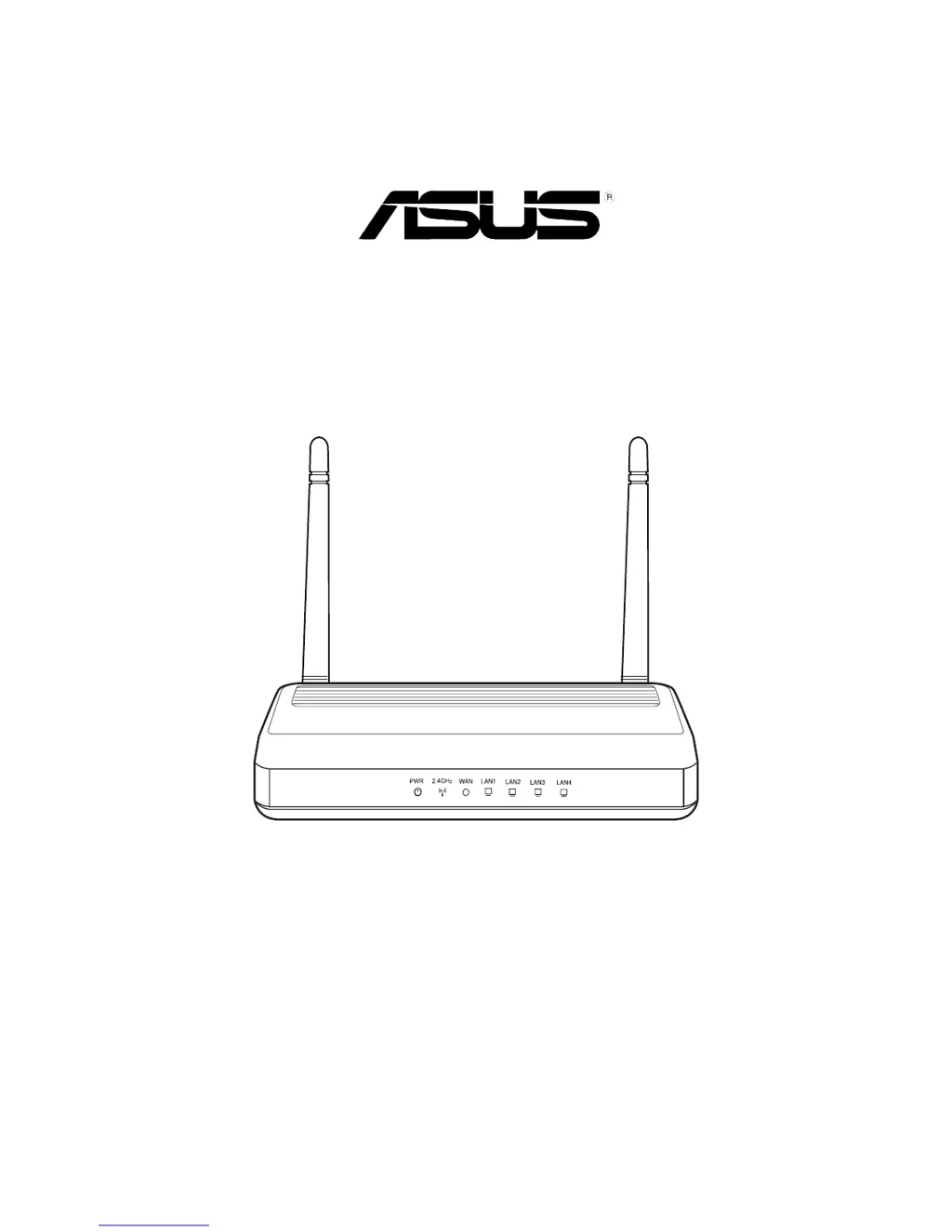
ASUS Wireless SuperSpeed N Router
RT-N12
300M SuperSpeed

Other manuals for Asus RT-N12

Questions and Answers

  • K
    Kristen KingJul 29, 2025
    How to restore Asus RT-N12 to its default settings?
    • R
      Ryan CalderonJul 29, 2025
      To restore your Asus Wireless Router to its default settings, press the Restore button on the rear panel for more than five seconds. The default settings are: User Name: admin, Password: admin, Enable DHCP: Yes (if WAN cable is plugged in), IP address: 192.168.1.1, Domain Name: (Blank), Subnet Mask: 255.255.255.0, DNS Server 1: 192.168.1.1, DNS Server 2: (Blank), SSID: ASUS.
  • S
    Savannah LevineAug 2, 2025
    What to do if ADSL “LINK” light blinks continuously on Asus RT-N12 Wireless Router?
    • M
      Michael LyonsAug 3, 2025
      If your ADSL “LINK” light blinks continuously or stays off, it means your Asus Wireless Router can't connect to the ADSL network, and Internet access is not possible. Ensure all cables are properly connected. Disconnect the power cord from the ADSL or cable modem, wait a few minutes, then reconnect it. If the ADSL light continues to blink or stays off, contact your ADSL service provider.
  • A
    Andrew GilbertAug 7, 2025
    What to do if I cannot access the Internet via wireless LAN adapter on Asus Wireless Router?
    • V
      Victoria ChavezAug 7, 2025
      If you cannot access the Internet via your Asus Wireless Router, check if the wireless adapter is connected to the correct wireless router. Also, verify whether the wireless channel in use conforms to the channels available in your country/area. Check the encryption settings and ensure the ADSL or Cable connection is correct. You may also try using another Ethernet cable and move the router closer to the wireless client.
  • D
    Derek HodgesAug 10, 2025
    Why client cannot establish a wireless connection with Asus Wireless Router?
    • W
      Warren TorresAug 11, 2025
      If your client cannot establish a wireless connection with the Asus Wireless Router, it might be due to several reasons. You could be out of range, so try moving the router closer to the wireless client or change the channel settings. Authentication issues might also be the cause, in which case you can use a wired connection to connect to the router, check the wireless security settings, or press the Restore button on the rear panel for more than five seconds. If you cannot find the router, try pressing the Restore button or check the settings in the wireless adapter, such as SSID and encryption settings.
  • L
    Lawrence GonzalezAug 15, 2025
    What to do if ADSL Modem “Link” light is ON on Asus Wireless Router?
    • K
      Kayla MasonAug 15, 2025
      If the ADSL Modem “Link” light is ON (not blinking) on your Asus Wireless Router, it means Internet Access is possible. In this case, try restarting your computer. Reconfigure the settings by referring to the Quick Start Guide. Check if the WAN LED on the wireless router is ON. Verify the wireless encryption settings. Ensure that your computer can get the IP address (via both wired and wireless networks) and that your web browser is configured to use the local LAN, not a proxy server.
  • F
    Frank CallahanAug 19, 2025
    What to do if I forgot Network name or encryption keys of Asus RT-N12 Wireless Router?
    • P
      Patricia LambertAug 19, 2025
      If you've forgotten the network name or encryption keys for your Asus Wireless Router, try setting up a wired connection and configuring the wireless encryption again. Alternatively, press the Restore button on the rear panel of the wireless router for more than five seconds.
  • C
    craigtannerAug 23, 2025
    Why I cannot use 192.168.1.1 to access the main page of Asus RT-N12 Wireless Router?
    • A
      Alicia AllenAug 23, 2025
      To access the main page of your Asus Wireless Router, check the router’s operation mode. In Router mode, the default IP address is 192.168.1.1. If it is in AP mode, use Device Discovery to find the router’s IP address.

Summary

Knowing Your Wireless Router

Package Contents

Lists all items included in the ASUS Wireless Router package.

System Requirements

Details the hardware and software needed for router installation.

Front Panel Features

Describes the LEDs and ports on the front of the ASUS RT-N12.

Rear Panel Features

Details the ports, buttons, and selectors on the rear of the router.

Bottom Panel Features

Identifies mounting hooks and air vents on the bottom of the router.

Mounting Options

Provides instructions on how to mount the ASUS Wireless Router.

Getting Started

Setting Up the Wireless Router

Introduces router setup modes and the Quick Internet Setup (QIS).

Using the Quick Internet Setup (QIS)

Explains the automated setup process for connecting your router.

Setting Up in Router Mode

Guides users through configuring the router for internet sharing.

Setting Up in Repeater Mode

Provides instructions for extending wireless network coverage.

Setting Up in AP Mode

Details how to configure the router as an Access Point.

Configuring Network Clients

Accessing the Wireless Router

Explains how clients connect to the ASUS Wireless Router.

Setting IP Addresses for Clients

Covers manual and automatic IP configuration for network clients.

Configuring via the Web GUI

Accessing the Web GUI

Steps to log in and access the router's web interface.

Network Map Overview

Explains how to view and manage network status and settings.

Creating Multiple SSID Profiles

Guides on setting up multiple wireless network names (SSIDs).

Managing Bandwidth with EzQoS

Describes how to prioritize network traffic for different applications.

Upgrading Firmware

Instructions for updating the router's firmware to the latest version.

Settings Restore;Save;Upload

How to manage router configuration settings.

Installing the Utilities

Installing ASUS WLAN Utilities

Steps to install configuration software from the support CD.

Device Discovery Utility

Utility to detect and configure ASUS wireless routers.

Firmware Restoration Utility

Tool to recover the router from failed firmware upgrades.

Using the WPS Wizard

Facilitates secure wireless network setup using WPS.

Adding Network Devices via USB Flash Drive

Method to add devices using WPS and a USB drive.

Troubleshooting

Common Problems and Solutions

Addresses issues like web GUI access, wireless connection, and internet access.

Restoring System to Default Settings

How to reset the router to factory default configurations.

ASUS DDNS Service FAQs

Answers frequently asked questions about the ASUS DDNS service.

Appendices

Notices and Warnings

Includes FCC, safety, and co-location statements.

GNU General Public License

Terms and conditions for the included free software.

Regulatory and Safety Notices

Covers NCC, REACH, Safety, and Canada Notices.

ASUS Contact Information

Provides contact details for ASUS technical support and offices.

Asus RT-N12 Specifications

General IconGeneral
Frequency band2.4 - 2.5 GHz
Channels quantity13 channels
Cabling technology10/100Base-T(X)
Ethernet LAN data rates100 Mbit/s
Maximum data transfer rate300 Mbit/s
Quality of Service (QoS) supportYes
Wireless standardIEEE 802.11b, IEEE 802.11g, IEEE802.11n, IEEE 802.11d, IEEE 802.3
Supported data transfer rates6, 9, 12, 18, 24, 36, 48, 54Mbps / 1, 2, 5.5, 11Mbps
Supported network protocolsB
Ethernet LAN (RJ-45) ports5
Security algorithmsTKIP, WPA, WPA-PSK, WPA2, WPA2-PSK
Bundled softwareDevice Discovery EZSetup EZ UI
Storage temperature (T-T)-20 - 70 °C
Operating temperature (T-T)0 - 40 °C
Storage relative humidity (H-H)5 - 95 %
Operating relative humidity (H-H)10 - 90 %
Power requirements100-240V, 50/60Hz
Weight and Dimensions IconWeight and Dimensions
Weight300 g
Dimensions (WxDxH)119 x 179 x 37 mm

Related product manuals