EasyManua.ls Logo

Asus RT-N13 - User Manual

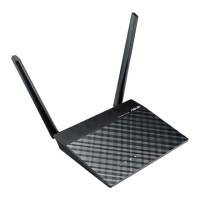
Asus RT-N13
46 pages
Print Icon
To Next Page IconTo Next Page
Loading...
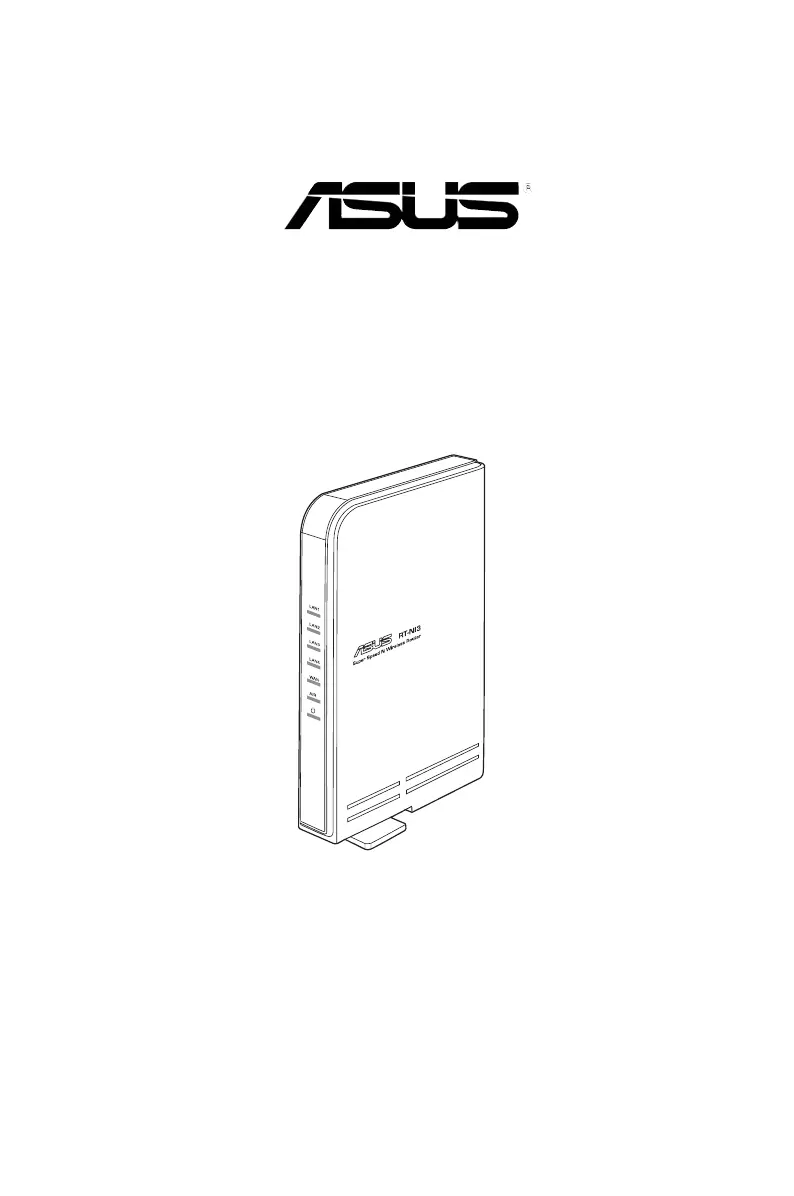
RT-N13 SuperSpeed N
Wireless Router
User Manual

Questions and Answers

  • F
    Felicia BrownJul 28, 2025
    Why is internet not working when ADSL Modem “Link” light is ON on my Asus Wireless Router?
    • J
      James SummersJul 28, 2025
      If your ADSL modem's “LINK” light is on but not blinking, indicating Internet access should be available, first restart your computer. Check if the WAN LED on your Asus Wireless Router is on. Also, verify that your web browser is set to use the local LAN and not a proxy server. Ensure your computer can obtain an IP address via both wired and wireless connections, and double-check your wireless encryption settings.
  • L
    Leslie LopezAug 2, 2025
    How to restore Asus RT-N13 Wireless Router to default settings?
    • L
      Lisa MorrisonAug 2, 2025
      To restore your Asus Wireless Router to its default settings, press the Restore button located on the rear panel of the router for more than five seconds.
  • J
    Joshua LongAug 7, 2025
    What to do if I cannot access the Internet via wireless LAN adapter with my Asus RT-N13 Wireless Router?
    • C
      Christina CollinsAug 7, 2025
      If you cannot access the internet via your wireless LAN adapter using your Asus Wireless Router, try the following: * Move the router closer to the wireless client. * Check that the wireless adapter is connected to the correct wireless router. * Ensure the wireless channel conforms to your country's regulations. * Verify the encryption settings. * Check the ADSL or Cable connection. * Try another Ethernet cable.
  • P
    Penny BensonAug 12, 2025
    Why client cannot establish a wireless connection with Asus RT-N13 Wireless Router?
    • P
      Paul FloresAug 12, 2025
      If your client device cannot establish a wireless connection with the Asus Wireless Router: * Ensure the router is closer to the wireless client due to range issues. * Try changing the channel settings. * Use a wired connection to connect to the router. * Check the wireless security settings. * Press the Restore button on the rear panel for more than five seconds if you cannot find the router or are having authentication issues. * Also, check the SSID and encryption settings in the wireless adapter.
  • K
    ksimpsonAug 17, 2025
    What to do if the ADSL “LINK” light blinks continuously on my Asus RT-N13 Wireless Router?
    • A
      Aaron JohnstonAug 17, 2025
      If the ADSL “LINK” light on your modem blinks continuously or remains off, indicating the Asus Wireless Router can't connect to the ADSL network, ensure all cables are correctly connected. Try disconnecting the power cord from the ADSL or cable modem, wait a few minutes, and then reconnect it. If the ADSL light continues to blink or stays off, you should contact your ADSL service provider.
  • V
    vfrankAug 22, 2025
    What to do if network name or encryption keys are forgotten for my Asus Wireless Router?
    • A
      Adam HarrisAug 22, 2025
      If you've forgotten the network name or encryption keys for your Asus Wireless Router, try setting up a wired connection and configuring the wireless encryption again. Alternatively, press the Restore button on the rear panel of the router for more than five seconds.

Summary

Knowing Your Wireless Router

Front Panel Features

Describes the front panel components and status indicators of the router.

Rear Panel Features

Describes the rear panel components and their functions.

Setting Up the Hardware

Configuring the Wireless Router via Web GUI

Instructions for accessing and using the router's web-based graphical user interface.

Configuring via the Web GUI

Advanced Settings Configuration

Configure advanced router and network settings like Wireless, LAN, WAN, Firewall.

Firmware Upgrade

Download and install the latest firmware for the ASUS Wireless Router.

Troubleshooting

Access and Connection Issues

Solutions for problems accessing the router or establishing client connections.

Internet Connectivity Problems

Troubleshooting steps for when the internet is not accessible via the router.

System and Security Troubleshooting

Procedures for restoring settings, recovering credentials, or resolving security issues.

Asus RT-N13 Specifications

General IconGeneral
Ethernet LANYes
Networking standardsIEEE 802.3, IEEE 802.3u
Ethernet LAN data rates10, 100 Mbit/s
Supports ISDN connectionNo
Ethernet LAN interface typeFast Ethernet
Input voltage100 - 240 V
Frequency range2.4 - 2.5 GHz
Input frequency50 / 60 Hz
Dimensions (WxDxH)- mm
Power requirements5V DC, 2.5A
Networking featuresFast Ethernet, WLAN, WAN
Filtering descriptionURL
Output power description15.5~16.5dBm(g), 15.8~19.5dBm(b), 15.8~19.5dBm(n)
Supported data transfer rates1, 2, 5.5, 6, 9, 11, 12, 18, 24, 36, 48, 54, 300Mbps
WLAN data transfer rates supported300 Mbit/s
Ethernet LAN (RJ-45) ports4
Security algorithms128-bit WEP, 64-bit WEP, 802.1x RADIUS, WPA, WPA-AES, WPA-PSK, WPA-TKIP, WPA2, WPA2-PSK
Product colorWhite
Supported network protocolsPPTP, PPPoE, L2TP
Antenna gain level (max)15.8 dBi
Weight and Dimensions IconWeight and Dimensions
Weight- g

Related product manuals