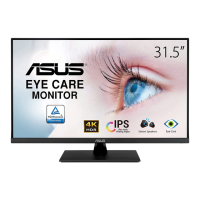
Need help?
Do you have a question about the Asus VP32A Series and is the answer not in the manual?
Explanation of how to operate the monitor using its physical buttons.
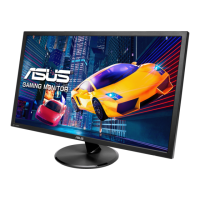
This document is a user guide for the ASUS VP32A Series LCD Monitor, providing comprehensive information on its setup, operation, and maintenance. The monitor is designed to offer a crisp, broader, and brighter display, enhancing the user's viewing experience with a variety of features.
The ASUS VP32A Series LCD Monitor is a widescreen display that offers a range of functionalities for various user needs, from document editing and photo viewing to gaming and movie watching. It incorporates ASUS's SPLENDID™ Video Intelligence Technology, which optimizes image quality across different usage scenarios. The monitor supports multiple input sources, including HDMI and DisplayPort, allowing for flexible connectivity with various devices.
Key functions are managed through an intuitive On-Screen Display (OSD) menu, accessible via control buttons located on the back of the monitor. This menu allows users to adjust image settings, color preferences, and system configurations.
The monitor includes several specialized modes under its "Splendid" function:
For eye protection, the monitor features an "Eye Care" function, which includes a "Blue Light Filter" to reduce harmful blue light emissions, and a "Rest Reminder" to encourage users to take breaks during long working hours.
The "Image" function allows for fine-tuning of display characteristics such as sharpness, response time (Trace Free), aspect ratio (Aspect Control), and dynamic contrast (ASCR). It also includes "VividPixel" technology for crystal-clear visuals and "FreeSync" (for HDMI only) to enable dynamic refresh rate ranges, providing smoother gameplay. The monitor supports High Dynamic Range (HDR) with two modes: ASUS Cinema HDR and ASUS Gaming HDR.
The "System Setup" menu offers further customization options, including volume control, QuickFit, GamePlus, ECO Mode for power saving, OSD language selection, and key lock functions.
The ASUS VP32A monitor is designed for ease of use and adaptability.
The monitor base is easily assembled by attaching it to the arm and securing it with a screw. The design allows for quick setup, and it's recommended to place the monitor face down on a soft cloth during assembly to prevent damage. For wall mounting, the stand is detachable, supporting VESA wall mount kits (100x100 mm). Users should use a UL Listed Wall Mount Bracket with a minimum weight/load of 12 kg and M4 x 10 mm screws.
The monitor's angle can be adjusted from -5° to 8° for optimal viewing comfort. Users should hold the stand while adjusting to prevent the monitor from falling.
The monitor provides essential connectivity options, including Power AC Input, HDMI Port, DisplayPort Port, and an Earphone jack, catering to various multimedia and computing needs.
The control buttons on the back of the monitor provide quick access to the OSD menu. The central button activates the OSD and turns the monitor on/off. Dedicated left and right keys allow navigation and selection within the menu, while up and down keys adjust values or provide hotkey access to "Input Select" and "Brightness," respectively. The down key also serves as a "Key Lock" shortcut, enabling or disabling key functionality by pressing and holding for 5 seconds.
Users can easily switch between eight Splendid modes to optimize the display for different content types. These modes are pre-configured but allow for some user-configurable settings, depending on the mode.
The "Blue Light Filter" can be adjusted from 0 to Max, with higher levels reducing blue light scattering. The "Rest Reminder" can be set to prompt users to take breaks, helping to alleviate eye strain during prolonged use. "Color Augmentation" allows for adjustment of color enhancement, which can be beneficial for certain visual tasks.
Users can fine-tune image sharpness, response time (Trace Free), and aspect ratio. The "VividPixel" feature enhances visual clarity, while "ASCR" provides dynamic contrast. "FreeSync" ensures tear-free and stutter-free gaming experiences when connected via HDMI to compatible graphics cards. The HDR function offers enhanced contrast and color for supported content.
This unique feature provides three patterns:
Designed for gamers, GamePlus offers a toolkit including:
Two customizable shortcut keys (Shortcut 1 and Shortcut 2) can be assigned to frequently used functions such as Blue Light Filter, Splendid modes, Brightness, Contrast, Input Select, Color Temp., Volume, GamePlus, QuickFit, Rest Reminder, or Color Augmentation, providing quick access to preferred settings.
Proper care and cleaning are essential for maintaining the monitor's performance and longevity.
The manual includes a troubleshooting section (FAQ) to help users resolve common issues such as the power LED not turning on, no screen image, image quality problems (too light/dark, bouncing, color defects), and audio issues. Solutions typically involve checking cable connections, power sources, OSD settings (e.g., Power Indicator, Contrast, Brightness, Color Temp.), and ensuring proper driver installation for sound cards.
ASUS is committed to environmental protection through its recycling and takeback programs. Users are encouraged to responsibly recycle products, batteries, and packaging materials. Information on recycling services can be found on the ASUS CSR website. The product is marked with a crossed-out wheeled bin symbol, indicating it should not be disposed of with municipal waste.
 General
| Screen Size | 31.5 inches |
|---|---|
| Brightness | 250 cd/m² |
| Aspect Ratio | 16:9 |
| Viewing Angle | 178°(H)/178°(V) |
| Ports | HDMI |
| VESA Mount Compatible | 100 x 100 mm |
| Color Support | 16.7 million colors |

 To Next Page