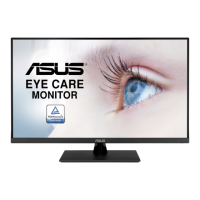
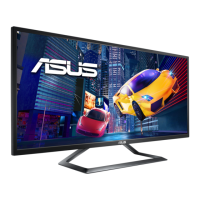
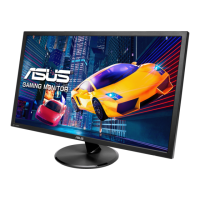
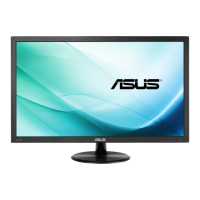
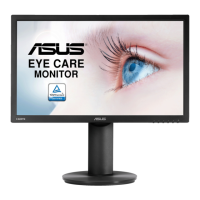
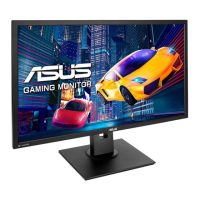
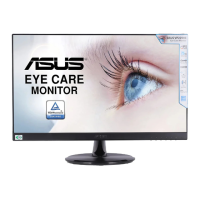
This document describes the ASUS VP32U Series LCD Monitor, a widescreen display designed to provide a crisp, broader, and brighter viewing experience with various features.
Function Description:
The ASUS VP32U Series LCD Monitor is a high-definition display designed for various uses, including document editing, photo and graphics viewing, movie watching, and gaming. It incorporates SPLENDID™ Video Intelligence Technology to optimize display settings for different content types. The monitor offers a range of image adjustments, including sharpness, response time (Trace Free), aspect ratio control, VividPixel for enhanced visuals, dynamic contrast ratio (ASCR), and Adaptive-Sync for a dynamic refresh rate. It also supports High Dynamic Range (HDR) with two modes: ASUS Cinema HDR and ASUS Gaming HDR. The monitor features an On-Screen Display (OSD) menu for easy configuration of all settings.
Important Technical Specifications:
- Model: VP32U
- Panel Size: 31.5"W (80cm)
- Max. Resolution: 3840x2160@60Hz
- Brightness (Typ.): 350 cd/m²
- Intrinsic Contrast Ratio (Typ.): 1000:1
- Viewing Angle (CR>10): 178°(H)/178°(V)
- Display Colors: 16.7 Million
- Response Time: 4ms (G To G)
- VGA input: N/A
- HDMI input: Yes
- DisplayPort: Yes
- Audio Line-out: Yes
- Power ON Consumption: <32W (measured at 200 nits screen brightness without audio/USB/Card reader connection)
- Chassis Colors: Black
- Power saving mode: <0.5W
- Power off mode: <0.3W
- Tilt: -5° ~ +8°
- Wall Mount: Yes (100mm x 100mm)
- Physical Dimension with stand (WxHxD): 715mm x 492mm x 202mm
- Physical Dimension without stand (WxHxD) (For Wall Mount): 715mm x 424mm x 50mm
- Box Dimension (WxHxD): 799mm x 526mm x 140mm
- Net Weight (Esti.): 7.9 kg
- Gross Weight (Esti.): 9.8 kg
- Voltage Rating: AC: 100-240V~, 50/60Hz, 1.2A
- Temperature (operation): 0℃~40℃
Usage Features:
- Control Buttons: The monitor is controlled via buttons located on the back. These include a central button for OSD menu access and power on/off, left/right keys for navigation and shortcuts, and up/down keys for input selection, brightness adjustment, and option value changes. A "Key Lock" shortcut is available by pressing and holding the down key for 5 seconds.
- Power Indicator: The power indicator light shows "White" for ON, "Amber" for Standby mode, and "OFF" when the monitor is off.
- Adjusting the Monitor: The monitor's angle can be adjusted from -5° to 8° for optimal viewing comfort. Users should hold the stand to prevent falling when adjusting the angle.
- Detaching the Arm/Stand: The stand is detachable for VESA wall mounting (100x100mm). Two screws secure the arm to the monitor. A UL Listed Wall Mount Bracket with a minimum weight/load of 12 kg (screw size: M4 x 10 mm) is recommended.
- OSD (On-Screen Display) Menu:
- Splendid: Offers eight sub-functions (Standard, sRGB, Scenery, Theater, Game, Night View, Reading, Darkroom Modes) to optimize display settings for different content. Each mode has a Reset option.
- Standard Mode: Best for document editing.
- sRGB Mode: Best for viewing photos and graphics.
- Scenery Mode: Best for scenery photo display.
- Theater Mode: Best for movie watching.
- Game Mode: Best for game playing.
- Night View Mode: Best for dark-scene games or movies.
- Reading Mode: Best for book reading.
- Darkroom Mode: Best for weak ambient light environments.
- Note: Saturation, Skin Tone, Sharpness, and ASCR are not user-configurable in Standard Mode. In sRGB, Saturation, Color Temp., SkinTone, Sharpness, Brightness, Contrast, and ASCR are not user-configurable. In Reading Mode, Saturation, SkinTone, ASCR, Contrast, and Color Temp. are not user-configurable.
- Eye Care:
- Blue Light Filter: Adjustable from 0 to Max. Higher levels reduce blue light scattering. When activated, default Standard Mode settings are imported, and brightness is user-configurable (except at maximum level, which is optimized for TUV low blue light certification).
- Rest Reminder: Provides pop-up reminders for breaks based on set working time. Disables Splendid Demo Mode, GamePlus, and QuickFit when enabled.
- Color Augmentation: Adjusts color enhancement from 0 to 100. Not available in sRGB Mode or when Reddish/Yellowish Skin Tone is selected.
- Color: Adjusts image color settings.
- Brightness: Adjustable from 0 to 100.
- Contrast: Adjustable from 0 to 100.
- Saturation: Adjustable from 0 to 100.
- Color Temp.: Options include Cool, Normal, Warm, and User Mode (R, G, B colors configurable from 0-100).
- Skin Tone: Options include Reddish, Natural, and Yellowish.
- Image: Adjusts various image parameters.
- Sharpness: Adjustable from 0 to 100.
- Trace Free: Speeds up response time (0 to 100).
- Aspect Control: Options include "Full", "4:3" (only for 4:3 input), and "OverScan" (only for HDMI input).
- VividPixel: ASUS Exclusive Technology for lifelike visuals (0 to 100).
- ASCR: Enables/disables dynamic contrast ratio.
- Adaptive-Sync: Enables/disables dynamic refresh rate (60Hz).
- HDR: High Dynamic Range with two modes: ASUS Cinema HDR & ASUS Gaming HDR. Locked when connected to AMD FreeSync2 HDR video.
- Input Select: Allows selection of the input source (HDMI, DisplayPort).
- System Setup: Adjusts system configuration.
- Splendid Demo Mode: Activates demo mode for Splendid function.
- Volume: Adjustable from 0 to 100.
- QuickFit: Provides three patterns: Grid (Alignment Grid 1 & 2), Paper size (B5, Letter), and Photo size (8x10, 5x7, 4x6, 3x5, 2x2) for design and viewing purposes.
- GamePlus: Activates Crosshair (with 6 options), Timer, FPS Counter, or Display Alignment (lines on 4 sides of the screen).
- ECO Mode: Activates power-saving mode.
- OSD Setup: Adjusts OSD Timeout, DDC/CI, and Transparency.
- Language: Selects OSD language.
- Key Lock: Activates key lock function.
- Information: Displays monitor information.
- Power Indicator: Turns power LED indicator on/off.
- Power Key Lock: Disables/enables the power key.
- All Reset: Reverts all settings to factory defaults.
- Shortcut Keys: Two customizable shortcut keys (Shortcut 1 and Shortcut 2) can be assigned functions such as Blue Light Filter, Splendid, Brightness, Contrast, Input Select, Color Temp., Volume, GamePlus, QuickFit, Rest Reminder, or Color Augmentation. Default for Shortcut 1 is Input Select, and for Shortcut 2 is Brightness.
- Supported Timing List: The manual includes a comprehensive list of supported resolutions and refresh rates, ranging from 640x480/60Hz to 3840x2160P @ 59.94/60Hz, including various interlaced and progressive scan modes, and different aspect ratios (4:3, 16:9).
Maintenance Features:
- Cleaning: Turn off and unplug the monitor. Clean the surface with a lint-free, non-abrasive cloth. Stubborn stains can be removed with a cloth dampened with mild cleaner. Avoid alcohol/acetone cleaners and never spray cleaner directly on the screen.
- Troubleshooting (FAQ): Provides solutions for common issues such as:
- Power LED not ON: Check power connection, monitor power button, and Power Indicator setting in OSD.
- Power LED amber, no screen image: Check monitor and computer power, signal cable connection, bent pins, and test with another monitor.
- Screen image too light/dark: Adjust Contrast and Brightness via OSD.
- Screen image bounces/wave pattern: Check signal cable, move electrical devices causing interference.
- Screen image color defects: Check signal cable, perform OSD Reset, select appropriate Color Temp. via OSD.
- No sound/low sound: Adjust monitor/computer volume, ensure sound card driver is installed and activated.
- Safety Information: Emphasizes reading documentation, avoiding fire/shock hazards (no moisture, no opening cabinet), contacting qualified service for repairs, ensuring correct cable connections, proper ventilation (no blocked slots), using correct power source/plug, avoiding overloading power strips, protecting from dust/humidity/temperature extremes, unplugging during lightning storms or long periods of disuse, and not spilling liquids into the cabinet. Recommends using UL listed computers (100-240V AC) and ensuring the socket-outlet is easily accessible. Contains a warning about chemicals known to cause cancer and birth defects in California, and instructions for proper disposal of electronic products (crossed-out wheeled bin symbol).
- Takeback Services: ASUS provides recycling and takeback programs for responsible disposal of products, batteries, and packaging materials. Information is available on the ASUS CSR website.

 Need help?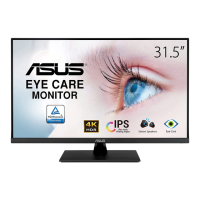

 To Next Page
 General