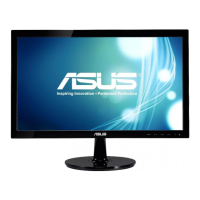
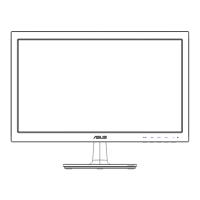
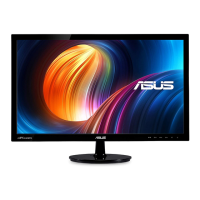
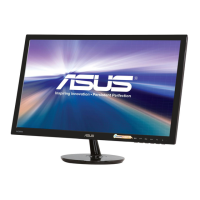
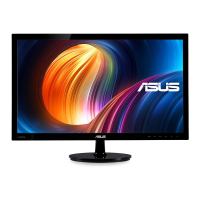
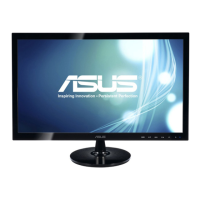
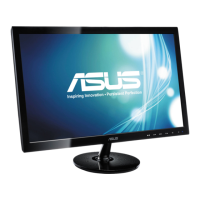
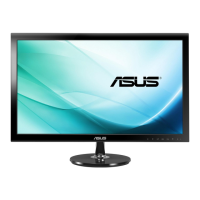
The ASUS VS207/VK207 Series LCD Monitor is a widescreen display designed to provide a crisp, broader, and brighter viewing experience with a host of enhancing features. This user guide covers setup, operation, and troubleshooting for the monitor.
Function Description:
The monitor serves as a visual display unit for computers. Depending on the specific model (VS207T/N, VS207S/D/DF, VK207S, VS207NE/DE), it offers various input options including VGA, DVI, and in some cases, USB upstream and audio line-in. The VK207S model includes a webcam and is compatible with ASUS LifeFrame 2 software for creating photos and video clips. The monitor features ASUS's SPLENDID™ Video Enhancement Technology, offering six video preset modes (Scenery, Standard, Theater, Game, Night View, and sRGB) to optimize display settings for different content. It also includes a QuickFit function, which provides common grid patterns and photo sizes (4x6, 3x5, 2x2) for design and photo editing purposes, allowing users to view and edit content in real size on the screen.
Important Technical Specifications:
- Panel Size: 19.5"W (49.53 cm)
- Max. Resolution:
- 1600 x 900 (for most models)
- 1366 x 768 (for VS207DF)
- Brightness (Typ.):
- 250 cd/m² (for VS207T/N, VS207S/D/DF, VK207S)
- 200 cd/m² (for VS207NE/DE)
- Intrinsic Contrast Ratio (Typ.):
- 1000:1 (for VS207T/N, VS207S/D/DF, VK207S)
- 600:1 (for VS207NE/DE)
- Viewing Angle (CR=10):
- ≥170°(H) / ≥160°(V) (for VS207T/N, VS207S/D/DF, VK207S)
- ≥90°(H) / ≥65°(V) (for VS207NE/DE)
- Display Colors: 16.7 Million
- Response Time: 5ms
- Input Ports:
- DVI input: Yes (VS207T/N), No (VS207S/D/DF, VK207S), Yes (VS207NE)
- D-Sub input: Yes (all models)
- USB upstream: No (VS207T/N, VS207S/D/DF), Yes (VK207S), No (VS207NE/DE)
- Audio Line-in: Yes (VS207T/S, VK207S), No (VS207N, VS207D, VS207NE/DE)
- Power ON Consumption: < 16.4 W (Based on Energy Star 6.0 standard)
- Power Saving Mode: < 0.5 W
- Power OFF Mode: < 0.5 W
- Tilt: -5° ~ +20°
- VESA Wall Mounting: Yes (75mm x 75mm)
- Physical Dimension (WxHxD): 468.0 X 355.5 X 185.0 mm
- Box Dimension (WxHxD): 530 x 412 x 115 mm
- Net Weight (Esti.): 2.59 kg (VS207T/N, VS207NE/DE), 2.64 kg (VS207S/D/DF, VK207S)
- Gross Weight (Esti.): 3.99 kg (VS207T/N, VS207NE/DE), 4.04 kg (VS207S/D/DF, VK207S)
- Voltage Rating: AC 100~240V (Built-in)
Usage Features:
- Monitor Assembly: The monitor base connects to the arm with a clockwise turn until a click is heard. The monitor's angle can be adjusted from -5° to 20° for optimal viewing.
- OSD Menu Navigation: The On-Screen Display (OSD) menu is accessed via the MENU button. Users can navigate functions using the / buttons, select options with the MENU button, and adjust settings with the / buttons. The button exits the OSD menu.
- Hotkey Functions:
- The S/▲ button automatically adjusts the image to its optimized position, clock, and phase (VGA mode only) when long-pressed for 2-4 seconds. It also acts as a hotkey to switch between SPLENDID™ video preset modes and to exit or go back in the OSD menu.
- The / button decreases values or moves to the next function in the OSD menu. It also activates the QuickFit function.
- The /▲ button increases values or moves to the previous function in the OSD menu. It is also a hotkey for Brightness adjustment.
- Power Management: The power button turns the monitor on/off. The power indicator shows blue for ON, amber for Standby mode, and OFF when the monitor is off. ECO Mode can be activated for power saving.
- Image Adjustment: Users can adjust Sharpness, Aspect Control (Full, 4:3), ASCR (ASUS Smart Contrast Ratio), Position (H-Position, V-Position for VGA only), and Focus (Phase, Clock for VGA only).
- Color Adjustment: The Color menu allows selection of image color preferences, including Brightness, Contrast, Saturation, Color Temp. (Cool, Normal, Warm, User Mode), Skin Tone (Reddish, Natural, Yellowish), and Smart View. In User Mode, R, G, and B colors are user-configurable.
- System Setup: This menu allows configuration of Splendid Demo Mode, Volume (for models with audio), OSD Setup (H-Position, V-Position, OSD Timeout, DDC/CI, Transparency), Language, Information (Input Port, Resolution, H-freq., V-freq, Model Name), and All Reset to factory defaults.
- VESA Wall Mount: The stand is detachable for VESA wall mount compatibility (75 x 75 mm). A UL Listed Wall Mount Bracket with appropriate weight/load and M4 x 10 mm screws is required (purchased separately).
- LifeFrame 2 Software (VK207S only): This software, bundled on the support CD, works with the webcam for creating photos and video clips, supporting Microsoft® Windows® 7/Vista/XP Service Pack 2.
Maintenance Features:
- Cleaning: Before cleaning, turn off and unplug the monitor. Use a lint-free, non-abrasive cloth for the monitor surface. Stubborn stains can be removed with a cloth dampened with a mild cleaner. Avoid cleaners containing alcohol or acetone, and never spray cleaner directly on the screen.
- Troubleshooting (FAQ): The manual provides solutions for common issues such as the power LED not turning on, amber power LED with no screen image, screen image being too light/dark, not centered/sized properly, bouncing/wave patterns, color defects, blurriness/fuzziness, and no/low sound (for applicable models).
- Safety Information: Emphasizes reading documentation, preventing fire/shock hazards, not opening the cabinet, contacting qualified service technicians for power supply issues, ensuring correct cable connections, not blocking ventilation slots, using the correct power source/plug, avoiding overloading power strips, protecting from dust/humidity/temperature extremes, unplugging during lightning storms or long periods of disuse, not inserting objects or spilling liquids, and using UL listed computers with appropriate receptacles.
- Warranty: Product warranty or service will not be extended if the product is repaired, modified, or altered without written ASUS authorization, or if the serial number is defaced or missing.

 Need help?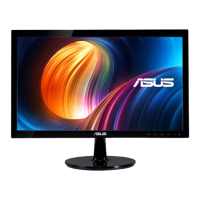

 To Next Page
 General