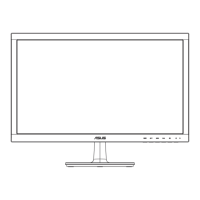
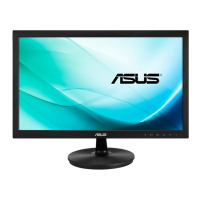
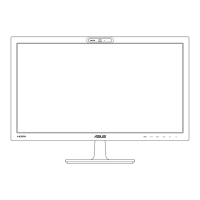
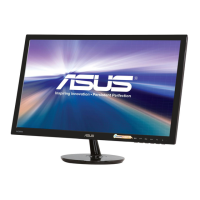
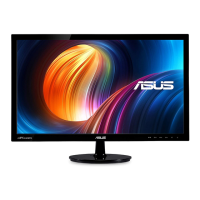
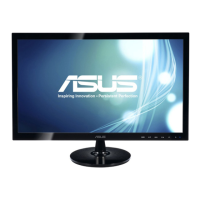
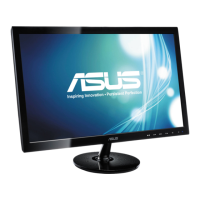
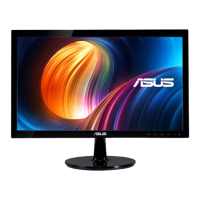
The ASUS VS228/VS238/VS247 Series LCD Monitor is a widescreen display designed to provide a crisp, broad, and bright viewing experience, enhanced by a host of features. This user guide outlines its functions, usage, and maintenance to help users maximize their experience with the device.
Function Description
The core function of the ASUS VS228/VS238/VS247 Series LCD Monitor is to display visual content from connected computers or other video sources. It supports various input types, including VGA, DVI, and HDMI (depending on the model), allowing for flexible connectivity with different systems. The monitor incorporates SPLENDID™ Video Enhancement Technology, which offers six preset video modes: Scenery, Standard, Theater, Game, Night View, and sRGB. These modes are designed to optimize the display settings for different types of content, providing a tailored visual experience. For instance, Scenery Mode is ideal for photo display, Standard Mode for document editing, Theater Mode for movie watching, Game Mode for gaming, Night View Mode for dark-scene content, and sRGB for viewing photos and graphics from PCs.
Beyond basic display, the monitor offers extensive image adjustment capabilities through its On-Screen Display (OSD) menu. Users can fine-tune parameters such as brightness, contrast, saturation, color temperature (Cool, Normal, Warm, or User Mode), and skin tone (Reddish, Natural, or Yellowish). The monitor also includes an "Image" function to adjust sharpness, aspect ratio (Full, 4:3, or Over Scan for HDMI input), and ASCR (ASUS Smart Contrast Ratio) for dynamic contrast. For VGA input, additional adjustments like position (H-Position and V-Position) and focus (Phase and Clock) are available to reduce line noise and ensure a clear image.
Certain models (VS228H, VS238H, VS247H) feature an earphone-out port, allowing users to connect headphones directly to the monitor for audio output, which is particularly useful when using HDMI input that carries both video and audio signals. The monitor also supports VESA wall mounting (100mm x 100mm), providing flexibility in placement and allowing users to detach the arm/stand for alternative mounting solutions.
Usage Features
The ASUS VS228/VS238/VS247 Series LCD Monitor is designed for user-friendly operation, with intuitive controls and a clear OSD menu.
Controls and Navigation:
The front of the monitor features several buttons for easy access to its functions:
- S/A Button: This button serves multiple purposes. A long press (2-4 seconds) automatically adjusts the image to its optimized position, clock, and phase when in VGA mode. It also acts as a hotkey to switch between the six SPLENDID™ video preset modes. When the OSD menu is active, it functions as an "Exit" button or to go back to the previous menu.
- /▼ Button: Used to decrease the value of a selected function or move to the next function within the OSD menu. It also serves as a hotkey for contrast adjustment.
- MENU Button: Pressing this button enters the OSD menu. When the OSD is active, it acts as an "Enter" or "Select" button for highlighted icons or functions.
- /▲ Button: Used to increase the value of a selected function or move right/up to the next function within the OSD menu. It also serves as a hotkey for brightness adjustment.
- Input Select Button: Available on models VS228H/VS238H/VS247H, this hotkey allows users to switch between VGA, DVI, or HDMI inputs.
- Power Button/Power Indicator: This button turns the monitor on or off. The power indicator changes color to reflect the monitor's status: blue for ON, amber for standby mode, and off when the monitor is off.
To access and adjust settings:
- Press the [MENU] button to activate the OSD menu.
- Use the and buttons to navigate through the functions. Press [MENU] to select a desired function. If a sub-menu exists, use and to navigate and [MENU] to select.
- Use and to change the settings of the selected function.
- Press the S button to exit the OSD menu.
Key OSD Functions:
- Splendid: Offers six preset video modes (Scenery, Standard, Theater, Game, Night View, sRGB) for quick optimization of display settings based on content type. Each mode allows for a "Reset" option to return to default settings.
- Color: Provides detailed control over brightness, contrast, saturation, color temperature (Cool, Normal, Warm, User Mode), and skin tone (Reddish, Natural, Yellowish). Note that some of these functions may be non-configurable in Standard or sRGB modes.
- Image: Allows adjustments for sharpness, Trace Free (response time acceleration for models VS238H-P, VS247H-P), aspect control, ASCR (dynamic contrast), position (H-Position, V-Position for VGA), and focus (Phase, Clock for VGA).
- Input Select: Manually switches between available input sources (VGA, DVI, HDMI).
- System Setup: Contains various system configurations, including:
- Splendid Demo Mode: Activates a demonstration mode for the Splendid function.
- Volume: Adjusts the earphone output volume level (for models with earphone-out).
- ECO Mode: Activates a power-saving mode, though this may affect brightness and gray level distinction.
- OSD Setup: Configures OSD display settings like H-Position, V-Position, OSD Timeout, DDC/CI, and Transparency.
- Language: Selects the OSD language from a list including English, French, German, Spanish, Italian, Dutch, Russian, Traditional Chinese, Simplified Chinese, and Japanese.
- Information: Displays monitor details such as Input Port, Resolution, H-freq., V-freq., and Model Name.
- All Reset: Reverts all monitor settings to factory defaults.
Physical Adjustments:
The monitor allows for tilt adjustment from -5° to 20° for optimal viewing comfort. When adjusting, it is important to hold the stand to prevent the monitor from falling.
Detaching the Arm/Stand:
For VESA wall mounting, the monitor's arm/stand can be detached. This involves disconnecting cables, placing the monitor face down on a soft surface, gently pulling away the plate covering the stand neck, removing four screws, and then detaching the stand. It is crucial to use a UL Listed Wall Mount Bracket with appropriate weight/load capacity and M4 x 10 mm screws.
Maintenance Features
Proper care and cleaning are essential to ensure the longevity and optimal performance of the ASUS VS228/VS238/VS247 Series LCD Monitor.
General Safety and Handling:
- Always read the documentation before setting up the monitor.
- To prevent fire or shock hazards, avoid exposing the monitor to rain or moisture.
- Never attempt to open the monitor cabinet, as it contains dangerous high voltages. Any repairs should be handled by a qualified service technician or retailer.
- Ensure all cables are correctly connected and undamaged before use. Contact your dealer if any damage is detected.
- Do not block ventilation slots on the back or top of the cabinet to prevent overheating. Avoid placing the product near radiators or heat sources without proper ventilation.
- Operate the monitor only from the specified power source indicated on the label. Consult your dealer or local power company if unsure about your home's power supply.
- Use the appropriate power plug for your local standard.
- Avoid overloading power strips and extension cords to prevent fire or electric shock.
- Protect the monitor from dust, humidity, and extreme temperatures. Keep it away from wet areas and place it on a stable surface.
- Unplug the unit during lightning storms or extended periods of non-use to protect against power surges.
- Never insert objects or spill liquids into the monitor's slots.
- For satisfactory operation, use the monitor only with UL listed computers with configured receptacles between 100-240V AC.
- If technical problems arise, contact a qualified service technician or your retailer.
Cleaning the Monitor:
- Before cleaning, turn off the monitor and unplug the power cord.
- Clean the monitor surface with a lint-free, non-abrasive cloth.
- For stubborn stains, use a cloth dampened with a mild cleaner.
- Avoid cleaners containing alcohol or acetone. Use a cleaner specifically intended for LCDs.
- Never spray cleaner directly onto the screen, as it may drip inside and cause electrical shock.
Normal Monitor Symptoms:
- Flickering: The screen may flicker initially due to the nature of fluorescent light. Turning the Power Switch off and on again usually resolves this.
- Uneven Brightness: Slight unevenness in brightness may occur depending on the desktop pattern.
- Afterimages: If the same image is displayed for hours, a faint afterimage may remain after switching images. The screen will recover slowly, or you can turn off the Power Switch for several hours.
- Screen Malfunction: If the screen becomes black, flashes, or stops working, contact your dealer or service center immediately. Do not attempt to repair it yourself.
By adhering to these guidelines, users can ensure safe and effective operation, prolonging the life of their ASUS VS228/VS238/VS247 Series LCD Monitor.

 Need help?
 General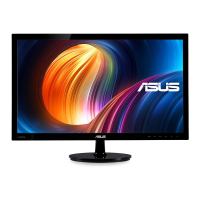

 To Next Page