28
ASUS Xonar DS
6.3.2 Recording/Monitoring Volume
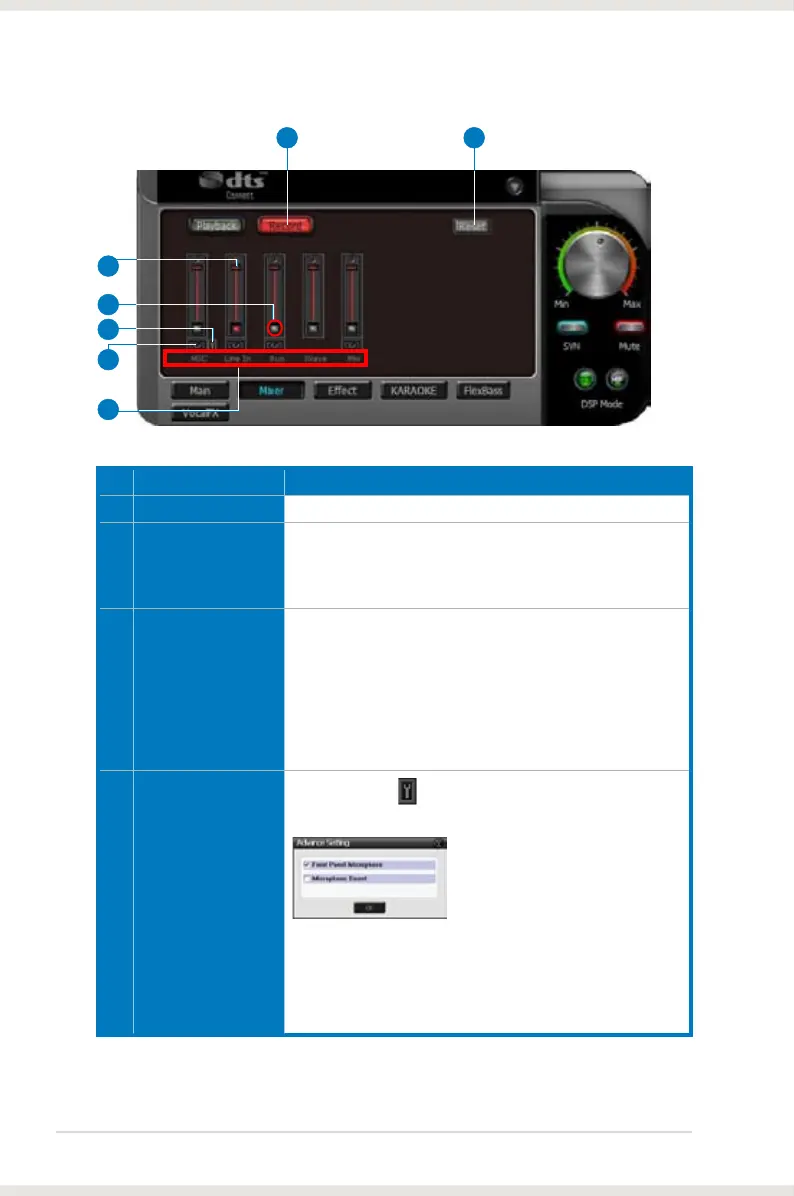
No Item Description
1 Recording Volume Tab
Click this button to show the recording volume page.
2 Recording volume
slider
Drag this slider down to decrease the recording volume; drag
up to increase the recording volume. The tool-tip reveals the
percentage number from 1 to 100 in terms of the full scale
level.
3 Recording Selector
button
Click this button to select the path/source you are going
to record. Note that the recording function on Windows is
a one-path selector. So, you can select only one default
recording source at a time. You may have to restart the
recorder program if you switch to a different source. (Note:
On Vista, some application programs may allow you to
select the recording device/path in the recording programs
themselves.)
4 Microphone-In
Advanced Setting
Click this button to open the advanced settings for the
Microphone-In:
Enabling “Microphone Boost” will increase a volume gain
to boost microphone input signals. If you connect your
microphone to the front panel audio module, enable “Front
Panel Microphone”. For typical low-cost PC microphone, it’s
recommended to enable this function.
6
2
4
1 7
3
5
(continued on the next page)


 To Next Page