4-14
Chapter 4: Software support
Chapter 4
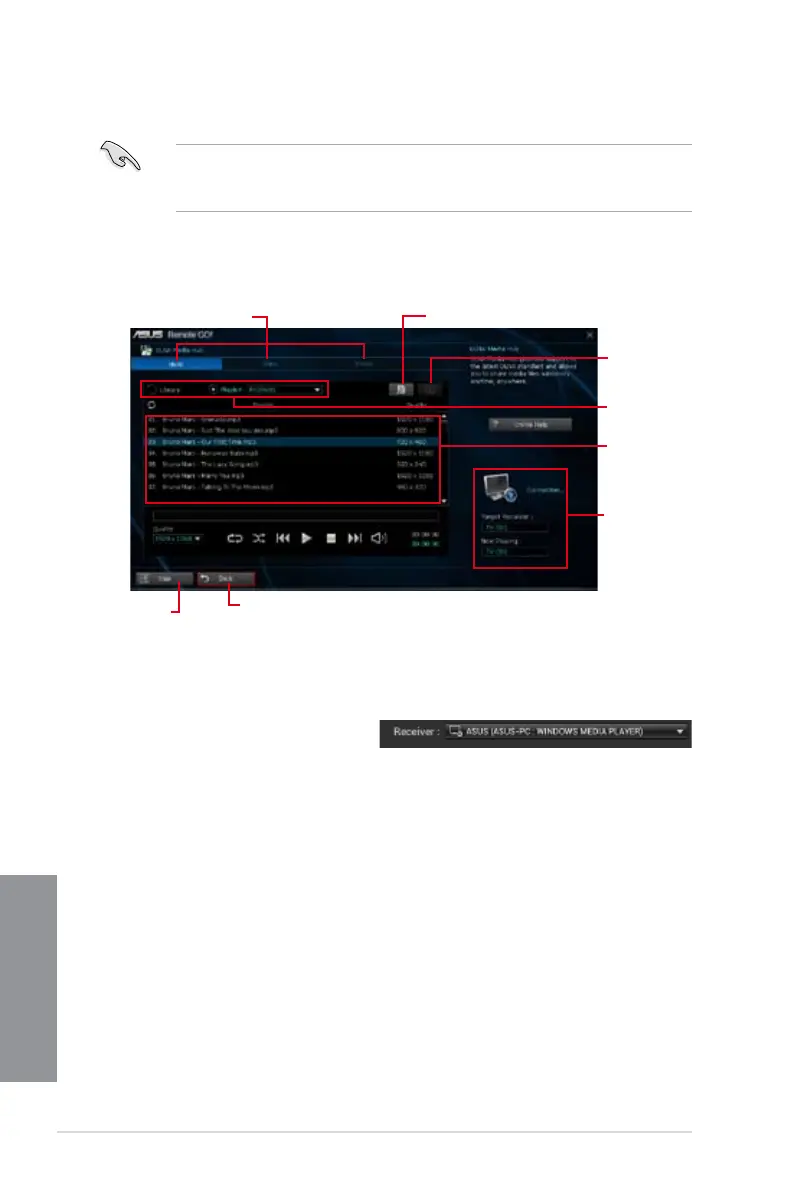
Click to select media le type
Media les pane
Displays the
target receiver’s
name and
the media le
currently playing
Click to edit the playlist
Tick to select
source location
Click to select
receiver
Using DLNA Media Hub on the computer
On your computer, click DLNA Media Hub then click Enter.
Using DLNA Media Hub on the smart device
1. On your smart device, tap DLNA Media Hub.
2. Select and tap the receiver name.
3. Tap Enter to remotely control your computer.
Using DLNA Media Hub
Windows Media Player. To do this, launch Windows Media Player, click Stream then tick
Allow remote control of my Player and Automatically allow devices to play my media.
Click to go back to
previous screen
Click to go
back to Wi-Fi
GO! window


 To Next Page