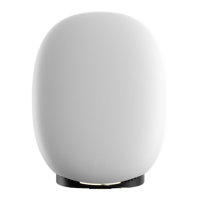
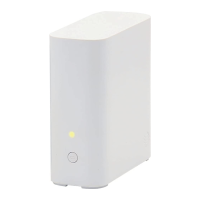
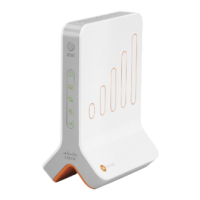
The AT&T Wi-Fi Extender (4971) is a device designed to extend your Wi-Fi network, ensuring better coverage and connectivity throughout your home or office. It works in conjunction with your AT&T Wi-Fi Gateway to create a seamless extended Wi-Fi service.
Function Description:
The primary function of the AT&T Wi-Fi Extender is to boost your existing Wi-Fi signal, eliminating dead zones and providing a stronger, more reliable internet connection in areas where the signal from your main Wi-Fi Gateway might be weak. It acts as a repeater, taking the signal from your Gateway and rebroadcasting it, effectively expanding the reach of your wireless network. This is particularly useful in larger homes, multi-story buildings, or spaces with obstacles that might interfere with Wi-Fi signals. The extender helps maintain consistent internet service for all your connected devices, from smartphones and tablets to smart home devices and streaming media players.
Usage Features:
The AT&T Wi-Fi Extender is designed for straightforward setup and operation, indicated by its various LED lights that provide real-time status updates.
-
Initial Setup and Power Status:
- When the Front Service LED is Off, it indicates that the extender has no power or has recently rebooted. To resolve this, ensure the extender is securely plugged into a working wall outlet and check that the back power LED is green.
- A Solid White Front Service LED signifies that your Wi-Fi Extender is successfully connected and providing AT&T internet service. This is the ideal operational state.
- If the Front Service LED is Blink White, the extender is in the process of starting up or connecting to your hub's Wi-Fi. During this time, it's important to wait for the connection to establish.
- A Blink Green (slow) Front Service LED means the extender is powered up and ready to be paired with your Wi-Fi Gateway.
-
Pairing and Connection Issues:
- If the Front Service LED is Solid Red, it indicates that the Wi-Fi Extender failed to pair. This could be due to a connection through a third-party router or inactive Extended Wi-Fi Service. To troubleshoot, you should reset the extender by pressing the red reset button on the back, then connect an Ethernet cable directly between the Wi-Fi Extender and the Wi-Fi Gateway for pairing. If the issue persists, contacting AT&T support is recommended.
- A Blink Red (slow) Front Service LED suggests connection issues. This might be caused by a loose, disconnected, or damaged Ethernet cable, or the extender being placed too far from the Wi-Fi Gateway. Checking the cable connections and potentially relocating the extender closer to the Gateway are good first steps.
- When the Front Service LED is Pulsing Red/Green (fast), it means the extender is configured and connected, but its current placement might not be optimal for performance. Moving it to a closer location to the Wi-Fi Gateway or another extender can improve its efficiency.
-
Software Updates and Reboots:
- A Blink Amber (slow) Front Service LED indicates that the software is updating. It is crucial not to unplug the Wi-Fi Extender during this process to avoid interrupting the update and potentially damaging the device. Wait until the light returns to solid white.
- If the Front Service LED is Blink Red (fast), the Wi-Fi Extender has just rebooted. You should wait for it to start up completely until the light turns solid white, or observe the reboot sequence.
WPS (Wi-Fi Protected Setup) Functionality:
The extender also supports WPS for easy device connection, with specific LED indicators on the back of the hub.
- When the Front Service LED is Off and the Rear WPS light is White/WPS Off, the extender is working properly. To initiate pairing, press the back WPS button and observe the Service LED on the front of the Wi-Fi Extender.
- A Blink Green Rear WPS light indicates that you need to take action on the Wi-Fi device you are trying to connect. Alternatively, you can connect an Ethernet cable from the extender's back Ethernet port to the hub's Ethernet port to establish a connection.
- A Solid Green Rear WPS light confirms that WPS pairing was successful.
- If the Rear WPS light is Blink Red (Fast), it means the Wi-Fi Extender detected multiple Wi-Fi devices attempting to connect via WPS simultaneously. You should wait a moment before trying again to connect your device.
- A Blink Red (Slow) Rear WPS light signifies that the attempt to connect your Wi-Fi devices using WPS has failed. In this case, you should press the WPS button again to retry the connection process.
Maintenance Features:
The AT&T Wi-Fi Extender is designed for minimal maintenance, primarily relying on its LED indicators for troubleshooting.
- Troubleshooting with LED Lights: The comprehensive set of LED indicators allows users to quickly diagnose common issues such as power problems, pairing failures, connection difficulties, and suboptimal placement. By understanding what each light color and pattern signifies, users can often resolve problems without needing to contact support immediately.
- Reset Button: The physical reset button on the back of the extender is a key maintenance feature. If the device encounters persistent issues or fails to pair, a reset can often clear temporary glitches and restore functionality. This is a crucial step in troubleshooting pairing failures, as indicated by the solid red Front Service LED.
- Software Updates: The extender automatically receives software updates, indicated by the blinking amber light. These updates are essential for maintaining optimal performance, security, and compatibility. Users are advised not to interrupt this process by unplugging the device.
- Optimal Placement: While not a direct maintenance task, ensuring optimal placement is critical for the extender's performance. The pulsing red/green light serves as a reminder to adjust the extender's location if it's too far from the Gateway or another extender, thereby improving signal strength and coverage.
- Ethernet Connection: For more stable connections or initial pairing, the Ethernet ports on the back of the extender provide a reliable alternative to wireless pairing. This can be a useful troubleshooting step if wireless pairing fails.
- Support Contact: In cases where self-troubleshooting using the LED indicators and reset function does not resolve the issue, the manual directs users to contact ATT.com/support, ensuring that professional assistance is available when needed.
Overall, the AT&T Wi-Fi Extender (4971) is a user-friendly device that simplifies Wi-Fi network expansion through clear visual feedback and straightforward troubleshooting steps, aiming to provide a consistent and robust internet experience.

 Need help?
 General

 To Next Page