Need help?
Do you have a question about the AT&T AirTies 4971 and is the answer not in the manual?
Download the AT&T Smart Home Manager app from your app store or visit att.com/smarthomemanager.
Sign in with your AT&T user ID and password to access the Smart Home Manager for setup.
Navigate to Network > Home Network Hardware > Add Extender within the app to add your Wi-Fi extender.
Attach the extender to the gateway using a YELLOW Ethernet cable to a YELLOW Ethernet port on both devices.
Connect the power supply to the extender and plug it in. Observe LED indicators for pairing status.
Unplug the extender after pairing and move it to the desired room for extended Wi-Fi coverage.
Do not place the extender on the floor. Check if your extender is working and paired (SOLID WHITE light).
Address issues like 'Device is out of range', 'Not paired', 'Out of range', or flashing lights.
Verify all cables and cords are connected and reboot the extender using the reset button on the back.
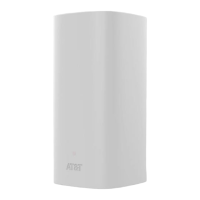
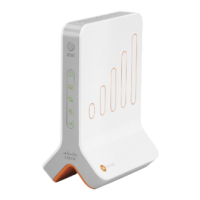
The AT&T Smart Wi-Fi Extender is a device designed to extend your home's Wi-Fi network, ensuring better coverage and signal strength throughout your living space. It offers two primary setup options: connecting via the AT&T Smart Home Manager app or using an Ethernet cable.
The primary function of the AT&T Smart Wi-Fi Extender is to boost and expand your existing AT&T Wi-Fi network. It works in conjunction with your AT&T Internet service and a compatible AT&T Wi-Fi gateway. By strategically placing the extender, you can eliminate dead zones and improve the overall Wi-Fi experience in your home. The device is managed and monitored through the AT&T Smart Home Manager app, which provides a comprehensive interface for network control, troubleshooting, and device management.
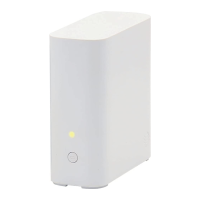
While specific technical specifications like frequency bands (e.g., 2.4 GHz, 5 GHz), Wi-Fi standards (e.g., 802.11ac, 802.11ax), or maximum data rates are not explicitly detailed in the provided manual, the document emphasizes compatibility with AT&T Wi-Fi gateways. Users are directed to att.com/wifiextender to check compatibility. The extender features Ethernet ports, indicated by a YELLOW color, which are used for wired connections during setup and potentially for connecting other devices after pairing. The device also has a power jack, and its operational status is indicated by an LED light on the front, which can display various colors (SOLID WHITE, SOLID GREEN, blinking WHITE) to signify different states such as paired and functioning, connecting, or out of range. The power light on the back also turns SOLID GREEN when properly connected.
The AT&T Smart Wi-Fi Extender is designed for user-friendly setup and management.
Two Setup Options:
Placement Guidance: The manual advises against placing the extender on the floor and directs users to att.com/extenderguide for optimal placement tips. During initial setup, the extender should be in the room next to the gateway.
Status Indicators: The front LED light serves as a crucial indicator of the extender's status:
Smart Home Manager App Integration: The AT&T Smart Home Manager app is central to the extender's usage. It allows users to:
The manual provides basic troubleshooting and maintenance tips to ensure the extender operates effectively.
Troubleshooting Steps:
Support Resources: AT&T offers several support channels:
In summary, the AT&T Smart Wi-Fi Extender is a user-friendly device designed to enhance home Wi-Fi coverage, primarily managed through the AT&T Smart Home Manager app, with clear status indicators and accessible support resources for troubleshooting.


 To Next Page
 General