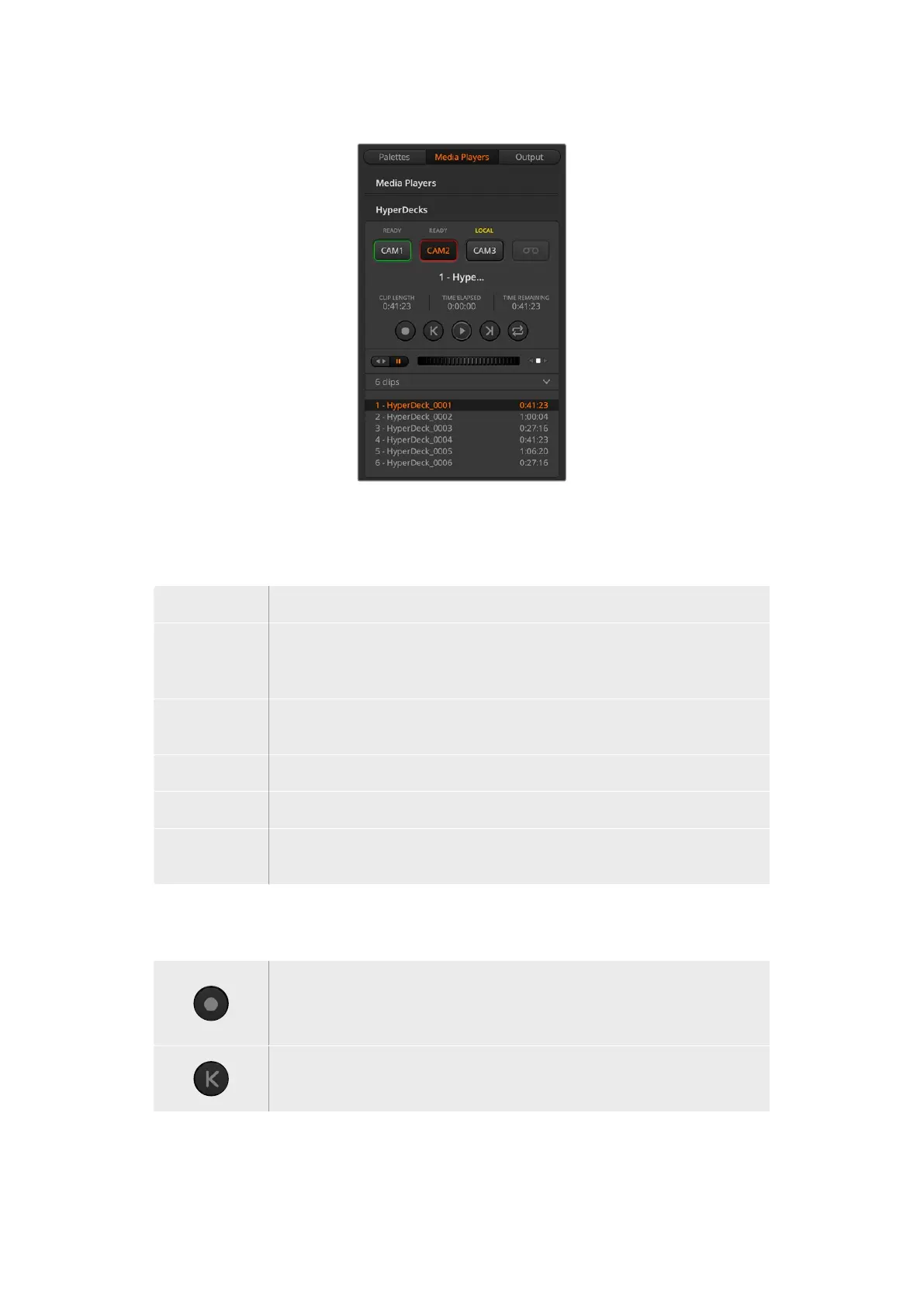
Choose from up to four HyperDecks by
clicking their selection buttons in the
HyperDecks palette.
In addition to the text color, each HyperDeck’s selection button also has a tally indicator.
Green Outline Indicates a HyperDeck that is currently switched to the preview output.
Red Outline Indicates a HyperDeck that is currently switched to the program output, meaning
it is currently live to air. You may also see one of the following status indicators
above the selection buttons for your HyperDecks.
Ready HyperDeck is set to remote and a disk is inserted. It is ready for playback and
recording if space is available.
Record HyperDeck is currently recording.
No Disk HyperDeck has no disk inserted.
Local HyperDeck is not set to ‘remote’ and cannot currently be controlled by your
ATEM switcher.
When you select a HyperDeck, you’ll see information about the currently selected clip such
as the name and length, as well as time elapsed and time remaining. Below this you’ll see the
control buttons.
Record
Click on this button to start recording on your HyperDeck. Click again
to stop recording.
Previous Clip
Moves to the previous clip in your HyperDeck’s media list.
145HyperDeck Control



 To Next Page