Play
Clicking ‘play’ once initiates playback, clicking it again stops playback. If you
have ‘auto roll’ enabled in your HyperDeck settings, playback will commence
automatically when your HyperDeck is switched to the program output.
Next Clip
Moves to the next clip in your HyperDeck’s media list.
Loop
Click ‘loop’ once to loop the currently selected clip and again to loop all of the clips
in your HyperDeck’s media list.
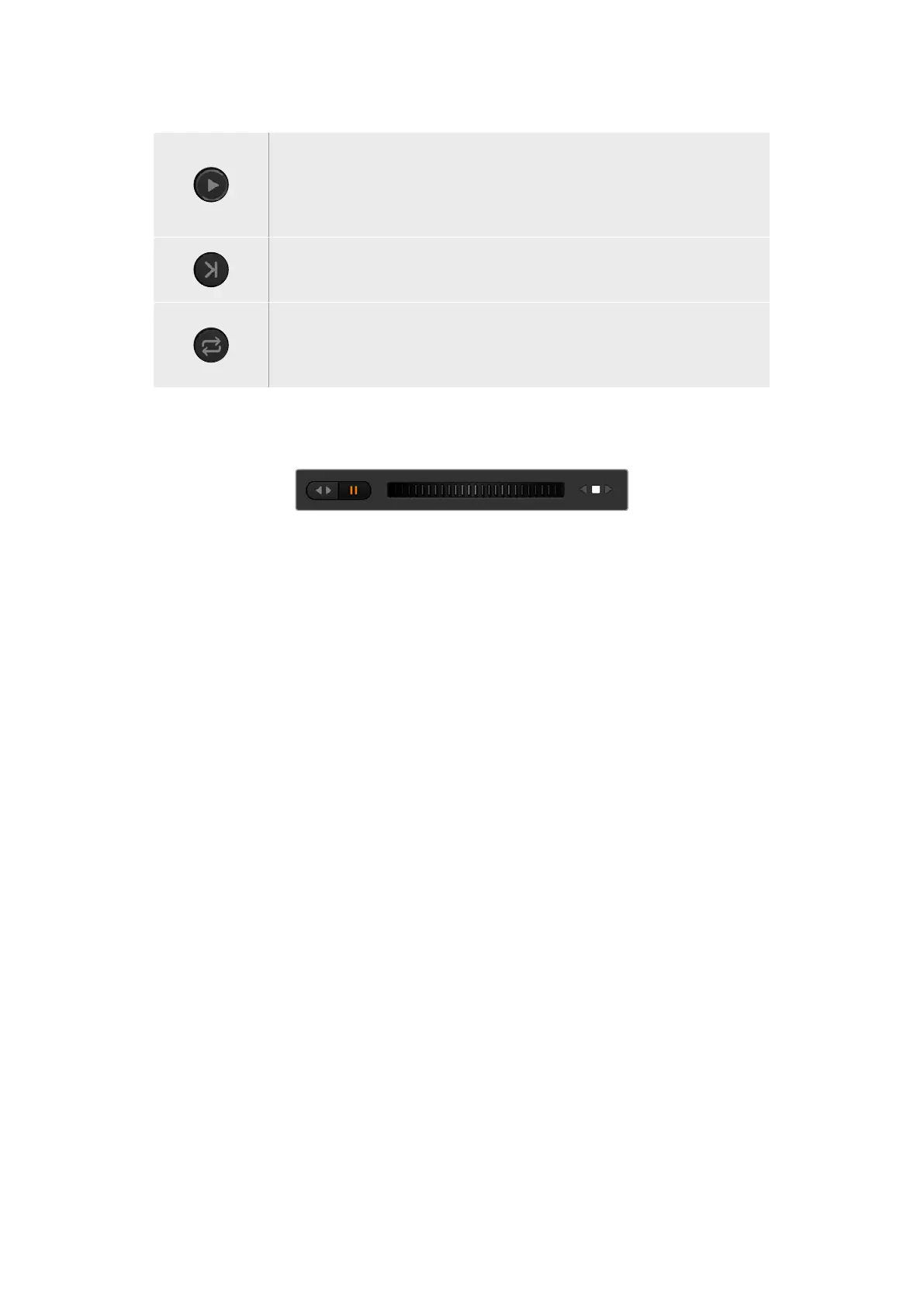
To move through a clip use the shuttle/jog slider underneath your HyperDeck’s control buttons.
This lets you move quickly, or shuttle through a selected clip, or jog frame by frame. You can
switch between these modes with the buttons next to the shuttle/jog slider.
Choose between shuttle and jog transport controls with the
buttons to the left of the transport slider. Adjust the slider left and
right to move forward or backwards through your clip.
The clip list below the transport control shows all of the clips currently available on the selected
HyperDeck. You can expand or collapse the list by pressing the arrow to the right of the clip list.
Playback
Playing media on your HyperDeck is easy. Switch your HyperDeck to the preview output
and select the clip you want to show. Use the transport controls to cue to the preferred point
in your clip. When you switch your HyperDeck to program output, the ‘auto roll’ feature will
automatically start playback from this point.
If you want to manually trigger the playback, for example holding on a still frame then rolling,
disable the respective HyperDeck’s auto roll checkbox in the ’HyperDeck’ tab in ATEM
software’s ‘settings’ menu.
Recording
To record to a HyperDeck with a formatted disk inserted, press the ‘record’ button in the
HyperDeck palette transport controls. The ‘time remaining’ indicator in the HyperDeck palette
will let you know the approximate recording time remaining in the SSD.
Controlling HyperDecks with ATEM Advanced Panels
Once you have connected your HyperDecks to your switcher as described in the ‘connecting
HyperDecks’ section, you can use the system control buttons and LED menu on your panel to
set up and control each HyperDeck.
HyperDeck Setup with ATEM Advanced Panel
Once you have connected your HyperDeck to your switcher, as detailed in the ‘connecting
HyperDecks’ section, use ATEM Advanced Panel’s system control and LCD soft buttons to
setup and control your HyperDecks.
146HyperDeck Control


 To Next Page
 Loading...
