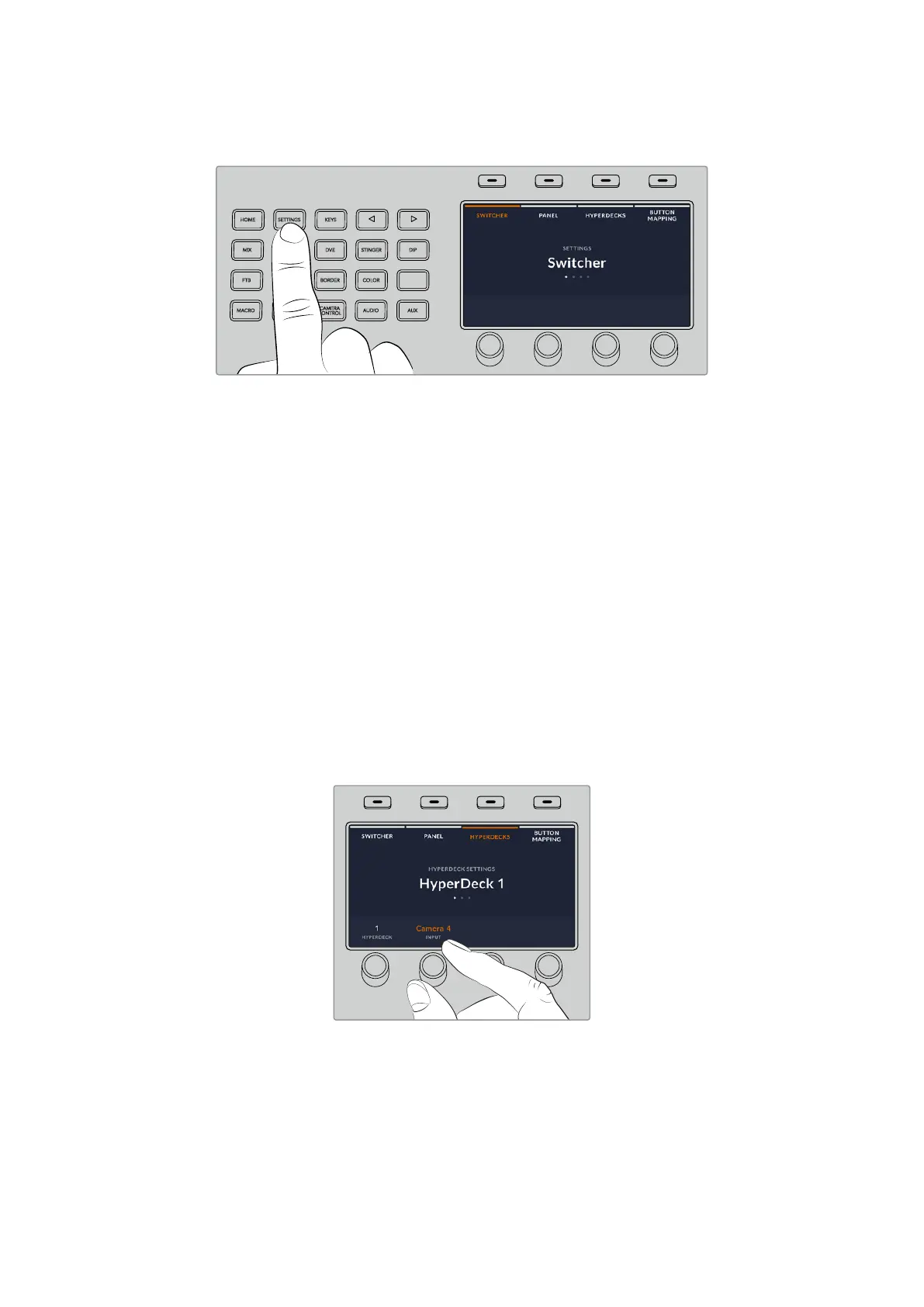
To begin, press the system control ‘settings’ button.
HOME
MIX
FTB
MACRO
SETTINGS
WIPE
MEDIA
PLAYERS
SUPER
SOURCE
KEYS
DVE
BORDER
CAMERA
CONTROL
STINGER
COLOR
AUDIO
DIP
AUX
1
4
7
ENTER
2
5
8
0
3
6
9
RESET
SHIFT MACRO
BKGD
KEY 1
KEY 2
KEY 4
KEY 3
ON
ON
ON
ON M/E 1 M/E 2
M/E 3
M/E 4
SHIFT DIP
DVE
STING
DSK 1
TIE
DSK 2
TIE
DSK 1
CUT
DSK 2
CUT
DSK 1
AUTO
DSK 2
AUTO
FTB
MIX
CUT
AUTO
WIPE
ARM
PREV
TRANS
You’ll notice that ATEM Advanced Panels display four setup options along the top of the LCD
screen. These include ‘switcher,’ ‘panel,’ ‘HyperDecks,’ and ‘button mapping.’ Each corresponds
to a setup menu. Press the LCD soft button above ‘HyperDecks’ to enter the ‘HyperDeck
settings’ menu.
The HyperDeck settings menu has three pages on ATEM 1 M/E Advanced Panel and four pages
on ATEM 2 M/E and 4 M/E Advanced Panels. Navigate between the pages by using the ‘left’
and ‘right’ arrow buttons in the system control panel, or by pressing the ‘1’, ‘2’, ‘3’ and ‘4’ buttons
on your ATEM Advanced Panel’s numerical keypad.
Assigning an Input to a HyperDeck
In the first menu page, you’ll see the ‘HyperDeck’ indicator in the bottom left corner and an
‘input’ indicator.
Use the control knob under the ‘HyperDeck’ indicator to cycle through the available
HyperDecks.
Once you have selected a HyperDeck, rotate the knob under the ‘input’ indicator to select
which input that HyperDeck is connected to on your switcher. For example, if HyperDeck 1 is
connected to SDI In 4 on your switcher, rotate the knob under the ‘input’ indicator to select
‘camera 4.’ Press the ‘input’ knob to confirm your selection.
HOME
MIX
FTB
MACRO
SETTINGS
WIPE
MEDIA
PLAYERS
SUPER
SOURCE
KEYS
DVE
BORDER
CAMERA
CONTROL
STINGER
COLOR
AUDIO
DIP
AUX
1
4
7
ENTER
2
5
8
0
3
6
9
RESET
SHIFT MACRO
BKGD
KEY 1
KEY 2
KEY 4
KEY 3
ON
ON
ON
ON M/E 1 M/E 2
M/E 3
M/E 4
SHIFT DIP
DVE
STING
DSK 1
TIE
DSK 2
TIE
DSK 1
CUT
DSK 2
CUT
DSK 1
AUTO
DSK 2
AUTO
FTB
MIX
CUT
AUTO
WIPE
ARM
PREV
TRANS
Repeat this process for any additional HyperDecks you have connected to your switcher by
assigning inputs to HyperDeck slots 1, 2, 3 and 4, if required.
Assigning an IP Address
Once you’ve assigned an input to a HyperDeck, you’ll need to enter its IP address. This allows
ATEM Advanced Panel to control the HyperDeck via Ethernet.
147HyperDeck Control


 To Next Page
 Loading...
