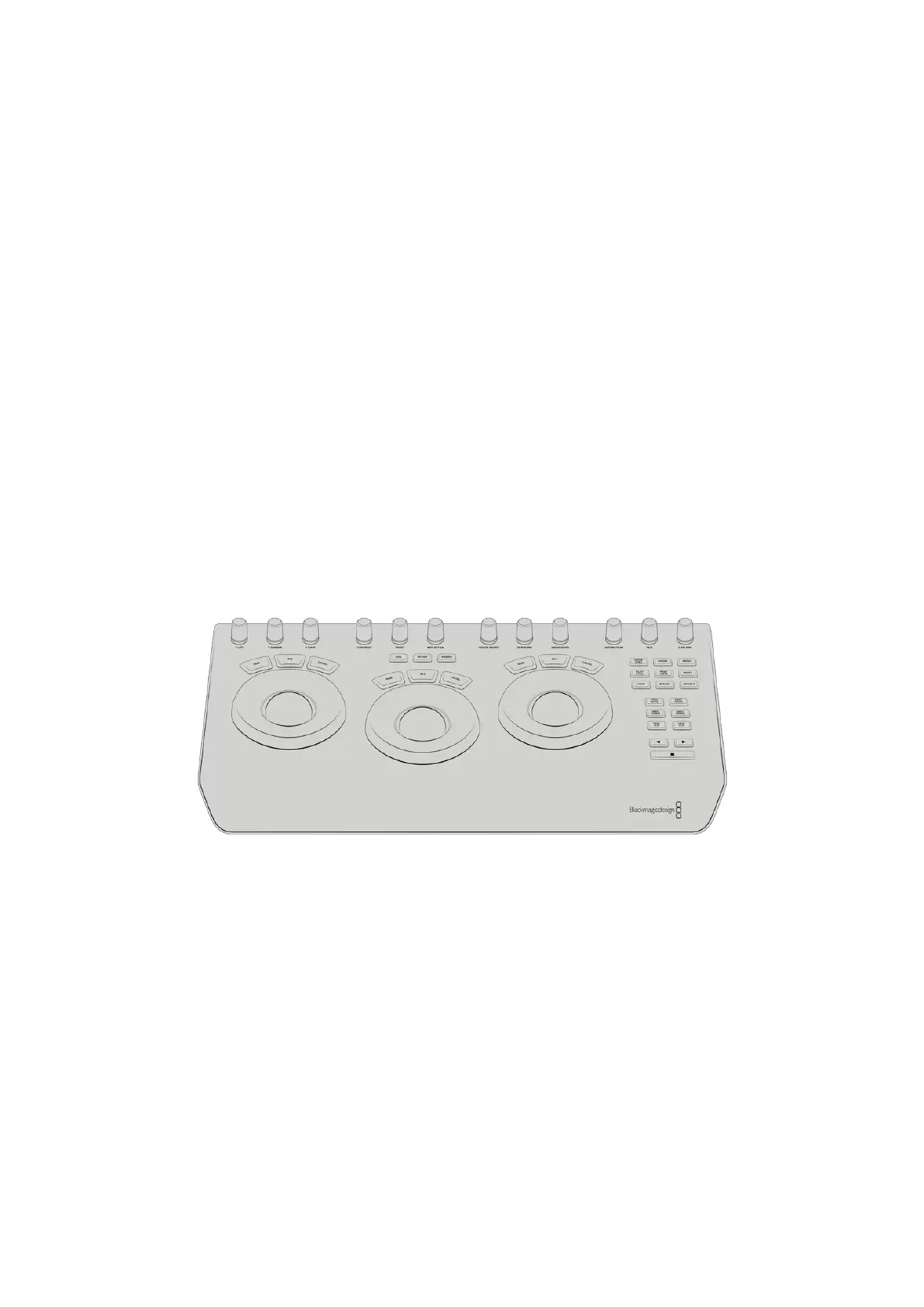
Using a DaVinci Resolve Micro Panel
The DaVinci Resolve primary color corrector in each camera controller can be controlled using
a DaVinci Resolve Micro panel. This lets you make fast and precise color adjustments using a
hardware control panel.
To set up the panel:
1 Connect the DaVinci Resolve Micro Panel to your computer via USB-C and launch ATEM
Software Control.
2 Click on the ‘camera’ tab and select a camera by clicking anywhere in the desired camera
controller.
3 On the DaVinci Resolve Micro Panel, rotate the trackballs and turn the knobs to adjust the
corresponding controls in the primary color corrector.
Making Color Correction Adjustments
The DaVinci Resolve Micro panel is primarily designed for use with DaVinci Resolve software,
but you can also use it to make adjustments in the color corrector panel of ATEM Software
Control in the following way:
The Trackballs
The three trackballs control the lift, gamma and gain color wheels in the color corrector panel.
The ring surrounding each trackball adjusts the corresponding master wheels beneath the
color wheels.
DaVinci Resolve Micro Panel
158Using Tally



 To Next Page