While in the menu, you can press the ‘auto’ button to try the different types of transitions
available to you. Each one of the transition types listed in the LCD menus can also be selected
in ATEM Software Control or a hardware control panel.
As well as the group of main input buttons, the front panel has other sources labeled ‘mp1’ and
‘mp2’. These are media player 1 and media player 2. If you have graphics in your switcher, such
as a graphic or title slide, then you can select the media players as sources and then cut or
transition to them.
Fading the Downstream Key 1
You can trigger the downstream key 1 from the front panel by using the DSK 1 MIX button. This
can be useful when you have a logo or bug and you want to bring it on and off again regularly.
For example you could have a ‘live’ logo that you want to fade on from time to time. You can set
up the logo in the downstream key 1 and then use the DSK 1 MIX button to bring it on and off air.
The duration of the transition when pressing the button will be set in the downstream key LCD
menu, or on a control panel.
You can feed a keyer with an input or a media player. This can be set up in the LCD menus, on
a hardware panel or you can use the software control panel to load the media pool with some
graphics or logos so you have sources to use.
LOCK
MENU
SET
KEY 1
MIX
DSK 1
MIX
BARS
MIX
BLACK
WIPE
DSK2
MIX
FTB
MP 1
DIP
MP 2
DVE
CUT
AUTO
1 2 3 4 5
11 12 13 14 15
PROD
TALK
ENG
TALK
CALL
PGM
MIX
5
Amphenol
4 2
1
3
PUSH
LOCK
MENU
SET
KEY 1
MIX
DSK 1
MIX
BARS
MIX
BLACK
WIPE
DSK2
MIX
FTB
MP 1
DIP
MP 2
DVE
6 7 8 9 CUT
16 17 18 19
10
20 AUTO
1 2 3 4 5
11 12 13 14 15
PROD
TALK
ENG
TALK
CALL
PGM
MIX
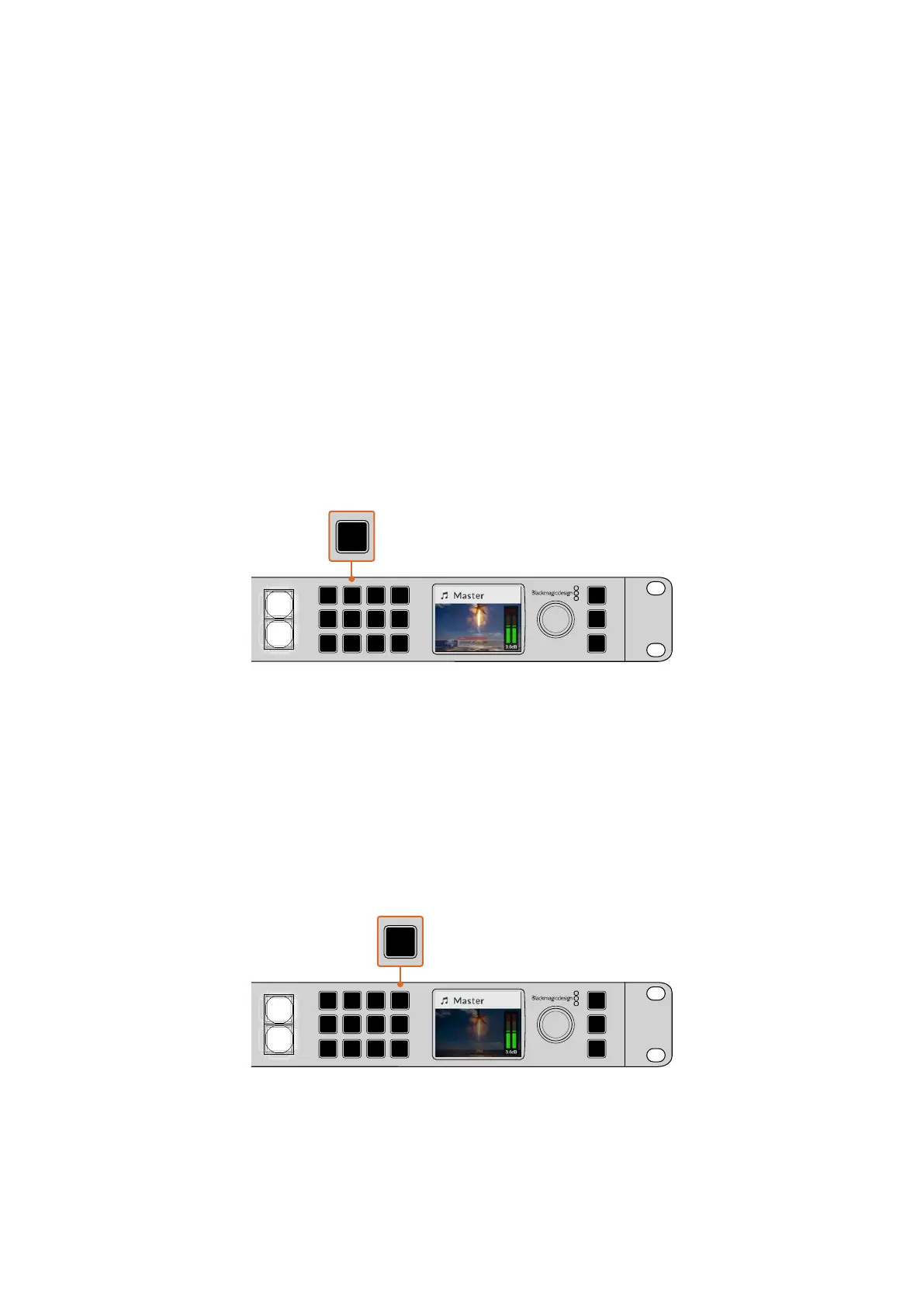
Press the DSK 1 MIX button to fade the downstream key 1 on and off air
Fade to Black
When you start or finish a program, you want to be able to fade to black without worrying about
leaving a logo on the screen by accident. Your ATEM switcher has a lot of powerful features and
lots of layers that you can enable for transitions. What this means is you could have a complex
setup on the switcher with many layers but you really just want a single button to start your
program. This is what the FTB or fade to black button does.
If you press the FTB button, the whole program output of the switcher will fade to black. The
button will flash to indicate to you that it’s active. You can set the duration for the fade to black
transition in the LCD menu or on a software or hardware control panel.
LOCK
MENU
SET
KEY 1
MIX
DSK 1
MIX
BARS
MIX
BLACK
WIPE
DSK2
MIX
FTB
MP 1
DIP
MP 2
DVE
CUT
AUTO
1 2 3 4 5
11 12 13 14 15
PROD
TALK
ENG
TALK
CALL
PGM
MIX
5
Amphenol
4 2
1
3
PUSH
LOCK
MENU
SET
KEY 1
MIX
DSK 1
MIX
BARS
MIX
BLACK
WIPE
DSK2
MIX
FTB
MP 1
DIP
MP 2
DVE
6 7 8 9 CUT
16 17 18 19
10
20 AUTO
1 2 3 4 5
11 12 13 14 15
PROD
TALK
ENG
TALK
CALL
PGM
MIX
Press the fade to black or FTB button to perform a fade to black on the whole
program output, including any graphics or keyers that may be in use
16Using the Front Panel


 To Next Page
 Loading...
