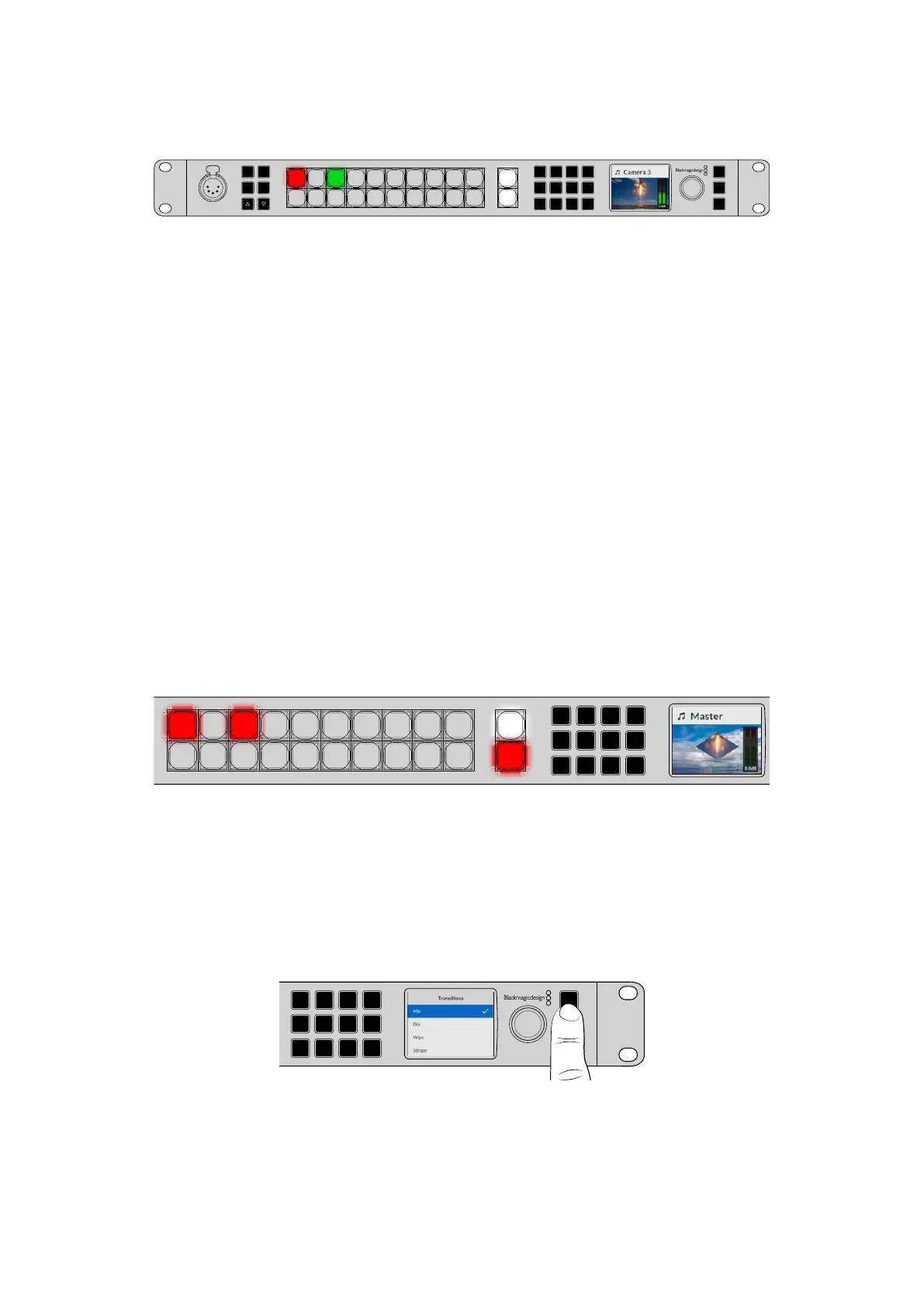
In this example, we have input 1 on air and we want to transition to input 3.
5
Amphenol
4 2
1
3
PUSH
LOCK
MENU
SET
KEY 1
MIX
DSK 1
MIX
BARS
MIX
BLACK
WIPE
DSK2
MIX
FTB
MP 1
DIP
MP 2
DVE
6 7 8 9 CUT
16 17 18 19
10
20 AUTO
1 2 3 4 5
11 12 13 14 15
PROD
TALK
ENG
TALK
CALL
PGM
MIX
In program/preview mode with input 1 on air and input 3 on preview
To perform a transition:
1 Select the next source by pressing button 3. The button will now illuminate green to show it
is selected on the preview bus and ‘camera 3’ will appear on the LCD.
2 Press the cut or auto buttons.
If you press cut, button 3 will now illuminate red as it’s on air. Input 3 will also be switched to the
program output. If you select auto, then the currently selected transition will be triggered. While
the transition is occurring, you will see both buttons illuminated red because both sources are
on air during the transition. That’s all there is to it!
If you would like to change the transition type from a cut, then you can do this in the LCD menus
or the four dedicated transition selection buttons on the front panel of ATEM 4 M/E and 2 M/E
Constellation HD switchers. You can choose from Mix, Dip, Wipe and DVE transitions with the
touch of a button.
To select the transition type using the dedicated buttons:
1 Press the dedicated wipe transition button on ATEM 2 M/E and 4 M/E Constellation HD.
2 Source 3 will be red and source 1 will be green following the previous transition.
3 Press ‘auto’ to perform a wipe transition from source 3 to source 1. During the transition,
both source numbers will illuminate red to indicate they are both on air and the ‘wipe’
button will illuminate red.
5
Amphenol
4 2
1
3
PUSH
LOCK
MENU
SET
KEY 1
MIX
DSK 1
MIX
BARS
MIX
BLACK
WIPE
DSK2
MIX
FTB
MP 1
DIP
MP 2
DVE
6 7 8 9 CUT
16 17 18 19
10
20 AUTO
1 2 3 4 5
11 12 13 14 15
PROD
TALK
ENG
TALK
CALL
PGM
MIX
Buttons will illuminate red during transitions
To select the transition using the front panel menu:
1 Press the menu button to display the menus.
2 Scroll through to the ‘transition’ menu using the knob and press the ‘set’ button to select.
3 With the transition option highlighted, press ‘set’, this will display all the available transition
types. Turn the knob to highlight the ‘mix’ transition and press ‘set’. Now when you select
the auto button, the program source will wipe transition to the preview source.
LOCK
MENU
SET
KEY 1
MIX
DSK 1
MIX
BARS
MIX
BLACK
WIPE
DSK2
MIX
FTB
MP 1
DIP
MP 2
DVE
6 7 8 9 CUT
16 17 18 19
10
20 AUTO
1 2 3 4 5
11 12 13 14 15
PROD
TALK
ENG
TALK
CALL
PGM
MIX
4 Press ‘menu’ to return to the transition menu and then twice more to exit the menus.
15Using the Front Panel


 To Next Page
 Loading...
