Mix Effects
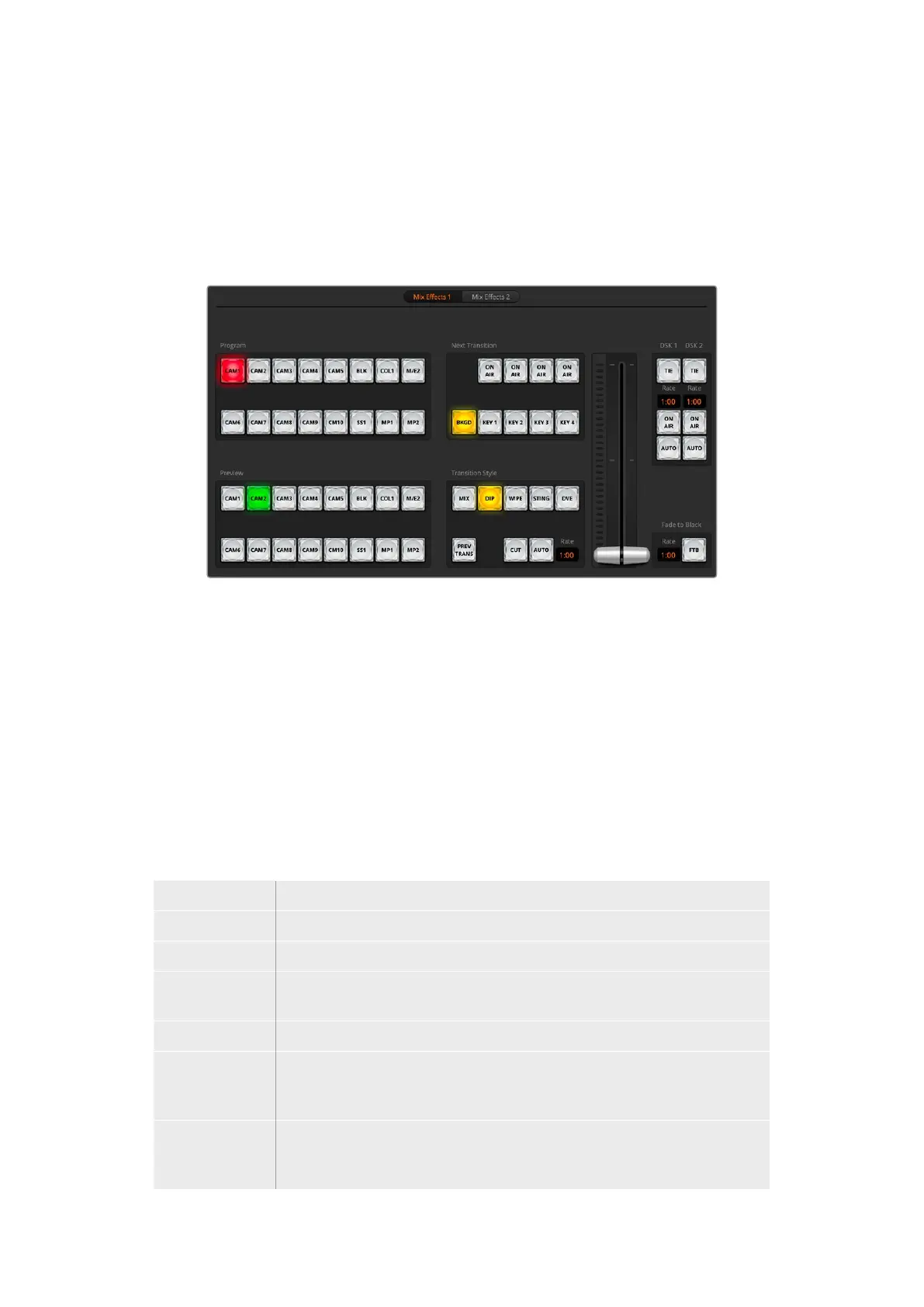
The Mix Effects block of the switcher tab contains all the source select buttons for the program
and preview buses, allowing external inputs or internal sources to be selected for next
transition previewing or switching to air.
If your switcher has 2 or more Mix Effects panels, you can optimize the interface to show two, or
select each panel by clicking on the numbered Mix Effects buttons at the top of the interface.
On ATEM 2 M/E and 4 M/E models, select the mix effects panel using the numbered buttons
atthe top of the interface
When both panels are visible, the Mix Effects 1 or 2 buttons will move to the processing palettes.
Program Bus Source Select Buttons
The program bus source select buttons are used to hot switch background sources to the
program output. The source currently on air is indicated by a button that is illuminated red.
Preview Bus Source Select Buttons
The preview bus source select buttons are used to select a background source on the preview
output, this source is sent to the program bus when the next transition occurs. The currently
selected preview source is indicated by a button that is illuminated green.
The source select buttons for the Program bus match the Preview bus.
INPUTS Input buttons match the number of external switcher inputs.
BLACK Color black source internally generated by the switcher.
SUPERSOURCE ATEM 2 M/E and 4 M/E models feature SuperSource. Shift select for Bars.
BARS
Color bars source internally generated by the switcher. This is a dedicated button
when using ATEM 1 M/E Constellation HD
COLOR 1 Color sources internally generated by the switcher. Shift select for Color 2.
MEDIA 1 and 2
Internal media players that display stills or clips stored in the switcher. When using
an ATEM 2 M/E or 4 M/E switchers, hold the shift button down on your keyboard
to reveal the additional media player buttons on the preview and program rows.
M/E2
This button is present on ATEM 2 M/E and 4 M/E models and allows a Mix Effects
2 setup to be instantly brought to air or previewed. On ATEM 4 M/E Constellation
HD you can also select M/E 3 and M/E 4. Shift select for the M/E preview output.
31ATEM Software Control



 To Next Page
 Loading...