Transition Control and Upstream Keyers
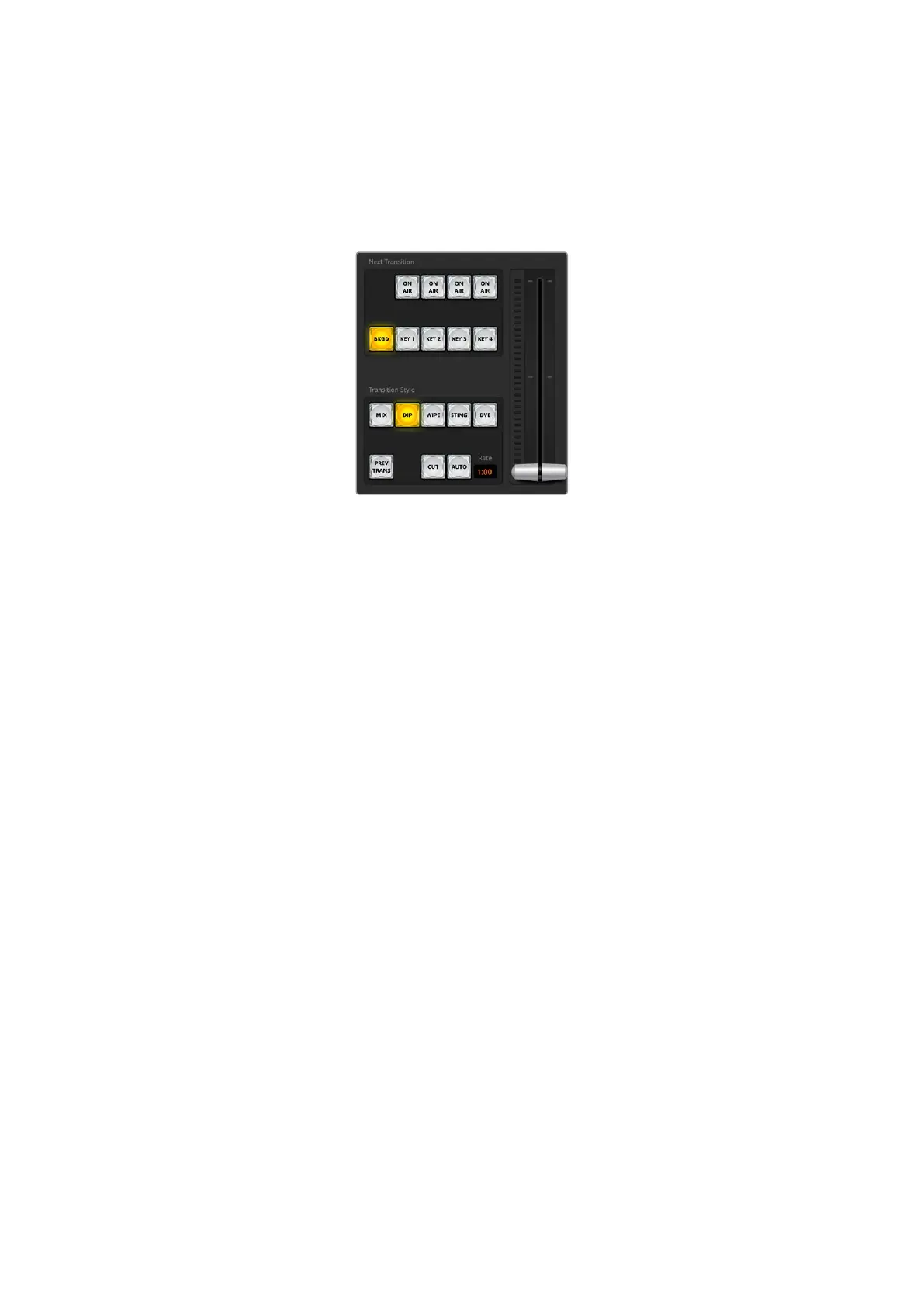
CUT
The CUT button performs an immediate transition of the program and preview outputs,
overriding the selected transition style.
Transition Control
AUTO/RATE
The AUTO button will perform the selected transition at the rate specified in the ‘rate’ display.
The transition rate for each transition style is set in the transition palette for that style and is
displayed in the ‘rate’ window of the transition control block when the corresponding transition
style button is selected.
The AUTO button illuminates red for the duration of the transition and the ‘rate’ display updates
to indicate the number of frames remaining as the transition progresses. If an ATEM advanced
panel is connected, the fader bar indicator on the panel updates to provide visual feedback on
the progress of the transition.
Fader Bar
The fader bar is used as an alternative to the AUTO button and allows the operator to manually
control the transition with a mouse. The AUTO button illuminates red for the duration of the
transition and the ‘rate’ display updates to indicate the number of frames remaining as the
transition progresses. If an ATEM advanced panel is connected, the fader bar Indicator on the
panel updates to provide visual feedback on the progress of the transition.
Transition Style
The transition style buttons allow the operator to select one of five types of transitions; mix,
dip, wipe, DVE, and stinger. The selected transition style is indicated by a yellow illuminated
button. Selection of these buttons will be reflected by the corresponding tab in the Transitions
processing palette. For example, when you have the transitions processing palette open and
click on ‘wipe’, the palette will automatically reveal the ‘wipe’ tab so you can make adjustments
to the transition such as duration or pattern style.
PREV TRANS
The PREV TRANS button enables the preview transition mode, allowing the operator to verify
a mix, dip, wipe or DVE transition by performing it on the preview output using the fader bar.
When the PREV TRANS is selected you will see the preview output match the program output,
and then it’s simple to practice your selected transition with the fader bar to confirm you are
going to get what you want. This is a very helpful feature to avoid mistakes on air!
32ATEM Software Control


 To Next Page
 Loading...
