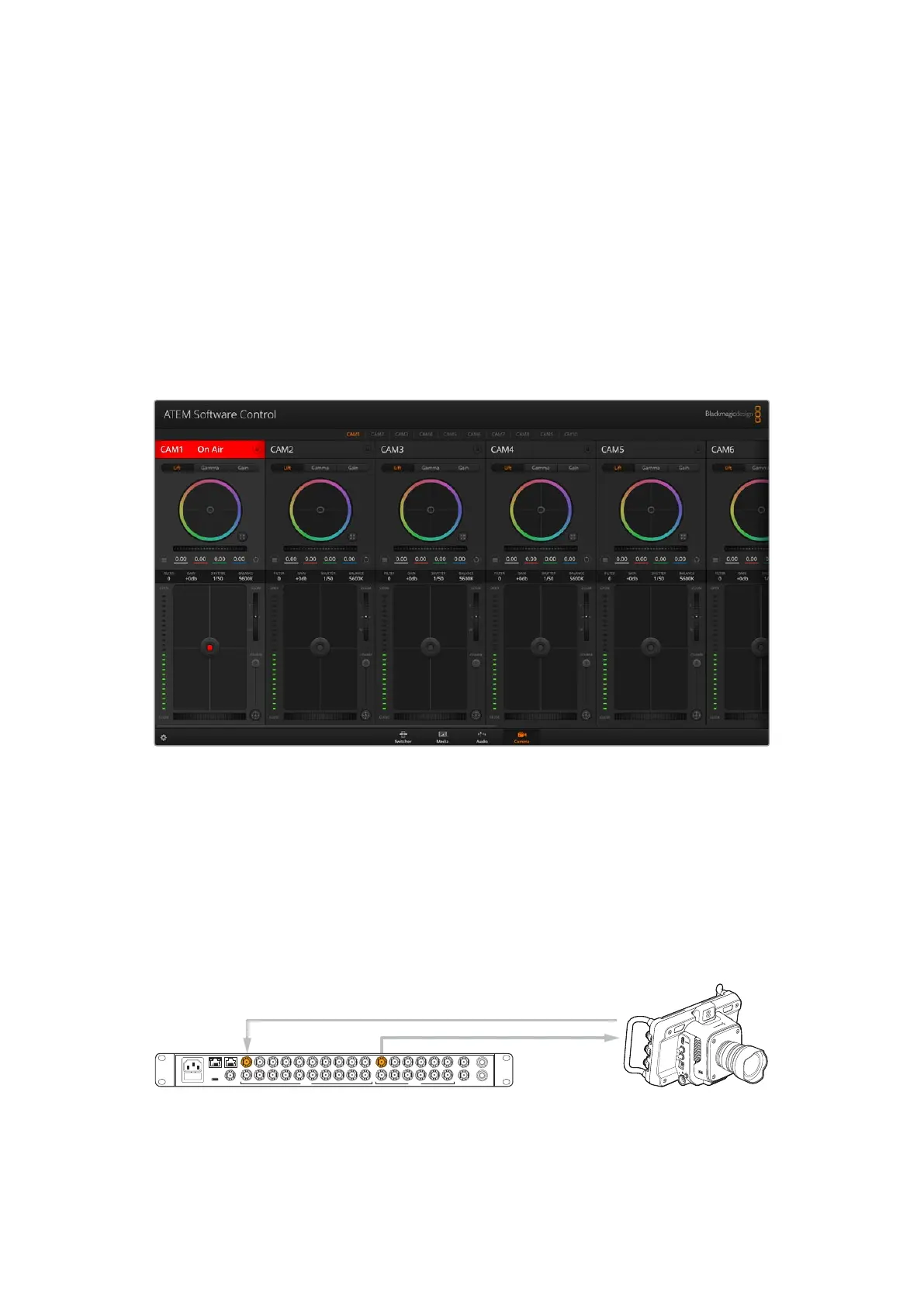
Using Camera Control
Clicking on the ‘camera’ button in ATEM Software Control opens the camera control feature that
lets you control Blackmagic cameras including Blackmagic Studio Camera 4K Pro and URSA
Broadcast G2 from your ATEM switcher. Blackmagic camera settings such as iris, gain, focus,
detail and zoom control are easily adjusted using compatible lenses, plus you can color balance
cameras and create unique looks using the DaVinci Resolve primary color corrector that’s built
into the camera.
ATEM camera control works by broadcasting camera control packets via all the non down
converted SDI outputs of your ATEM switcher. This means you can connect an SDI output from
your switcher to your camera’s SDI return input and the camera will detect the control packets
in the SDI link and allow you to control features in the camera itself.
ATEM Camera Control.
To connect cameras:
1 Connect your Blackmagic camera’s SDI output to any SDI input on your ATEM switcher.
2 Connect any one of your ATEM switcher’s SDI outputs, except multiview outputs, to your
camera’s program SDI input. Camera control signals are not sent via the multiview outputs.
3 In your camera’s settings, set the camera ID number to match your switcher input.
Forexample, if studio camera 1 is connected to ‘input 1’ on your ATEM switcher, the camera
number in your camera settings must also be set to 1. This ensures tally is sent to the
correct camera.
SDI Out
SDI Out
SDI In
SDI In
Blackmagic
Studio Camera 4K Pro
ATEM
2/ME Constellation HD
SDI IN
SDI OUT
ETHERNET
+12V
+12V
CONTROL TALKBACK
REF INUSB-C
1 3 5 7 9
2 4 6 8 10
11 13 15
12
1 3 5 7 9
2 4 6 8 10
11 1
12 214 16
17 19
18 20
ANALOG AUDIO INMULTIVIEW
CH 2
CH 1
SDI OUTPUTSSDI INPUTS
50Using Camera Control



 To Next Page