Camera Control Panel
Launch ATEM Software Control and click on the ‘camera’ button located at the bottom of the
software window. You’ll see a row of labeled Blackmagic camera controllers containing tools to
adjust and refine each camera’s image. The controllers are easy to use. Simply click the buttons
using your mouse, or click and drag to adjust.
Camera Control Selection
The button row at the top of the camera control page lets you select the camera number you
would like to control. If you have more cameras that fit onto the window size, or you are running
the color corrector window, then you can use these buttons to select between which camera
you would like to control. If you are using an output for monitoring your camera control, pushing
these buttons to change the camera to control will also send that camera’s video output to the
output setup in the switcher preferences.
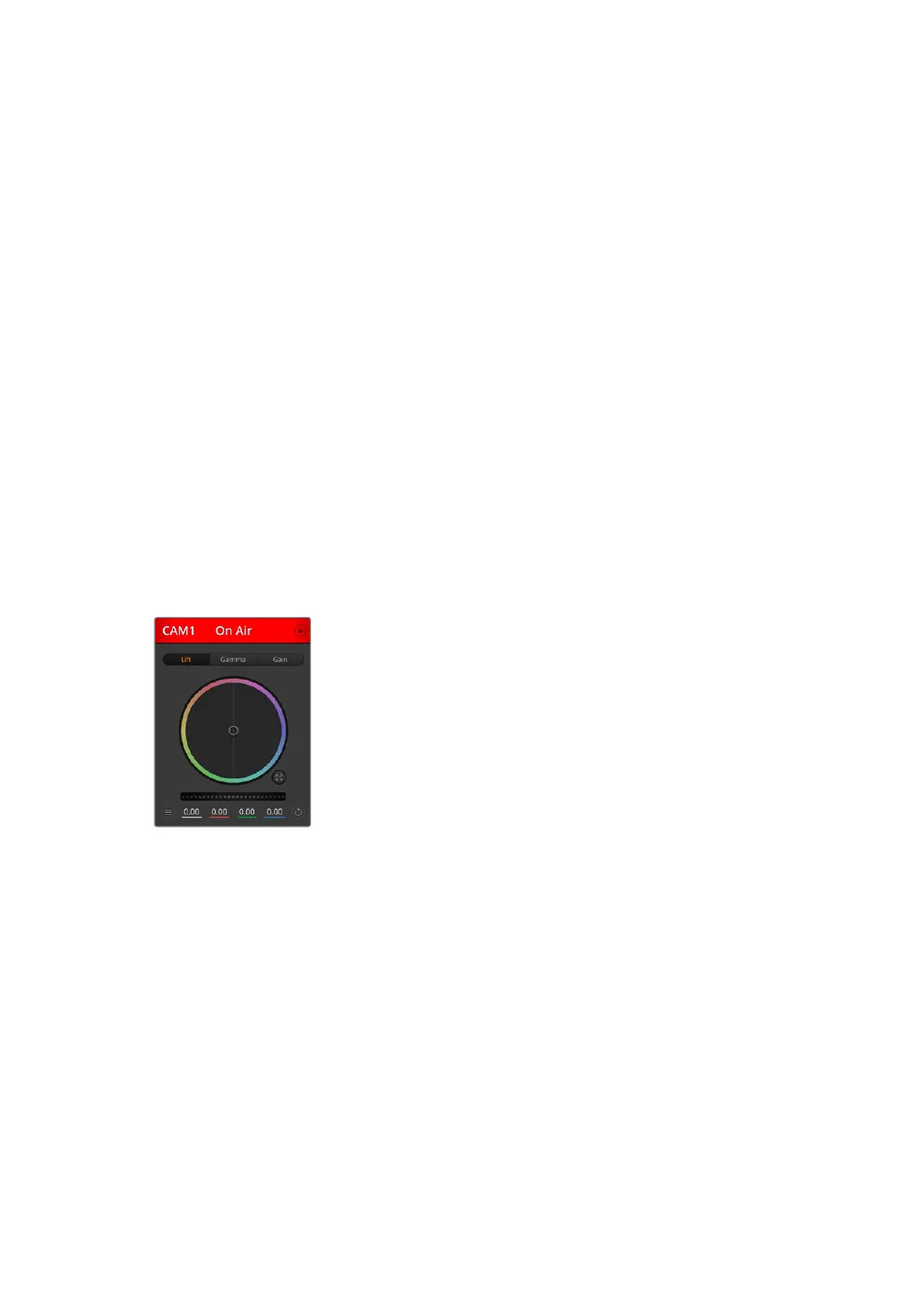
Channel Status
The channel status at the top of each camera controller displays the camera label, On Air
indicator and lock button. Press the lock button to lock all the controls for a specific camera.
When on air, the channel status illuminates red and displays the On Air alert.
Camera Settings
The camera settings button near the bottom left of the master wheel lets you turn on the color
bars setting on Blackmagic Studio Camera, URSA Mini and URSA Broadcast, plus adjust detail
settings for each camera’s picture signal.
Detail
Use this setting to sharpen the image from your cameras live. Decrease or increase the level of
sharpening by selecting: Detail off, detail default for low sharpening, medium detail and high detail.
Color Wheel
The color wheel is a powerful feature of the DaVinci Resolve color corrector and used to make
color adjustments to each YRGB channel’s lift, gamma and gain settings. Youcan select which
setting to adjust by clicking on the three selection buttons above the color wheel.
Master Wheel
Use the master wheel below the color wheel to make contrast adjustments to all YRGB
channels at once, or luminance only for each lift, gamma or gain setting.
Reset Buttons
The reset button near the bottom right of each camera controller lets you easily choose color
correction settings to reset, copy or paste. Each color wheel also has its own reset button.
Press to restore a setting to its default state, or copy/paste a setting. Locked controllers are not
affected by the Paste feature.
Each camera controller displays the channel status so you know
which camera is on air. Use the color wheels to adjust each YRGB
channel’s lift, gamma and gain settings.
Show/Hide Color Bars
Blackmagic cameras have a color bars setting built in which you can
turn on or off by selecting ‘show’ or ‘hide’ color bars. This feature can
be very useful for visually identifying individual cameras while setting
up for your live production. Color bars also provide an audio tone so
you can easily check and set the audio levels from each camera.
51Using Camera Control


 To Next Page
 Loading...
