Background and Foreground Art
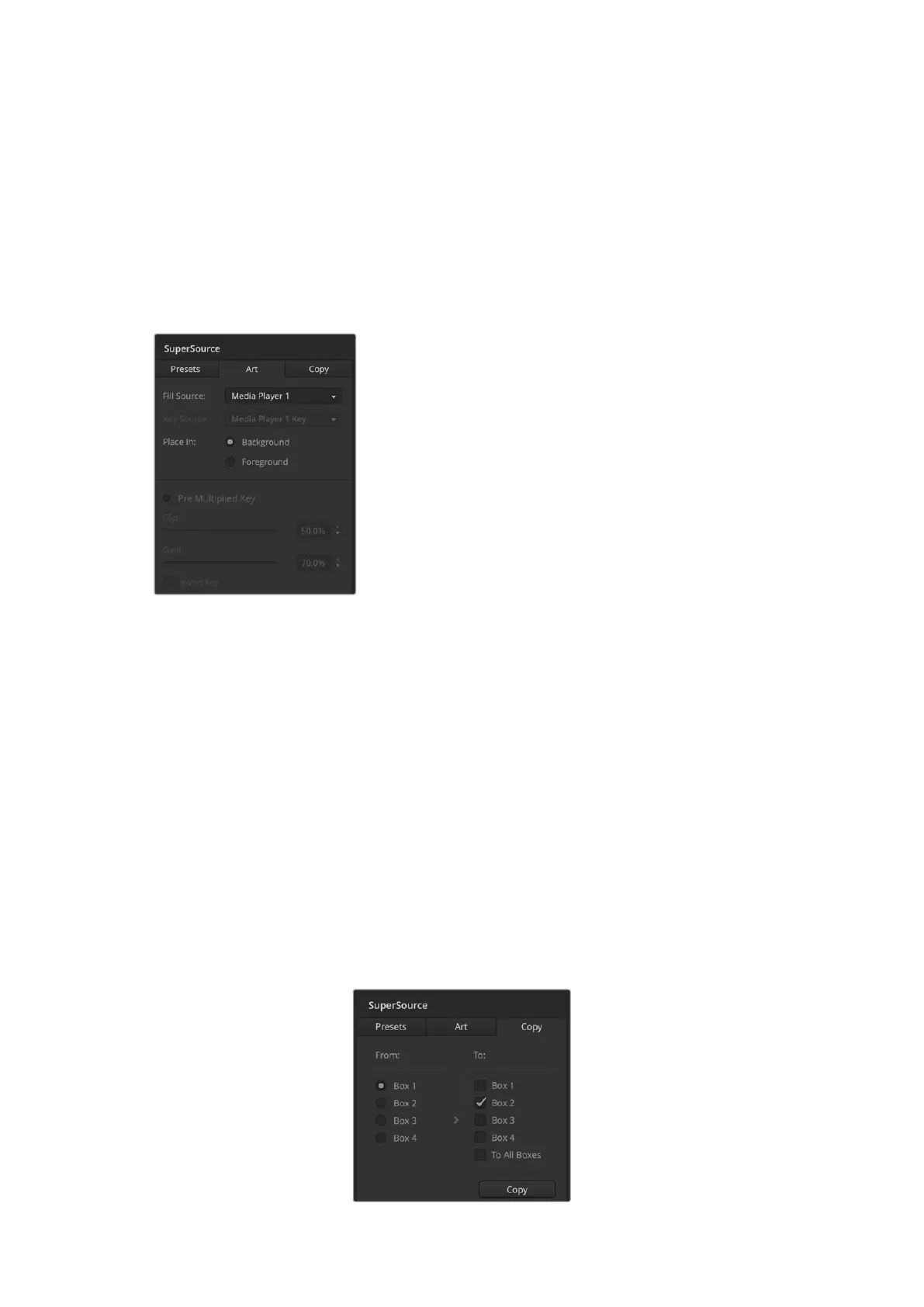
To use background art, clicking on the button marked Art on the GUI or the ATEM Panel will
reveal the Art settings. To use art as a background source, select the button marked Background.
Then choose your Art Fill Source via the GUI drop down box, or on the ATEM panel by the Source
Select bus. Assign the source and your choice will be placed behind the on screen boxes.
On the panel, in the SuperSource menu press the button marked art and then press the button
marked Background. Select the source for the background via the Select bus on the 1 M/E
panel or the dedicated Destination bus on the 2 M/E panel. This will result in the selected video
source being placed behind the enabled boxes.
On the GUI if you wish to make the art foreground, then click
on the radio button marked Foreground and choose whether
your graphic is Pre Multiplied or not. If it is Pre Multiplied then
tick the check box, assign the Art Fill Source and the Art
Key Source. This will now allow the art to be placed over the
enabled box or boxes. If your art is not pre multiplied then
you can use the clip and gain controls as discussed in the
Keying section of this manual to achieve the desired result.
On the panel if you wish to make the art foreground, then
click on the button marked Foreground and choose whether
your graphic is Pre Multiplied or not. If it is Pre Multiplied then
press the button marked with this label and assign the Art Fill
Source and the Art Key Source. This will now allow the art to
be placed over the enabled box or boxes. If your art is not
Pre Multiplied then you can use the clip and gain controls as
discussed in the Keying section of this manual to achieve the
desired result. You may also need to invert the key.
Copying Settings
To perform the Copy function using the GUI, simply click on the Copy button and the Copy Box
Settings dialogue will appear. You can quickly & easily copy the settings of the currently selected
box to any of the other boxes, making an exact clone in just one click! The copied boxes will
appear directly behind the master box and will also share the same source as the master.
If you are using an ATEM panel, select any box via the SuperSource main menu and then the
button marked Copy To. In the window, the currently marked box will then be copied to any of
the other boxes as selected. As with the GUI, the copied boxes will appear directly behind the
master box and will also share the same source as the master.
Putting SuperSource On Air
The entire SuperSource processor appears on your ATEM Switcher as a video input. Simply
select the SuperSource button on the GUI or the ATEM panel to use the composite you have
just made!
Copying the settings of Box 1 to Box 2
Art Background controls
60Using Outputs


 To Next Page
 Loading...
