the rate used by your PTZ camera. Refer to your camera’s support documentation to confirm
the appropriate baud rate.
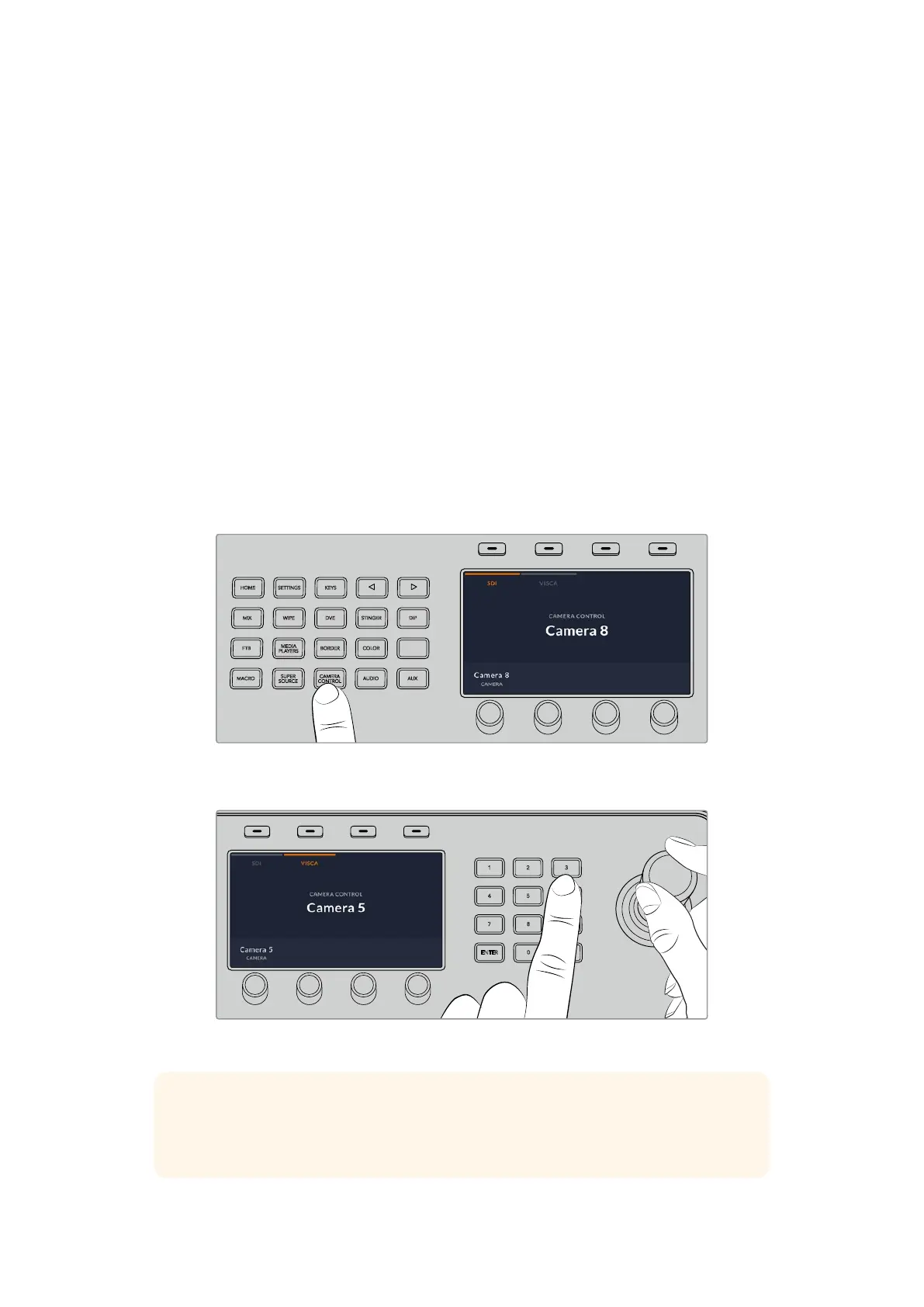
Pressing the camera control button opens the camera settings, where you can select VISCA
control and choose the camera you want to adjust. But first, you will need to make sure the
connected cameras are detected.
To detect the connected devices:
1 Press the VISCA soft button to select VISCA control.
2 Press the ‘detect’ soft button.
The first camera connected to your switcher will appear on the LCD as ‘camera 1’. If you have
more than one camera connected, they can each be selected by turning the ‘camera’ soft
control knob. Camera numbering is based on consecutive order from the first remote head
connected, through to the last in the chain.
If the number of connected cameras that appear on the LCD menu don’t match the physical
number you have connected, check that all your camera heads are powered and their RS-422
ports are plugged in correctly. Once all your camera heads are visible on your ATEM advanced
panel, select each camera using the soft control knob or numeric keypad and make some quick
adjustments with the joystick to check they are all working properly.
HOME
MIX
FTB
MACRO
SETTINGS
WIPE
MEDIA
PLAYERS
SUPER
SOURCE
KEYS
DVE
BORDER
CAMERA
CONTROL
STINGER
COLOR
AUDIO
DIP
AUX
1
4
7
ENTER
2
5
8
0
3
6
9
RESET
SHIFT MACRO
BKGD
KEY 1
KEY 2
KEY 4
KEY 3
ON
ON
ON
ON M/E 1 M/E 2
M/E 3
M/E 4
SHIFT DIP
DVE
STING
DSK 1
TIE
DSK 2
TIE
DSK 1
CUT
DSK 2
CUT
DSK 1
AUTO
DSK 2
AUTO
FTB
MIX
CUT
AUTO
WIPE
ARM
PREV
TRANS
To use VISCA PTZ control, press the ‘camera control’ button and select VISCA by pressing
the VISCA soft button.
HOME
MIX
FTB
MACRO
SETTINGS
WIPE
MEDIA
PLAYERS
SUPER
SOURCE
KEYS
DVE
BORDER
CAMERA
CONTROL
STINGER
COLOR
AUDIO
DIP
AUX
1
4
7
ENTER
2
5
8
0
3
6
9
RESET
SHIFT MACRO
BKGD
KEY 1
KEY 2
KEY 4
KEY 3
ON
ON
ON
ON M/E 1 M/E 2
M/E 3
M/E 4
SHIFT DIP
DVE
STING
DSK 1
TIE
DSK 2
TIE
DSK 1
CUT
DSK 2
CUT
DSK 1
AUTO
DSK 2
AUTO
FTB
MIX
CUT
AUTO
WIPE
ARM
PREV
TRANS
Select the camera you want to control and use the joystick to pan, tilt and zoom
TIP Camera control defaults to SDI for general camera control via SDI, so when
using VISCA control, make sure you press the VISCA soft button to access VISCA
PTZcameras.
73Using ATEM Hardware Panels


 To Next Page
 Loading...
