The Audeeo Indulge Wireless Headphones (Item: AOIND) are designed to provide a high-quality audio experience with extended listening time and versatile connectivity. These headphones are engineered for comfort, durability, and ease of use, making them suitable for various activities, from casual listening to hands-free calls.
Function Description:
The Audeeo Indulge Wireless Headphones are primarily designed for wireless audio playback via Bluetooth, allowing users to enjoy music and other audio content without the constraints of cables. They also feature a built-in microphone for hands-free calling and support for smartphone voice assistants like Google Assistant™ and Siri®. For situations where wireless connectivity is not preferred or available, the headphones include an AUX input, enabling a wired connection to audio devices. The control panel on the headphones provides intuitive access to power, volume, track navigation, and call management.
Important Technical Specifications:
- Bluetooth Version: 5.0
- Bluetooth Frequency: 2.402-2.480GHz
- Frequency Response: 20Hz - 20KHz
- Driver Unit: 40mm
- Battery: 400mAh Lithium Ion
- Working Time: Up to 20 hours (Note: working time depends on volume levels; lower volume prolongs battery life, higher volume decreases it.)
- Charging Time: Approximately 2 hours
- Impedance: 32Ω
- Operation Range: 10m
Usage Features:
- Wireless Connectivity: Utilizes Bluetooth 5.0 for stable and efficient wireless pairing with smartphones, computers, tablets, and other Bluetooth-enabled devices.
- Extended Listening Time: Equipped with a 400mAh lithium-ion battery, providing up to 20 hours of continuous listening on a full charge.
- Hands-Free Calling: Features a built-in microphone for answering, rejecting, and hanging up calls directly from the headphones. A double press of the Pause/Play/Phone Button (C) redials the last number.
- Voice Assistant Integration: Supports activation of smartphone voice assistants (Google Assistant™ or Siri®) by pressing and holding the Multi Function Button (C) for 1-2 seconds.
- Intuitive Control Panel:
- Power Switch (A): Turns the headphones ON/OFF.
- Volume (+) / Next Track Button (B): Skips to the next track and increases volume.
- Pause/Play/Phone Button (C): Pauses/plays music, receives/hangs up calls, and activates voice assistant.
- Volume (-) / Previous Track Button (D): Goes to the previous track and decreases volume.
- LED Indicator Light (E): Illuminates to indicate power status (ON/OFF), pairing mode (flashing blue and red), and connection status (slowly blinking blue when paired). It also shows charging status (red while charging, blue when fully charged).
- Auxiliary Input (F): Allows for a wired connection using the provided auxiliary cable, making the headphones compatible with devices that do not support Bluetooth or when the battery is depleted.
- Micro USB Charging Port (G): Used to charge the headphones with the included micro USB cable.
- Comfortable Design: Features a silicone head cushion (A) for a better grip and soft ear cushions (B) for long listening comfort.
- Durable Build: Incorporates a rubber coating (C) for a more durable touch and feel.
Quick Start Guide:
- Charging: Connect the micro USB cable to a computer USB port or USB wall charger, then plug the other end into the Micro USB charging port (G) on the left side of the headphone. The LED indicator light (E) will turn RED while charging and BLUE when fully charged.
- Powering ON: Ensure the headphones are off, then slide the power switch (A) to turn them ON. The headphones will automatically enter Bluetooth pairing mode, emitting a tone, and the LED indicator light (E) will flash BLUE and RED.
- Bluetooth Pairing:
- Enable Bluetooth on your smartphone or music device.
- Your device will search for wireless devices.
- Select "audeeo Indulge" from the list of available Bluetooth devices.
- Once successfully paired, the LED (E) will slowly blink blue, and the headphones will emit a tone.
Troubleshooting:
- No Power: Recharge the headphones using the included micro USB cable.
- Music Not Playing Over Bluetooth: Ensure your Bluetooth device has an A2DP profile. Verify that both devices are paired and connected. Restart the headphones to reconnect.
- Bluetooth Device Will Not Reconnect: Navigate to your Bluetooth settings, tap "audeeo Indulge," and select "Forget." Then, follow the pairing steps again.
Maintenance Features:
- Care & Maintenance Guidelines:
- Avoid exposing the unit to liquid, moisture, or humidity to prevent damage to internal circuitry.
- Do not use abrasive cleaning solvents.
- Avoid exposure to extremely high or low temperatures, as this can shorten battery life, destroy the battery, or distort plastic parts.
- Do not dispose of the unit in fire.
- Avoid using sharp objects on the headphones to prevent scratches and damage.
- Do not attempt to disassemble the unit; return it to the store if it malfunctions.
- Battery Disposal: Lithium-ion batteries should not be disposed of with general waste. They must be returned to a battery recycling collection point.
- Environmental Responsibility: The product and its packaging materials are recyclable. Users are encouraged to dispose of the appliance at a central point for recycling electric and electronic domestic appliances to contribute to environmental protection.
The Audeeo Indulge Wireless Headphones offer a comprehensive audio solution with a focus on user convenience, sound quality, and responsible manufacturing.

 Need help?
 General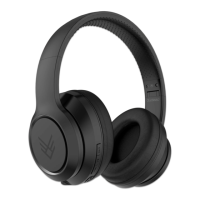

 To Next Page