EasyManua.ls Logo

Audio Technica ATDM-0604 - User Manual

Audio Technica ATDM-0604
80 pages
Print Icon
To Next Page IconTo Next Page
Loading...
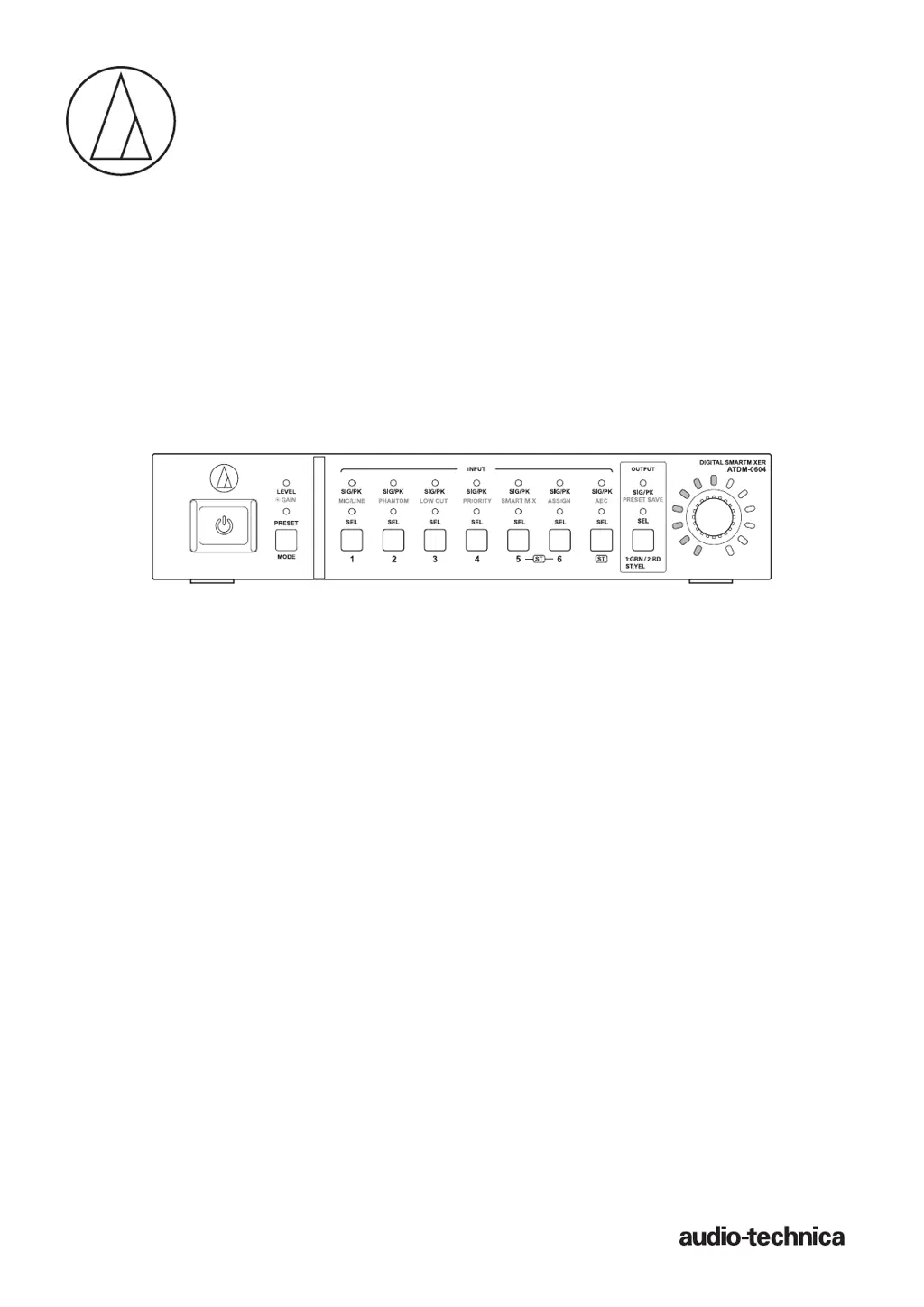
ATDM-0604
User Manual
DIGITAL SMARTMIXER

Table of Contents

Other manuals for Audio Technica ATDM-0604

Questions and Answers

  • R
    rodriguezseanAug 21, 2025
    What to do if the audio of the remote terminal is low or high on my Audio Technica Mixer?
    • J
      Jessica FoxAug 21, 2025
      If the audio from the remote terminal is too low or too high, follow these steps: 1. Improve AEC performance by increasing the signal (reference signal) from TV conference systems (codec) input to AEC (echo canceler) as much as possible, without clipping. 2. If the audio from the TV conference system (codec) is low/high, first adjust the volume on the TV conference system, and then adjust the reference level. Note: Changing the reference signal level after adjustment is not recommended. If you need to adjust the audio from the speaker (audio of the terminal at far-end source), adjust the output fader of the channel connected to the speaker or the volume of the speaker itself.
  • A
    Anthony LaneAug 23, 2025
    How to adjust low or high speaker audio on Audio Technica Mixer?
    • J
      Jenna SmithAug 23, 2025
      When adjusting the speaker audio (audio of the terminal at far-end source), adjust the output fader of the channel connected to the speaker or the volume of the speaker itself. Note that the reference signal input to AEC (echo canceler) and the terminal audio signal output at far-end source from the speaker are not linked. Therefore, changing the reference signal level after adjustment is not recommended.
  • J
    Joy SmithAug 26, 2025
    What to do if reverberation measurement does not end properly on Audio Technica Mixer?
    • S
      simmonsrobertAug 26, 2025
      If reverberation measurement ends due to an error: * Increase the volume of the speaker itself and click “Start” again, even after adjusting the white noise level input to the microphone with the “Test” button. * Ensure the delay time (time for audio to reach the microphone from the speaker) is less than 45 ms, as measurement may not operate correctly if it's longer. * If using a TV for audio output of the remote terminal, use external speakers instead.
  • K
    Kenneth JacksonAug 27, 2025
    How to check the effect of echo canceling on Audio Technica Mixer?
    • L
      Lori GarciaAug 28, 2025
      Check the effect of echo canceling on the terminal at the far-end source. To check at a local source, you can monitor the audio returned to the terminal at the far-end source.
  • K
    Kristin PooleAug 30, 2025
    What to do if no sound comes from my Audio Technica ATDM-0604 speaker?
    • T
      Thomas MartinezAug 30, 2025
      If no sound is coming from the connected speaker or the sound is distorted, verify the connections of all devices. Ensure that the input and output terminals are correctly connected with the correct pin assignments. Check that the input and output levels are not set too low and that mute is not turned on. If using a condenser microphone, ensure phantom power is correctly applied. Also, a device that doesn't need phantom power may malfunction if phantom power is supplied to it. Check and adjust the settings on the connected amplifier. Inspect the balanced cable for damage and ensure it's fully inserted.
  • D
    Dean AndersonSep 1, 2025
    Why is my microphone not working with my Audio Technica Music Mixer?
    • J
      jamesjohnstonSep 1, 2025
      If your connected microphone isn't functioning, first, check whether the microphone is connected correctly. Then, verify that Mic is selected as the input type (Mic/Line). If you are using a condenser microphone, make sure that the phantom power is turned on. Finally, check the gain and input level settings.
  • M
    Molly NelsonSep 3, 2025
    How to reset forgotten password on Audio Technica ATDM-0604 Music Mixer?
    • T
      Teresa MorrisSep 3, 2025
      To reset the password: 1. Press the power button to start the product. 2. Press the MODE button, or turn the dial button while pressing the MODE button, to select 'PRESET'. 3. While pressing the OUTPUT SEL button, turn the dial button three clicks to the right. 4. While pressing the OUTPUT SEL button, turn the dial button three clicks to the left. 5. While pressing the OUTPUT SEL button, press the dial button. The Web Remote password is reset. Login again to Web Remote and set the password again as needed.
  • R
    reginamartinSep 5, 2025
    How to stop howling sound from Audio Technica ATDM-0604 Music Mixer?
    • A
      ablakeSep 5, 2025
      To suppress howling, check the setting of the FBS (feedback suppressor). If the howling exceeds the number of filters, it cannot be completely controlled. Try lowering the speaker volume.
  • R
    Robert NelsonSep 7, 2025
    What to do if I cannot locate Audio Technica ATDM-0604 Music Mixer?
    • L
      Lisa WattsSep 7, 2025
      If you cannot 'locate' the product, check the connections between the product and the control device, such as a computer. Also, verify that both the product and the control device are connected to the same network. Check the firewall settings as well.
  • F
    Frederick BrownSep 10, 2025
    Why does the sound from my Audio Technica ATDM-0604 sound strange?
    • R
      Robert KnappSep 10, 2025
      If the sound is strange, try adjusting the input gain. If the sound is muffled or the volume isn't sufficient, check the setting of each equalizer.

Summary

Safety precautions

Important information

Provides crucial warnings and cautions for safe operation and preventing hazards.

Important safety instructions

Lists essential safety guidelines for using the apparatus.

System installation

Part names and function

Using the product

Starting the product

Guides on how to power on the device and initiate operation.

Saving a preset

Explains the procedure for saving current settings as a preset.

Turning SmartMixer enable;disable

Explains how to switch the SmartMixer function on or off.

Web Remote

What Is Web Remote?

Introduces the web-based application for remote control of the product.

Overview of Web Remote

Provides a general overview of the Web Remote interface and capabilities.

Log in as the Operator

Guides on how to log in to Web Remote as an Operator.

Log in as the Administrator

Explains the process for logging into Web Remote as an Administrator.

Launch;Log into Web Remote

Launching Web Remote

Details methods for launching the Web Remote interface.

Login screen

Describes the components and options of the Web Remote login screen.

Logging into Web Remote

Provides steps for successfully logging into the Web Remote interface.

Logging out of Web Remote

Explains how to properly exit the Web Remote session.

Operator screen

Windows;Mac screen

Illustrates the Operator screen interface on Windows and Mac platforms.

iOS;Android screen

Shows the Operator screen interface as displayed on iOS and Android devices.

Preset display

Describes how to view and recall presets on the Operator screen.

Volume dial

Explains the function of the volume adjustment dial for channels.

Administrator screen

Header

Explains the persistent header section visible on both Administrator screens.

Input Settings

Refers to the screen for configuring audio input parameters.

Indicators

Details the status indicators for Audio-Technica LINK, IP remote, and error conditions.

How to view audio input and output screens

Guides on navigating to and viewing the audio input and output configuration screens.

Setting the audio input details

Changing the input type (MIC;LINE)

Explains how to set the input type for channels 5 and 6.

Turning the phantom power ON;OFF

Guides on enabling or disabling phantom power for microphone inputs.

Adjusting the gain

Details how to set the input gain for microphone inputs.

Turning the phase ON;OFF

Describes how to invert the input audio phase.

Turning the low-cut ON;OFF

Explains how to activate or deactivate the low-cut filter.

Turning the 4-band EQ ON;OFF

Guides on enabling or disabling the 4-band equalizer for inputs.

Adjusting the 4-band EQ

Provides instructions for adjusting the 4-band equalizer settings.

Turning the AEC ON;OFF

Guides on enabling or disabling the Acoustic Echo Canceler.

Adjusting the input level

Guides on setting the input level for each channel.

Turning the mute ON;OFF

Explains how to mute or unmute audio channels.

Setting the audio output details

Adjusting the FBS;EQ

Explains how to adjust the Feedback Suppressor (FBS) and Equalizer settings.

Turning the FBS ON;OFF

Guides on enabling or disabling the feedback suppressor for channels.

Turning the EQ ON;OFF

Explains how to turn the equalizer on or off for each channel.

Turning the dynamics function ON;OFF

Guides on enabling or disabling the dynamics processing function.

Adjusting the dynamics

Explains how to configure compressor and limiter settings for dynamics processing.

Turning the delay function ON;OFF

Guides on enabling or disabling the delay function for channels.

Setting the delay time for delay function

Explains how to set the delay time for audio channels.

Adjusting the output level

Guides on setting the audio output levels for each channel.

Setting the system details (Settings & Maintenance)

Basic operations

Outlines fundamental operations for system settings and maintenance.

Settings & Maintenance screen

Describes the main screen for accessing system configuration options.

General in System Settings

Covers general system settings like device name and LINK mode.

Network in System Settings

Details network configuration options including IP and NTP settings.

IP Settings

Explains how to configure IP addresses and network discovery.

User Access in System Settings

Covers settings for administrator login and operator page permissions.

Login Password

Explains how to set or reset the administrator login password.

Audio in System Settings

Covers audio-related system settings like gain unit and output flip.

Front Panel in System Settings

Describes settings that control front panel behavior and features.

Levels

Explains how to enable/disable input/output level adjustments on the front panel.

Front Panel Restrictions

Details how to restrict front panel operations like preset recall and mode changes.

Firmware Update

Guides on how to update the product's firmware.

Key functions

Menu Item

Settings & Maintenance

Covers the main menu for system settings and maintenance.

Troubleshooting

Error messages

Specifications

Audio Technica ATDM-0604 Specifications

General IconGeneral
TypeDigital Mixer
Channels6
Mic/Line Inputs4
Line Inputs2
USBYes
EthernetNo
Phantom PowerYes
EQ3-band
SmartMixer TechnologyYes
Sampling Rate48 kHz
Bit Depth24-bit
Weight3.5 lbs
Frequency Response20 Hz - 20 kHz
ConnectorXLR, TRS, USB

Related product manuals