Quick Start Guide
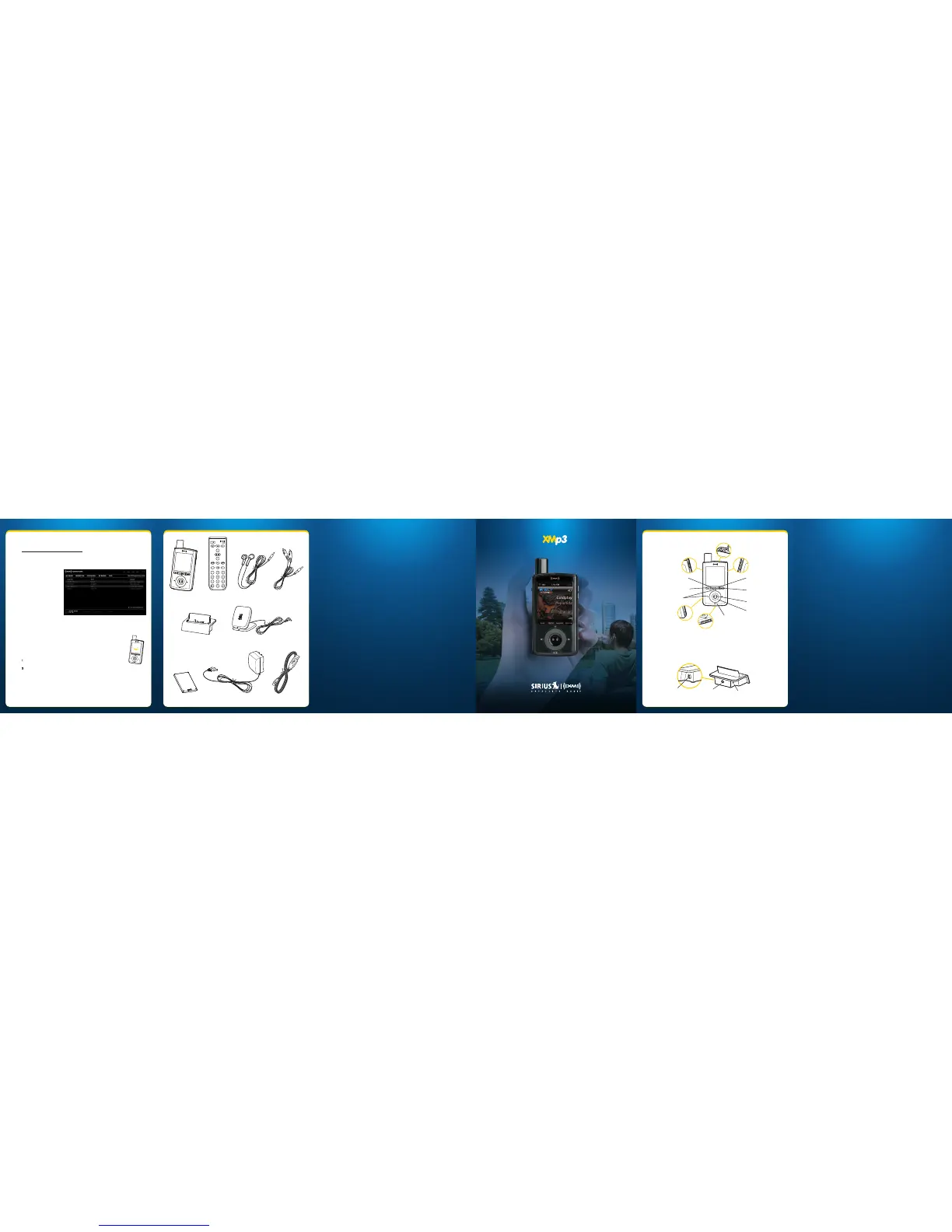
What’s in the Box?Using your XMp3i with a PC
Button Functions and Home Dock Connections
xmradio.com
SIRIUS XM Radio Inc.
1221 Avenue of the Americas
New York, NY 10020
1.800.967.2346
© 2010 SIRIUS XM Radio Inc.
XMP3i QSG_XPMP3IQSG0210_021710
XMp3i™ Buttons and Connectors
Power/Lock Switch
Slide down to turn
XMp3i on or off, slide
up to lock buttons.
30-Minute Replay
Pause and replay live
XM or navigate your
recorded content.
Record
Record a song or a
channel. Also schedule a
recording and set channel
to auto record.
Select Button
Press to confirm
highlighted selections.
Control Wheel
Rotate to highlight
selections.
Back
Return to previous screen.
Press and hold to return to
the previous channel.
Menu
Go to Live XM, My Music
Library, Auto Recordings,
or Settings.
Keypad
Enter a channel
number to tune to the
channel.
Options
Displays options
available for the
displayed screen.
Headphone Jack and
microSD Card Slot
Volume/Mute
USB Jack
Universal
Connector
Home Dock
Color-Coded Connections
The color-coded Home Dock makes it simple to connect. Just match the colors
on the cable ends to the colors on the dock to see what goes where.
ANT
AUDIO
ANT (Silver)
Connection for
the Indoor/Outdoor
Antenna.
AUDIO (Green)
Connection for home
stereo system or
powered speakers.
Rear/Side View
POWER (Red)
Connection for
the Home Power
Adapter.
XMp3i Radio Remote Control
Home Dock
Battery USB Cable
Indoor/Outdoor Antenna
Home Power Adapter
Earbuds
Stereo Audio Cable
XM2go Music Manager
Download the XM2go Music Manager software and installation instructions from:
http://www.xmradio.com/xm2gomusicmanager
The XM2go Music Manager software runs on a Microsoft® Windows XP® or Vista® -based PC, with
Service Pack 2 (SP2) or higher. With it you can:
• Manage your music: Create and customize playlists of XM recordings or your personal MP3 or
WMA files on your XMp3i.
• Schedule recordings on your
XMp3i.
• View XM’s Online Program
Guide: Discover new music and
programs by seeing what’s
available on all XM channels for
the next week.
• Rip CDs to MP3 or WMA files so
you can download them to your
XMp3i.
• View your XMp3i bookmarks and
purchase songs from compatible
online music services including
Napster®.
• Listen to and purchase audio books from Audible.com®.
• Manage up to 5 compatible XM Radios.
Keep your XMp3i Current
Occasionally we make improvements to the XMp3i’s software to add features or improve
performance. To be sure your XMp3i is taking advantage of the latest software it is
recommend you attempt to update your XMp3i at least once a year.
Updating the software can be done two ways:
1 Using the XM2go Music Manger Software. Click on the HELP option, and then
click Check for Updates.
2 Visiting http://xmradio.com/XMp3update and following the directions there.
Remember that:
• Your XMp3i must be docked and with the Power Adapter plugged in, and must be connected to
your PC.
• You should not attempt updating the firmware if your XMp3i is not connected to an external
power source.
• Your PC must be connected to the Internet.
i


 To Previous Page
 Loading...