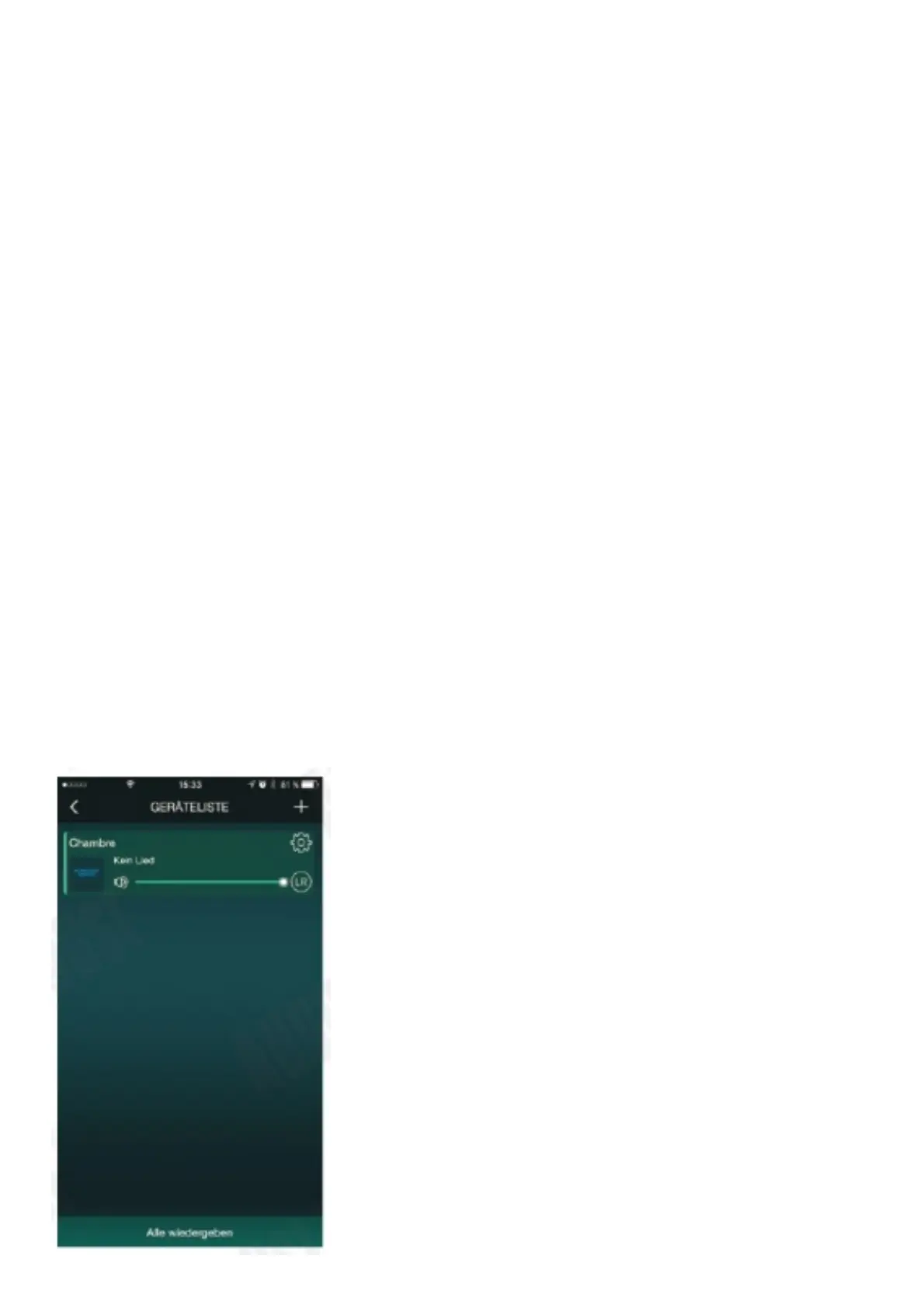
4. To add another speaker, use the same procedureshown in 5.2.1.1.
Note: To restore the factory settings for Wi-Fi network press and hold WPS.
5.2.2. Bluetooth Connection
1. Press to change between Wi-Fi and Bluetooth mode.
2. The speaker will enter reconnection mode and will connect automatically to any previously known device. If no
known device is available, the speaker
will automatically enter pairing mode after 4 seconds and the status LED will flash blue.
3. Enable Bluetooth on the source device.
4. Scan for Bluetooth devices on your source device. Select WS150 / WS300 to connect to it. Once successfully
paired, the status LED will light blue
5. To pair to a new device, press and hold the mode switch button for 3 seconds to switch the speaker into paring
mode again. This can be done either
when a device is already connected to the speaker or when the speaker is in reconnection mode. In pairing
mode, the status LED will flash blue.
Note: When the source device is switched off, the speaker will enter reconnection mode. The LED will
flash blue and you will be able to reconnect to any previous paired device. For PC connections, Windows XP
and Windows Vista require third party software to connect to Bluetooth speakers. If you are using a later version
of Windows and the WS150/WS300 is not outputting audio, please check that the drivers for your PCs
Bluetooth module are up to date and that the Audio Output source is set to the speaker.
5.2.3. NFC Connection
1. Enable Bluetooth and NFC on your source device.
2. Switch on the speaker and enter Bluetooth mode.
3. Touch the NFC area of your source device against the NFC area on the speaker. They will automatically pair
with each other.
4. Confirm Bluetooth pairing if prompted. “WS150 / WS300” will now be listed in your source device’sBluetooth
device list.
5. To disconnect your device, touch the NFC area of your device against the NFC area on the speaker.
5.3. Multi and Solo Mode (Wi-Fi Connection Only)
Two Speaker playback settings can be selected in the ‘DEVICE LIST’



 To Next Page