7
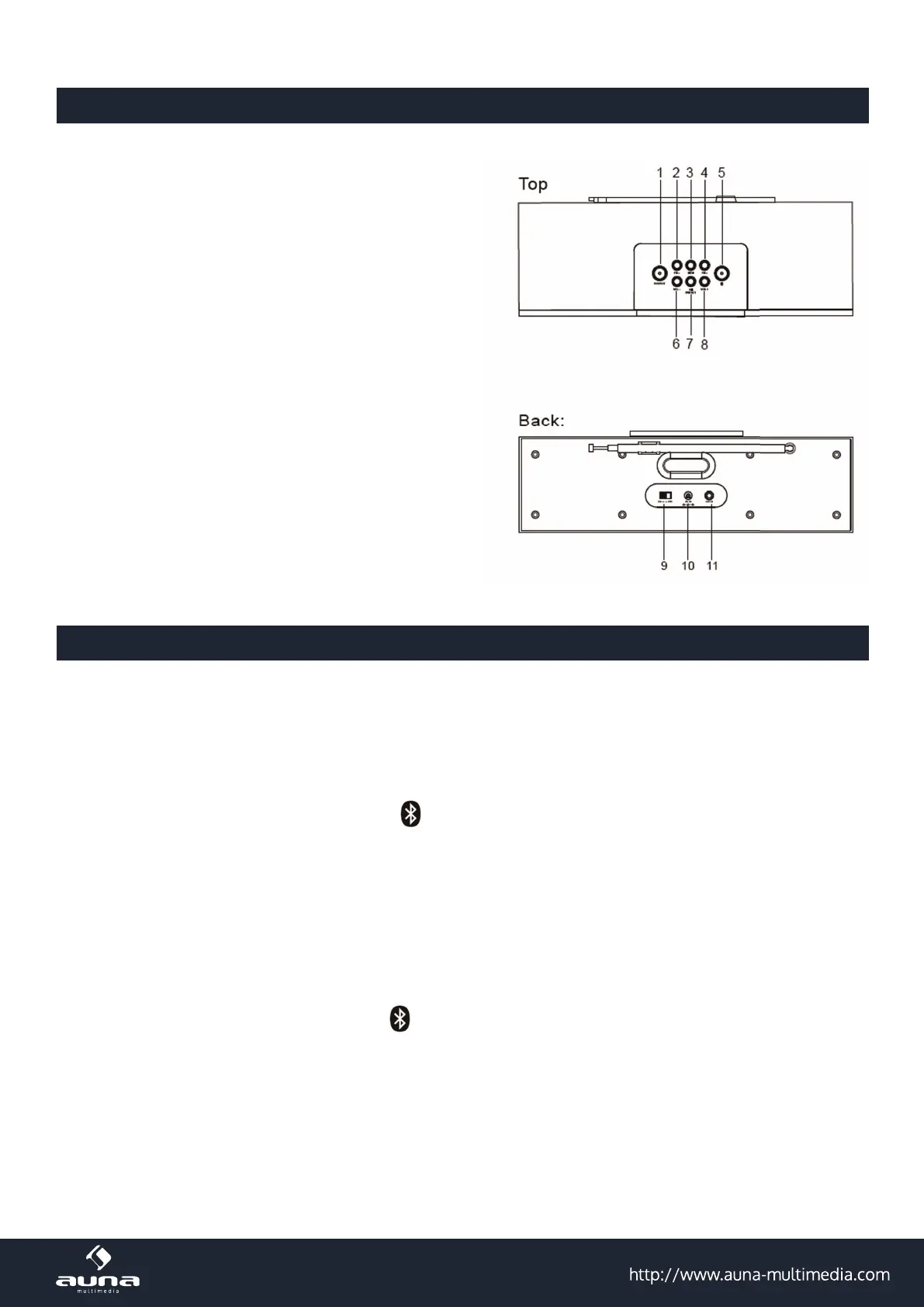
Part Names and Functions
1 Select source (Bluetooth / FM radio / Audio-In)
2 FM- (short press) / Previous available station
press and hold)
3 Store current radio station
4 FM+(shortpress)/Nextavailablestation
(press and hold)
5 Bluetooth connection
6 Decrease volume
7 Play / Pause / Select stored radio channels
8 Increase volume
9 Power switch
10 Power socket: DC 15V
11 Audio-In socket
Bluetooth Mode
When switched on, the Princeton enters Bluetooth mode automatically. You can also use the SOURCE
button to select Bluetooth mode.
5.1 Pairing
5.1.1 Pairing with a Mobile Phone
1.ToenterpairingmoderessandholduntiltheBluetoothIconashesontheLCDscreen.
2. Scan for available Bluetooth devices on your mobile phone (see your mobile phone user manual for
instructions if needed).
3. Select “Princeton” from the available devices.
4.Oncesuccessfullypaired,thePrincetonspeakerwillbeepandtheBluetoothiconwillashslowly.
Note: The Princeton will automatically reconnect to the last paired Bluetooth device if it is in range,
if this device is not available it will enter pairing mode automatically.
5.1.2 Connect to a Windows PC
1.ToenterpairingmoderessandholduntiltheBluetoothIconashesontheLCDscreentoenter
pairing mode.


 To Next Page