8
2. Enable Bluetooth on your PC.
3. Select “Devices and Printers” from the Control Panel and click “Add a Device”.
4. Select “Princeton” from the available devices to install drivers.
5. If the Princeton is not automatically set as your output device, select “Sound” from the control
panelthenhighlightthePrincetonandselect“SetDefault”Note:ForWindowsXPandVista,athird-party
Bluetooth driver is needed (not included).
NOTE: The Princeton will automatically reconnect to the last paired Bluetooth device if it is in range,
if this device is not available it will enter pairing mode automatically.
5.2 Music Control
The Princeton is able to control the music playing on either a mobile phone or a computer with a
Bluetooth connection.
Use the “VOL-” or “VOL+” buttons to adjust the volume and press to pause or resume playback.
FM Radio Mode
Press SOURCE to select FM radio mode. In FM radio mode, an FM icon and the current frequency will
be displayed on the screen.
Short press the “FM-” or “FM+” buttons to adjust the frequency in 0.1MHz steps. Press and hold eit-
herbuttontomovetothepreviousornextchannel.
SE50 can store 10 channels. Press “PRESET” to cycle through your stored channels.
To save a channel to the stored channel list, press “MEM” then use “FM-” or “FM+” to select a channel
numberthenpress“MEM”againtoconrm.Press“VOL-”or“VOL+”buttonstoadjustthevolume.
Audio-In Mode
To use the Princeton as a wired speaker, use a 3.5mm audio cable to connect the Princeton with your
sourcedevice.Press“SOURCE”toselectAUXmode,anAUXiconwillbedisplayedontheLCDscreen.
Press “VOL-” or “VOL+” buttons to adjust the volume.
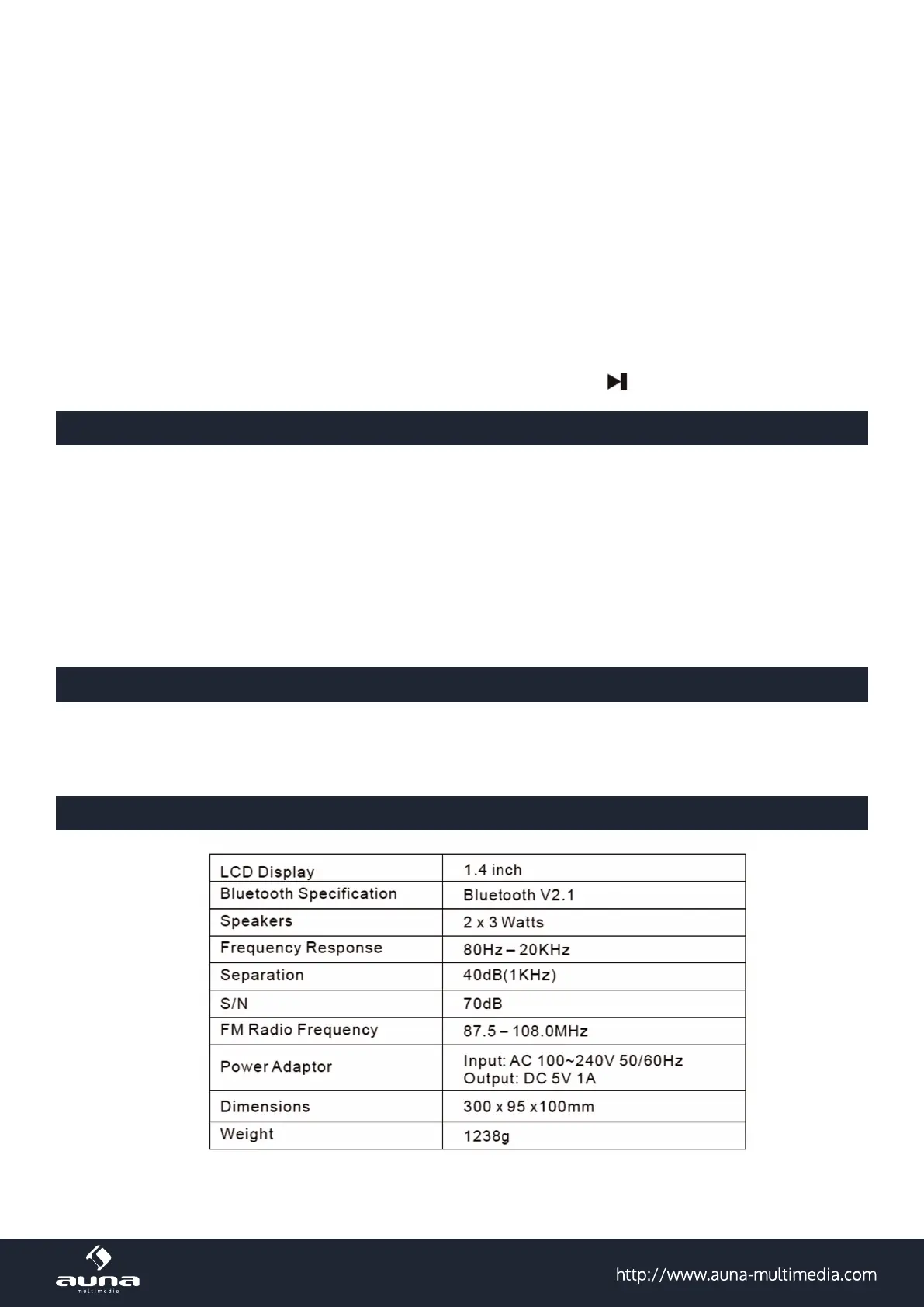
Specications


 To Next Page