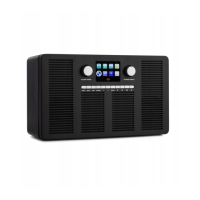
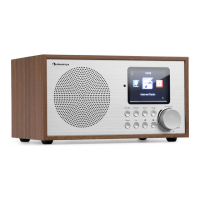
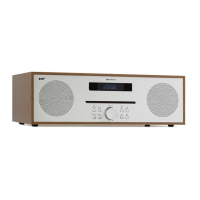
This document describes an Internet Radio device, offering a comprehensive guide to its functions, usage, and maintenance. The device is designed for home and personal use, providing access to a wide range of audio content through various modes.
Function Description
The Internet Radio is a versatile audio device capable of playing thousands of radio stations and podcasts from around the world via a broadband Internet connection. It directly contacts the Frontier Silicon Internet radio portal (supported by v-tuner) to retrieve station lists, allowing for personalized favorite station lists. Beyond Internet radio, the device also functions as a Media Player, FM radio, and offers AUX IN and Bluetooth connectivity. It supports streaming through UPnP and DLNA protocols and can play various audio file types including MP3, WMA, WAV, AAC, and FLAC. The device features alarm functions with customizable settings and a sleep/snooze option. It also includes a headphone jack for private listening and a line-out jack for connecting to external amplifier systems, enhancing sound performance.
Usage Features
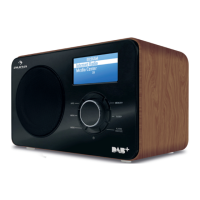
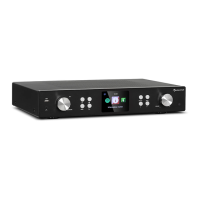
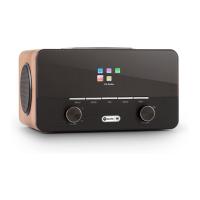
The device is controlled via a combination of physical buttons on the unit and a remote control. The main unit includes a display, subwoofer, volume/on/standby control, a control panel, and a NAVIGATE (scroll)/OK button. Rear connections include AUX IN, power on/off, USB slot, LAN (RJ45) socket, DC IN, and Line-Out. The remote control provides additional functionalities such as On/Standby, OK, arrow keys for navigation, MODE selection (FM, internet radio, AUX, Bluetooth, network media player), MENU, PREVIOUS, SLEEP/SNOOZE, STOP, a numeric keypad, EQ, Mute, VOL+/VOL- for volume adjustment, FAV for favorites/stored presets, NEXT, PLAY/PAUSE, SHUFFLE/REPEAT, and INFO.
Getting Started:
Upon initial use, the device prompts the user to start a Setup Wizard to configure network settings. Users can choose between wired LAN or Wi-Fi connections. For Wi-Fi, the device supports WEP, WPA, and WPA2 security protocols, and offers WPS (Wi-Fi Protected Setup) for easy pairing. Users can either press a button on the router or enter a PIN generated by the device to connect. If connecting fails, the device returns to the previous screen for another attempt.
System Settings:
The device allows for extensive customization through its System Settings menu.
- Time/Date: Users can set the time format (12 or 24 hours) and choose between manual or automatic updates from DAB, FM, or network sources. A time zone and daylight saving option are also available.
- Network: The Network Wizard helps in searching for available networks and inputting security keys. Users can view current network settings, select WLAN regions for optimal connectivity (Canada, Spain, France, Japan, Singapore, Australia, Republic of Korea), and configure manual settings like DHCP. The device remembers up to four previously connected wireless networks.
- Language: The default language is English, but can be changed to user preference.
- Equalizer: Several preset EQ modes are available (Normal, Flat, Jazz, Rock, Movie, Classic, Pop, News), and users can create custom EQ settings with adjustable bass, treble, and loudness.
- Factory Reset: This option resets all user settings to default values, including time, date, network configuration, and presets.
- Software Update: The device can check for and install software upgrades automatically or manually to fix bugs and add features. It's crucial to ensure a stable power connection during updates to prevent damage.
- Info: Displays firmware version and radio ID.
- Backlight: Backlight levels for power-on and standby modes can be adjusted to High, Medium, or Low, along with a timeout duration for standby backlight.
Internet Radio:
Users can browse Internet broadcasts by categories like Location, Genre, Popular, and New, or search by keyword.
- Last listened: Quickly access recently played stations.
- Favorites: Store favorite stations on the Internet radio portal. To use this feature, the radio must be registered with the portal using a unique access code obtained from the device.
- Presets: Store up to 10 local presets directly on the radio, accessible via the 'Preset' button on the unit or P1-P10 buttons on the remote control.
- Now playing information: While a station is playing, the screen displays its name and description, with additional information like bit rate, codec, and sampling rate available by pressing the INFO button.
Spotify Connect:
This feature allows users with a Spotify Premium account to play Spotify through the device using the Spotify app as a remote. The device needs to be connected to the same Wi-Fi network as the phone, tablet, or PC running the Spotify app.
The device can play audio files from a computer on the local network (Shared media) or from a USB stick (USB playback).
- Shared media: If shared media is set up, the device lists available media servers. Menus are generated from the media server, allowing selection by music, video, pictures, and playlists (only music and playlists are playable). A search function is available.
- USB playback: Browse folders on a USB device using the navigation wheel or remote control. The display shows folder and file names.
- Playback controls: Use the arrow keys on the remote control for previous/next track, press and hold for rewind/fast forward, and the PLAY/PAUSE button to play or pause.
- Repeat/Shuffle: Tracks can be repeated or played in random order using dedicated buttons on the remote control.
- Now playing information: Displays track and artist (UPnP) or file name (USB), along with a progress bar and elapsed/total track time. Additional information like album, codec, and sampling rate is available via the INFO button.
FM Radio:
The FM radio mode receives analogue radio from the FM band and displays RDS (Radio Data System) information about the station and broadcast details.
Other Features:
- Headphone jack: For private listening. It is recommended to reduce volume before putting on headphones and then adjust to the desired level.
- Line out jack: Connects to external HiFi speaker systems for enhanced sound.
Maintenance Features
General Care:
- Cleaning: The device should be cleaned only with a dry cloth. Volatile fluids or insect sprays should not be used. Excessive pressure during wiping should be avoided.
- Storage: The device should not be stored in rain or damp environments. It should also not be exposed to direct sunlight or installed near heat sources like radiators, stoves, or other heat-producing apparatus.
- Ventilation: Ventilation openings should not be blocked by placing the product on soft surfaces like beds or sofas, or in built-in installations that obstruct airflow. Proper ventilation is crucial for the device's operation.
Troubleshooting and Safety:
The manual includes a troubleshooting section to address common issues such as the device not switching on, no sound, network connection problems (Wi-Fi and wired), stations not found, hiss in FM mode, and intermittent DAB mode.
- Power adaptor: Ensure the power adaptor is connected properly.
- Volume: Check if the sound is muted and increase the volume if necessary.
- Headphones/Speakers: Disconnect any headphones or speakers from the connector jack if there is no sound.
- Network: Verify LAN cable connection or WLAN function. Try setting an IP address, activating DHCP on the router, or rebooting the router. For Wi-Fi, ensure the password is correct and the device is close to the router.
- Stations: Check network and firewall settings. If a station is unavailable, try again later or select another. Verify the link for manually added stations.
- Antenna: For FM mode, check and move the FM antenna. For DAB mode, move the radio and rescan local stations.
- Alarms: Ensure the alarm is switched on and volume settings are correct. If the alarm source is a network station, verify network connectivity.
- USB/MP3 player: Check if the USB device is plugged in properly. Some USB hard disks may require external power.
- NetRemote: If NetRemote doesn't connect, reopen the app or reboot the device if multiple streams cause crashes.
- General Malfunctions: For undetermined cases, reboot the device. Strong electromagnetic interference can cause malfunctions; resetting the product or moving it to another location may resolve the issue.
Safety Instructions:
- Age Restriction: Not for use by children under 18.
- Indoor Use: For indoor use only.
- Handling: Handle carefully to avoid damage from bumps, impacts, or falls. Do not drop metal objects or place heavy objects on the device.
- Power: Unplug during lightning storms or when unused for long periods. Do not plug in unless the device is completely turned off.
- Liquids/Food: Do not store food or liquids in the product. Do not expose to dripping or splashing water, and do not place objects on top of the product.
- Servicing: Do not remove any cover or attempt repairs. Refer servicing to qualified personnel only. Only use identical replacement parts specified by the manufacturer.
- Cleaning: Clean the product before first use.
- California Proposition 65 Warning: The product may contain chemicals known to cause cancer and birth defects or other reproductive harm.
FCC Compliance:
The device complies with FCC rules, ensuring it does not cause harmful interference and accepts any received interference. It has been tested and found to comply with Class B digital device limits. Modifications not expressly approved by the party responsible for compliance could void the user's authority to operate the equipment. To maintain compliance with RF exposure guidelines, the equipment should be installed and operated with a minimum distance of 20cm between the radiator and the user's body.
Packaging:
Keep small objects and packaging parts (plastic bags, cardboard) out of reach of children to prevent swallowing or suffocation. Retain original packaging for safe transport of the device.


 To Next Page
 General