7
Constellation Pre-amplifier
* dCS, Paganini, Vivaldi, Constellation, MSB and Pro lS2 are trademarks of their respective companies
2. iPad Application Installation and Set Up
Using the iPad, go to the App Store and type Aurender in the search window. Install the Aurender iPad
application. The Aurender supports WAV, FLAC, Apple Lossless (ALAC) , AIFF, APE and other major
formats.
3. Selecting the Aurender Music Server
Open the Aurender application and the Aurender Music Server will be shown on the Server menu. The
Aurender Music Server must be turned on and connected to the iPad via a wireless router.
Select the Aurender Music Server by tapping its name. If no server is listed, tap Add Server at the
bottom of the window and a window will appear asking for the IP address. The IP address can be found
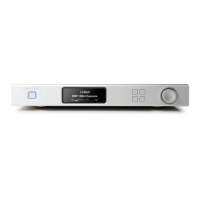
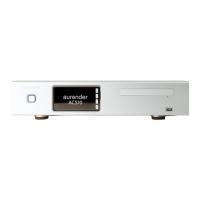
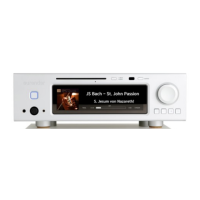
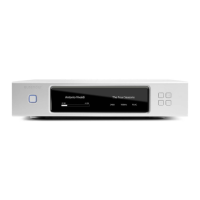
by pressing the Display Mode button on the front panel (top left) and keeping it depressed until the front
display changes. Release the button. Find the IP address and enter. To return the display to the normal
mode, press the Display Mode button again.
4. Enter Passcode
When the Aurender Music Server is first turned on, a Passcode needs to be entered onto the iPad App.
Please enter the Passcode shown on the Aurender front display.


 To Next Page
 Loading...