21
Tread check, the Single Tire check only provides one measurement for each
tire.
All Tread Check
The All Tread check examines your tire wear in three separate areas (outer,
center, and inner) for a more comprehensive analysis.
To perform a Tire Tread Check
1. Tap the Tire Tread application icon on the Main Job Menu.
2. Select a check mode when prompted.
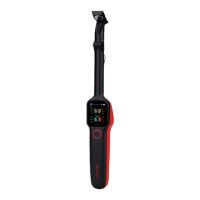
3. Place the tool on the tire surface and tap the Power/Measure
button to start measuring.
4. The measurement will display on the screen.
5. Select a wheel location on the screen, swipe left to view details
and scroll down on the screen to view additional information
including tread wear analysis and maintenance suggestions.
NOTE
For optimal measurements, ensure the tool is placed firmly on the tread and
that the laser line is perpendicular to the groove being measured.
4.2 Details
The Details screen shows a wide variety of tire wear information. After
measurements are shown on the screen, select a wheel location, swipe left
to view details of the chosen tire. Below are the main sections featured in
the Details section:
1) Graphic measurements — shows the measurement data graphically
with various colors indicating different degrees of tire wear.
The graphic measurements of the All Tread check mode
displays the wear measurements of three areas of the tire: inner,
center, and outer. The Single check displays only one
measurement for each tire.
2) Braking distance — displays the stopping distance for the test vehicle
based on both the tire tread depth and tire type selected. This section
is followed by wear analysis and maintenance suggestions.



 To Next Page