20
12:28PM
07/10/2023 Mon.
A
① ② ③
⑨
④ ⑤ ⑥
⑧
⑦
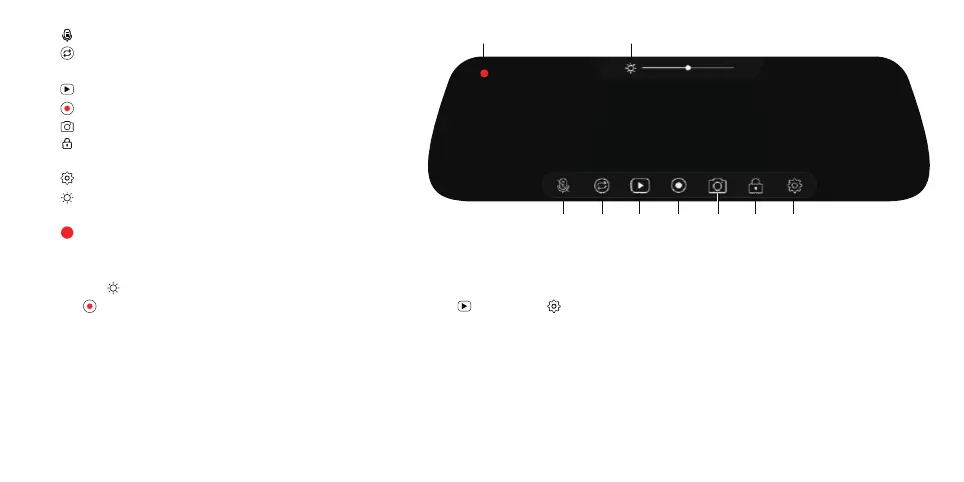
1. Mute: Mute or unmute the current recording.
2. Switch views: Switch the display view (front or
rear/ front & rear).
3. Playback: Playback videos and photos.
4. Start/pause: Start or pause recording manually.
5. Shutter: Take photos.
6. Emergency recording: Start/Stop emergency
recording manually.
7. Settings: Access to the system settings.
8. Screen dimmer: Manually or automatically dim
or increase the screen brightness.
9. Recording indicator: Red indicates loop recording
and yellow the emergency recording.
Note:
1. Tap the to adjust the screen brightness manually or automatically. Slide the dot on the brightness slider to turn the screen light up or down.
2. Tap to pause the current recording and enter "Playback mode or settings .
3. Tap the date and time display area on the screen, and you can hide or display the current date and time.
Screen Saver
1. Enter the Screen Saver Manually
- Press and hold the screen for 2 seconds and the screen will turn off.
- Press the screen and the screen will turn on.



 To Next Page