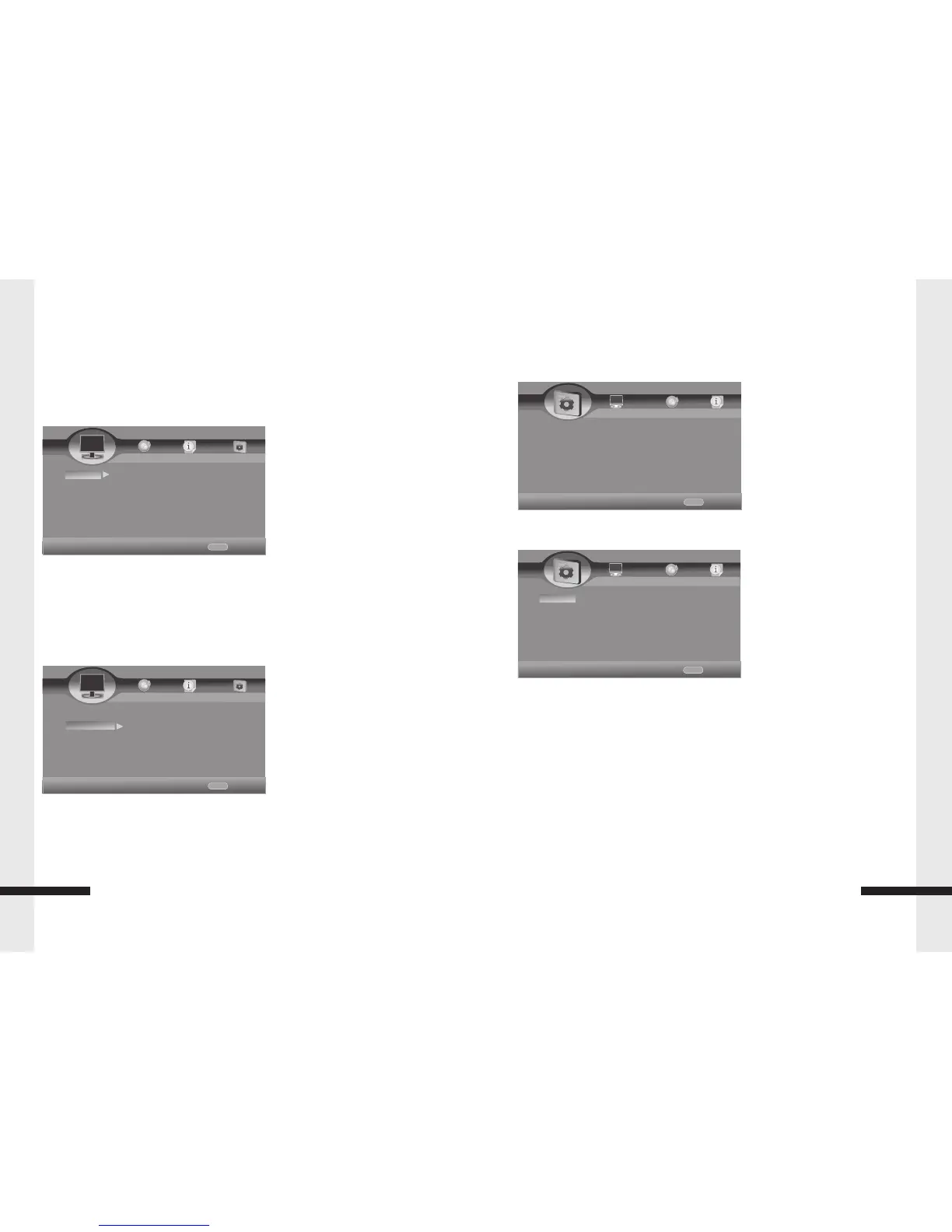
Home Menu
The main menu on your Blu-Ray Player gives you the power to quickly switch between
several key features. The Menu will be displayed when you start up the Blu-Ray Player.
Press Setup/Home button which on the remote control to open Home Menu.
General Setting
Setup System
Screen Saver – Turn the Screen Saver on and off.
Disc Auto Playback – Set the Disc into the Auto where applicable.
CEC –Turn the CEC on and off.
Disc Auto Upgrade– Turn the Disc Auto Upgrade on and off.
Load Default –Set the default where applicable.
Upgrade –Select the way for upgrade.
Easy Setup: Welcome Photo
OSD Language
Resolution
Aspect Ratio
Finished Photo
BUDA: BUDA Information.
BUDA Setup – External /On Board(while show insufficient internal memory,please
Change into External and connect USB flash disk.)
HOME
Exit
----General Setting----
Home Menu
System
Language
Playback
Security
Use cursor key to move facus,use
“Enter”key to select
HOME
Exit
----General Setting----
Home Menu
System
Language
Playback
Security
Use cursor key to move facus,use
“Enter”key to select
screen Saver on
Disc Auto Playback on
CEC off
Disc Auto upgrade off
10
Home Menu and General Setting
Display Setting
TV
TV Screen:16:9Full,16:9 Normal,4:3 Pan & Scan ,4:3 Letterbox
Resolution:Auto,480I/576I,480P/576P,720P,1080I1080P
TV System:NTSC,PAL,Multi
Color Space – RGB/YCbCr/YCbCr422/Full RGB/HDMI Deep Color – 30 bits/ 36bits /
48bits / Off HDMI 1080P 24Hz – On / Off
13
HOME
Exit
----Display Setting----
Home Menu
TV
Video process
Motion Video...
Use cursor key to move facus,use
“Enter”key to select
TV Screen 16:9 Full
Resolution 1080P
TV System PAL
Color Space RGB
HDMI Deep Color off
Display Setting
Saturation
Sharpness - High/Middle/Low
Motion Video Process
Video Mode - Standard/Vivid/Smooth
Video Process,
Video Adjust - Brightness/Contrast/Hue
HOME
Exit
----Display Setting----
Home Menu
TV
Video process
Motion Video...
Use cursor key to move facus,use
“Enter”key to select
Video Adjust More.....
Sharpness low


 To Next Page