20
Set up the Camera
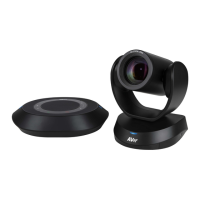
VC520 Pro3 is a plug-and-play conference camera. You may use the USB cable to connect or log in to
the web UI with the Ethernet port.
Make a Video Call
1. Make sure all devices (VC520 Pro3, speakerphone and PC/laptop) are well connected and power
is on.
2. Run video application (Zoom, Microsoft
®
Teams, Skype for Business, Skype, Google Meet, Intel
®
Unite™, RingCentral, BlueJeans, V-Cube, LiveOn, CyberLink U Meeting
®
, TrueConf, Adobe
Connect, Cisco WebEx
®
, Fuze, GoToMeeting™, Microsoft
®
Lync™, Vidyo, vMix, WebRTC,
Wirecast, XSplit, etc.) on your PC or laptop.
3. Set the VC520 Pro3 camera and speakerphone as the primary camera and speakerphone for your
video application (refer to your video application user guide).
Connect with PTZApp 2
You can use the USB cable to connect with your VC520 Pro3 and utilize the PTZApp 2 application to
change the VC520 Pro3 IP address setting, configure the parameters of the camera, set up AI tracking
functions and more.
To download PTZApp 2, please go to https://www.aver.com/download-center
(Headquarters &
Europe) or https://www.averusa.com/business/support/ (USA).
To set up PTZApp 2 and connect with your VC520 Pro3 device, please refer to PTZApp 2 User
Manual:
https://www.aver.com/Downloads/search?q=PTZApp%202
Connect through the Browser
VC520 Pro3 has an Ethernet port for IP streaming and allows administrators to control remotely and
set up the camera via internet access. VC520 Pro3 also supports RTSP and RTMP functions. For
more details, please contact our technical support.
Use the AVer IPcam Utility to Find the Camera
1. Download AVer IP Finder from https://www.aver.com/download-center (Headquarters & Europe) or
https://www.averusa.com/business/support/ (USA) and launch the app.
2. Click Search to view all available devices on the screen.
3. Select VC520 Pro3 from the list, and the camera IP address will be displayed.
4. Double-click on the camera IP address, and the system will redirect to the camera web interface.
5. Enter the default password: aver4321 to log in to Web setup screen.


 To Next Page