Need help?
Do you have a question about the AVer VC520+ and is the answer not in the manual?
Details the camera unit, its ports, and indicators for operation.
Explains the speakerphone unit, its controls, and connection options.
Describes each button and its function on the remote control for device operation.
Step-by-step guide for connecting the camera, speakerphone, and laptop/PC.
Instructions for securing the USB cable connection to the camera.
Detailed procedure for mounting the camera unit onto a wall.
Information on mounting holes for 2-Gang Box/Non 2-Gang Box and Ceiling Mount.
Guide to initiating and conducting video calls using the VC520+.
Connecting mobile phones and daisy-chaining speakerphones for extended audio.
Explanation of LED status lights for camera, speakerphone, and cellphone.
Instructions for downloading and installing the AVer PTZApp utility.
Guide to operating the PTZApp for camera control and configuration.
Covers PTZ controls, settings, camera/speaker testing, and firmware updates.
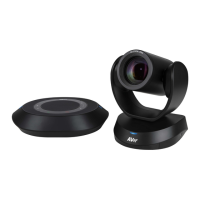
The AVer VC520+ is a comprehensive video conferencing system designed for ease of use and high-quality communication. It comprises a camera, a speakerphone, and a remote controller, all working in concert to provide a seamless conferencing experience. The system is plug-and-play, meaning it generally does not require special drivers for basic functionality, making it accessible for immediate use with various video applications.
The core function of the VC520+ is to facilitate video and audio communication for conferencing. The camera captures video, offering pan, tilt, and zoom capabilities to ensure all participants are visible. The speakerphone handles audio input and output, featuring controls for volume, muting, and connectivity to external devices. The remote controller provides convenient access to camera adjustments and call management functions, enhancing user control during a conference. The system is designed to integrate with popular video conferencing applications such as Skype, Microsoft Lync, Google Hangout, Cisco WebEx, GoToMeeting, and WebRTC, acting as the primary video and audio device for these platforms.
Setting up the VC520+ involves connecting the camera and speakerphone using the provided speakerphone cable. The camera then connects to a laptop or PC via a USB cable. Power is supplied to the camera, which initiates a rotation of the camera head and illuminates the power indicator. A cable retainer is included to secure the USB connection between the camera and speakerphone, preventing accidental disconnections. This retainer is screwed tight after the cable is connected, ensuring a stable link.
To initiate a video call, users ensure all components (camera, speakerphone, laptop/PC) are connected and powered. The chosen video application is then launched, and the VC520+ camera is selected as the primary camera. The system's plug-and-play nature allows for immediate use, though the AVer PTZApp is recommended for enhanced functionality.
The speakerphone offers versatile audio connectivity. For hands-free calls from a mobile phone, a 3.5mm AUX cable connects the mobile device to the "Phone In" jack on the speakerphone. A successful connection is indicated by the "Cellphone" indicator lighting up. To extend speakerphone coverage in larger rooms, multiple VC520+ speakerphones can be daisy-chained using an additional cable (not included) connected to the speakerphone ports. This increases both coverage diameter and volume.
The device provides clear LED indicators for various statuses:
The AVer PTZApp is a crucial software component that enhances the user experience. It can be downloaded from the AVer website. During installation, selecting the "Skype plug-in" option enables additional functionality, particularly for Skype calls, allowing the remote control to manage call functions.
Clicking the camera icon in the PTZApp displays a live view from the camera. If the live video doesn't appear, users should check the camera and laptop/PC connections.
The PTZApp provides a visual representation of device connections. An "X" on a device in the diagram indicates a connection problem. If the camera is in use by another application, a "Can't start video" warning will be displayed.
This function allows users to check the camera's status, view live video, and adjust camera direction and zoom. An "Abort Diagnostic" button allows exiting this mode.
This feature verifies speakerphone functionality. Users are prompted to record a short message, which is then played back to test microphone and speaker performance.
The PTZApp facilitates firmware updates for the VC520+ camera. Users can click "Update Now" to see the current and latest firmware versions. An "Auto Update" option downloads and uploads the new firmware. Manual updates are also possible by locating the firmware file. It's crucial to maintain stable connections between the camera and laptop/PC during the entire update process.
The PTZApp can collect system information to aid in troubleshooting, which is useful when contacting AVer technical support.
The VC520+ supports two types of remote controls. Users must select the correct remote control type within the PTZApp UI before use.
When multiple cameras are connected, the PTZApp allows users to assign a specific camera number to each camera, enabling the remote controller to control the desired camera. This is done by selecting the camera from a dropdown list and then using the "Change Binding" button to map it to a remote control button (1, 2, or 3). Settings can be saved or aborted.
The camera can be wall-mounted using the provided bracket. A drilling paper guides users to drill holes for the bracket. The bracket is then secured to the wall with screws. The camera is placed onto the bracket, and cables are connected. Finally, the camera is slid into place and secured by tightening a screw. The manual also provides diagrams for mounting on 2-gang/non-2-gang boxes and for ceiling mounting.
Regular firmware updates via the AVer PTZApp ensure the camera operates with the latest features and bug fixes, contributing to long-term performance and compatibility.
The PTZApp's ability to collect system information is a valuable maintenance feature, simplifying the diagnostic process if issues arise and facilitating support from AVer.
While not explicitly detailed, the disclaimer implies that unauthorized modifications will void the warranty, suggesting that users should avoid tampering with the product's internal components. The warning about not exposing the appliance to rain or moisture also highlights the importance of protecting the device from environmental damage.
 General
| Zoom | 12x optical zoom |
|---|---|
| Field of View | 82° |
| Camera Pan | ±170° |
| Camera Tilt | +90° / -30° |
| Speakerphone | Yes |
| Frame Rate | 30fps |
| Compatibility | Windows, Mac OS, Chrome OS |
| Privacy Cover | No |
| Resolution | 1080p (1920 x 1080) |
| Connectivity | USB |
| Microphone | Yes |
| Mounting | Tripod mount |
| Focus Type | Auto Focus |

 To Next Page