Need help?
Do you have a question about the AVer VB342+ and is the answer not in the manual?
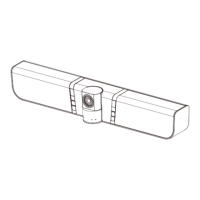
Provides a detailed look at the VB342+ unit, identifying its various components and ports.
Manages camera selection and directional movement using the remote.
Covers smart framing, phone-in mode, zoom, mute, and preset controls.
Manages call operations, brightness, and volume adjustments.
Details the process for ending calls using the remote.
Explains the two types of connections for the VB342+ unit to a PC and display.
Step-by-step guide to initiating and conducting video calls using the VB342+.
Explains the meaning of different LED colors and states on the VB342+.
Steps to download and install the AVer PTZApp software on your computer.
Guide on utilizing the PTZApp for camera control and settings during video calls.
Overview of features and capabilities of the AVer EZLive software for video calls.
 General
| Pan range | 0 - 180 ° |
|---|---|
| Product type | Group video conferencing system |
| Product color | Black, Grey |
| Wall mountable | Yes |
| Tilt angle range | 0 - 105 ° |
| Number of persons | - person(s) |
| Megapixel | - MP |
| Sensor type | CMOS |
| Digital zoom | 4 x |
| White balance | Auto, Manual |
| Image sensor size | - \ |
| Number of camera presets | 10 |
| Remote control interface | IR wireless/RS-232 |
| Closest focusing distance | 0.8 m |
| Field of view (FOV) angle | 120 ° |
| Aspect ratio | 16:4 |
| Maximum frame rate | 60 fps |
| Supported video modes | 720p, 1080p, 2160p |
| Video formats supported | M-JPEG, YUV, YUY2 |
| Supported graphics resolutions | 640 x 360, 640 x 480 (VGA), 848 x 480, 960 x 540, 1920 x 1080 (HD 1080), 3840 x 2160 |
| Built-in display | No |
| Telepresence | - |
| USB connector type | USB Type-C |
| Current | 5 A |
| AC input voltage | 100 - 240 V |
| DC input voltage | 12 V |
| AC input frequency | 50 / 60 Hz |
| Storage temperature (T-T) | -20 - 60 °C |
| Operating temperature (T-T) | 0 - 40 °C |
| Operating relative humidity (H-H) | 20 - 80 % |
| Cables included | AC, USB Type-A to USB Type-C |
| RMS rated power | 10 W |
| Number of microphones | 2 |
| Microphone direction type | Unidirectional |
| Sound pressure level (max) | 96 dB |
| Applications supported | Zoom, Microsoft Teams, Skype for Business, Skype, Google Hangouts, Intel Unite, RingCentral, BlueJeans, V-Cube, LiveOn, CyberLink U Meeting, TrueConf, Adobe Connect, Cisco WebEx, Fuze, GoToMeeting, Microsoft Lync, Vidyo, vMix, WebRTC, Wirecast, XSplit |
| Mac operating systems supported | Mac OS X 10.10 Yosemite, Mac OS X 10.11 El Capitan, Mac OS X 10.12 Sierra, Mac OS X 10.13 High Sierra, Mac OS X 10.14 Mojave, Mac OS X 10.15 Catalina, Mac OS X 10.15.3 Catalina, Mac OS X 10.7 Lion, Mac OS X 10.8 Mountain Lion, Mac OS X 10.9 Mavericks, Mac OS X 11.0 Big Sur |
| Other operating systems supported | ChromeOS |
| Mobile operating systems supported | Android 5.0, Android 5.1, Android 6.0, Android 7.0, Android 7.1, Android 7.1.2, Android 8.0, Android 9.0 |
| Windows operating systems supported | Windows 10, Windows 10 Education, Windows 10 Education x64, Windows 10 Enterprise, Windows 10 Enterprise x64, Windows 10 Home, Windows 10 Home x64, Windows 10 IOT Core, Windows 10 IoT Enterprise, Windows 10 Pro, Windows 10 Pro x64, Windows 10 x64, Windows 7, Windows 7 Enterprise, Windows 7 Enterprise x64, Windows 7 Home Basic, Windows 7 Home Basic x64, Windows 7 Home Premium, Windows 7 Home Premium x64, Windows 7 Professional, Windows 7 Professional x64, Windows 7 Starter, Windows 7 Starter x64, Windows 7 Ultimate, Windows 7 Ultimate x64, Windows 7 x64 |
| Minimum system requirements | - 2.4 GHz Intel Core 2 Duo - 2 GB RAM |
| Harmonized System (HS) code | 85176990 |
 Weight and Dimensions
| Camera weight | 2133 g |
|---|---|
| Package depth | 193 mm |
| Package width | 739 mm |
| Package height | 229 mm |
| Package weight | 4160 g |
| Camera dimensions (WxDxH) | 650 x 100 x 109.5 mm |


 To Next Page