7
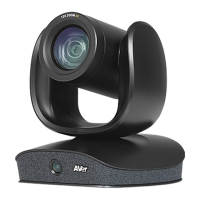
Setup VB342+
Device Connection
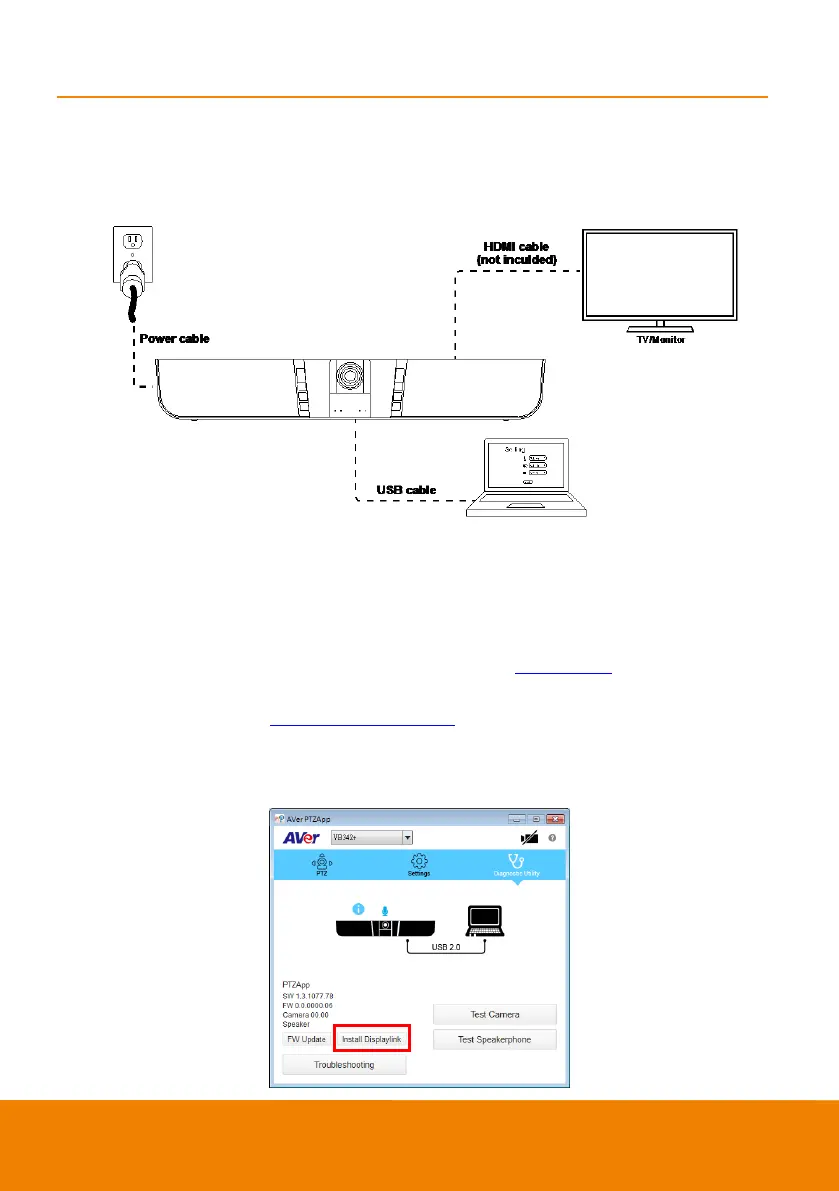
Two types of connection.
I.
1. Connect VB342+ to PC with provided USB cable. If you like to use type-C connector on newer PC,
connect provided adapter to type-A end of cable, then connect type-C side of adapter to PC.
2. Connect TV/HDMI monitor to VB342+ through the HDMI cable.
3. Connect the power to the VB342+ and camera head will move, and the power indictor will light up.
4. Install Aver PTZApp on laptop/PC that is connected with VB342+. The app can be used to adjust
and setup the parameters of the camera (refer to section of AVer PTZApp).
5. A Displaylink drive is required for the TV/Monitor connection with VB342+. To install Displaylink
drive, refer to section of “Install Displaylink Driver”.
6. To make a call, run your video application (Skype
TM
, Skype for Business, Google Hangouts
TM
,
Zoom
TM
, WebEx
TM
, Adobe Connect
TM
,
WebRTC, and etc.) select VB342+ as your video and audio
device.



 To Next Page