6
The following screen drawings are only for
reference and please refer to actual screen
drawings.
To turn on your tablet
1. Press and hold for about 2 seconds to turn
on your tablet.
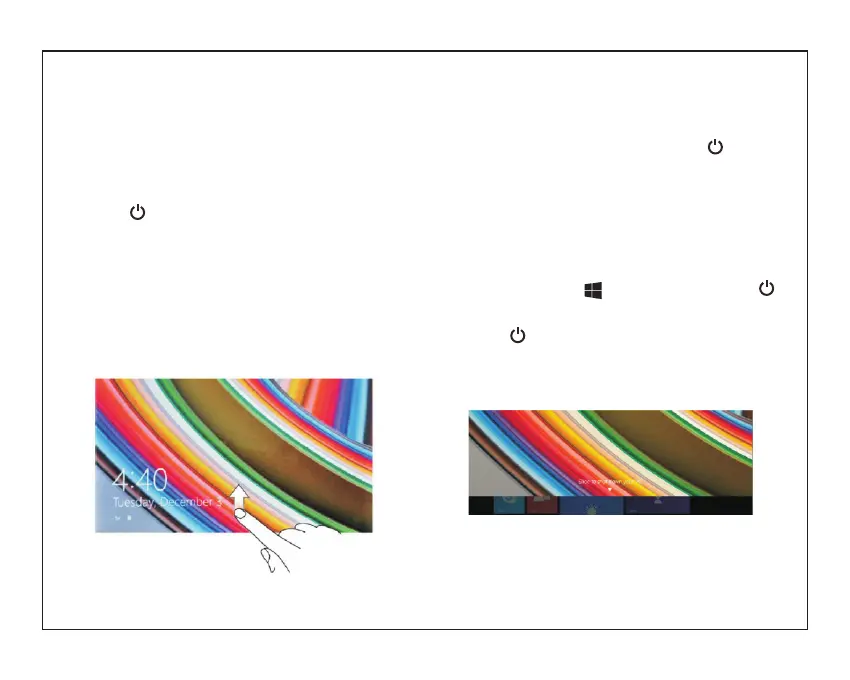
2. If the lock screen image displays, swipe your
finger from the bottom of the display
to switch to the login screen, and then enter
password to log in to Windows.
·Please first create a Microsoft account.
The tablet is ready for use after the Windows
Start screen displays.
To turn off the screen
·When the tablet is turned on, press to turn
off the screen to save battery power.
·Or you can swipe from the right edge of the
display to access the menu. Tap All
Settings to display the settings. Tap System→
Power & Sleep to set the screen to
be turned off after a set time period.
NOTE: If your tablet is in a sleep state, press
or tap home button to turn on the screen.
To turn off the tablet
·Press and hold until you see “Slide to shut
down your PC” on the screen.
Slide to shut down your tablet.
Turning the Tablet On or Off
·
tablet modes:
You can also turn off the tablet in desktop and


 To Next Page