HD OMNI Guide36
Pro Tools I/O Setup
This section describes how to configure input,
output, bus, monitoring, cue, and other signal
paths for HD OMNI in the Pro Tools I/O Setup.
Opening the I/O Setup Dialog
The I/O Setup dialog can be opened from the ap-
plication window (with a session closed), or
from within a session (when a session is open).
To open the I/O Setup dialog:
1 Make sure HD OMNI is configured properly in
the Hardware Setup dialog (see “Pro Tools Hard-
ware Setup” on page 23).
2 Choose Setup > I/O.
Closing the I/O Setup Dialog
To close the I/O Setup dialog and save changes:
Click OK.
When you click OK, Pro Tools checks several set-
tings for routing validity (to prevent feedback
loops).
To close the I/O Setup dialog without saving
changes:
Click Cancel.
Input
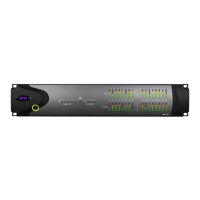
The Input page of the I/O Setup lets you config-
ure input signal path names, formats, and
source channel (analog or digital). Multichannel
input paths (stereo or greater) can have any
number of sub-paths. You can have overlapping
Input signal paths. Input names, channel for-
mats, and physical input mappings are saved
with the system.
For more information the I/O Setup dialog,
see the Pro Tools Reference Guide.
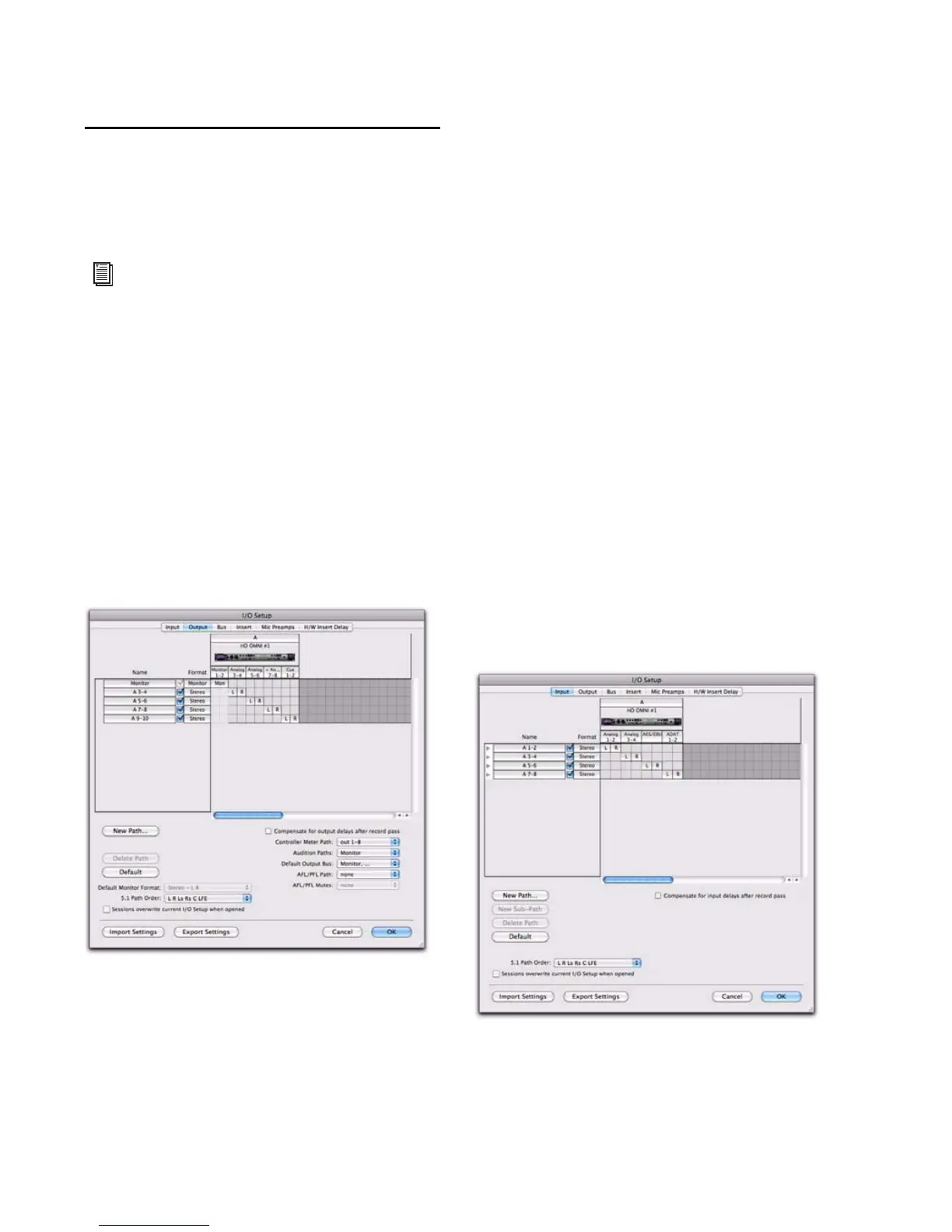
I/O Setup dialog (Output page with HD OMNI shown)
I/O Setup, Input page


 To Next Page