
 Need help?
Do you have a question about the Avid Technology Mbox and is the answer not in the manual?
Details the features and capabilities of the Mbox audio interface, including inputs, outputs, and converters.
Outlines the necessary hardware and software specifications for using the Mbox with different operating systems and applications.
Explains the conventions and symbols used throughout the manual for menu choices, key commands, and important notices.
Provides information about the Avid website and its resources, including product registration, support, and training.
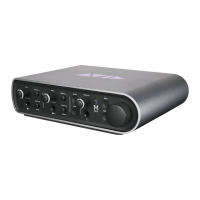
Identifies and describes the controls, indicators, and ports located on the front panel of the Mbox device.
Details the use of 1/4-inch TS inputs for connecting instruments like guitars and basses, controlled by Gain controls.
Explains how to select between front panel Instrument Inputs and rear panel Mic/Line Inputs using dedicated buttons.
Describes how to adjust input gain levels and use the -20 dB pad to attenuate hot signals for Mic/Line inputs.
Explains the function of Signal/Clip LEDs, indicating audio presence (green) and signal clipping (red) for inputs.
Details how to activate the Soft-Limit function for smooth, overdriven limiting on strong input signals.
Explains the +48V switch for phantom power and its LED indicator for microphone inputs.
Provides guidance on phantom power requirements for different microphone types and potential risks with ribbon microphones.
Describes the Monitor Level knob for adjusting the output volume of the Monitor Output ports.
Explains the Dim button function, which reduces output volume by 30 dB for monitor and headphone outputs.
Details the Mono button function, which sums control room outputs to a mono signal for both speakers.
Explains how the Mono switch can be used for a quick check of the phase relationship between Source 1 and Source 2 inputs.
Describes how to activate the Guitar Tuner function using Dim and Mono buttons and use front panel LEDs as tuning indicators.
Details the 1/4-inch stereo headphone output on the front panel and how it mirrors the Monitor Outputs.
Explains the Headphone Volume knob for adjusting the output level of the Headphone port, independent of Monitor Level.
Describes the Multi button's assignable functions in Pro Tools for executing commands like Add Track or Save Session.
Explains the USB LED, indicating power reception from USB and stand-alone mode operation.
Identifies and describes the ports located on the back panel of the Mbox device, including USB, MIDI, S/PDIF, Monitor Outputs, and Mic/Line Inputs.
Details the USB 2.0 port for connecting the Mbox to a computer or for powering the unit in stand-alone mode.
Describes the rear panel XLR/TRS combo jacks for Mic and Line level signals, supporting various input levels.
Explains the 1/4-inch Monitor Outputs for connecting to amplification systems, monitoring, or stereo destinations.
Details the unbalanced RCA connectors for S/PDIF digital audio, supporting 24-bit, two-channel data streams.
Describes the standard 5-pin MIDI In and Out ports, providing 16 channels of MIDI input and output.
Provides step-by-step instructions for installing Mbox hardware drivers on Mac and Windows and connecting the device to your computer.
Explains how to connect headphones or external sound systems to the Mbox for hearing audio output.
Details how to connect stereo headphones with a 1/4-inch connector to the Mbox's headphone output.
Guides on connecting Mbox Monitor Outputs to powered speakers, home stereo, or audio mixers.
Describes the two analog input channels and their corresponding front and rear panel connectors for microphones and instruments.
Provides instructions for connecting microphones using XLR connectors, including phantom power considerations.
Details the use of XLR connectors for microphone cables and the Mbox's ability to supply power through them.
Explains phantom power requirements for microphones and warnings about its use with certain microphone types.
Step-by-step guide on plugging in a microphone, setting the source, and adjusting gain and phantom power.
Explains how to connect instruments using DI (Direct Inject) for guitars/basses and Line inputs for keyboards/synths.
Details the DI (Direct Inject) input for connecting electric guitars or electric basses directly to the Mbox.
Describes the Line input for connecting line-level devices like keyboards, samplers, and synthesizers.
Step-by-step guide for connecting guitars and basses to the Mbox instrument inputs and adjusting gain.
Guides on connecting keyboards and mixers to Mbox line inputs for stereo and mono sources, and adjusting gain.
Explains the S/PDIF digital inputs and outputs, allowing for expanded input/output channels when combined with analog.
Instructions for connecting S/PDIF devices to the Mbox using coaxial cables for digital audio transfer.
Details how to configure S/PDIF input for third-party applications and Pro Tools via the Mbox Control Panel or Hardware Setup.
Explains how to connect MIDI devices to the Mbox's MIDI In/Out ports, and requirements for MIDI interfaces.
Guides on connecting MIDI instruments with analog outputs to Mbox line inputs for monitoring their output.
Explains how to load and save Mbox settings files (presets) to configure various system states.
Opens a file browser to load previously saved Mbox Driver Control Panel settings files.
Opens a file browser to save the current Driver Control Panel settings to a file.
Describes the four available layouts (Horizontal, Horizontal Meters Only, Vertical, Vertical Meters Only) for viewing the control panel.
Details the default Horizontal layout, resembling a mixing console, used for most screen captures.
Explains the Meters Only layout, emphasizing pre-fader metering without access to stereo mixers.
Describes the Vertical layout for compact operation, providing full functionality in a vertical window.
Explains the Vertical Meters Only layout, focusing on pre-fader metering without stereo mixer access.
Details additional functions accessible via pop-up menus in the Control Panel, including Tuner, Setup, Flow, and About.
Explains the Setup section for defining hardware settings like buffer size, sample rate, and clock source.
Describes how to activate and use the Tuner function via the Control Panel or front panel buttons.
Explains the Disable Host Control option for manual control of the Driver Control Panel, noting its conflict with Low Latency Monitoring.
Details how to set the clock source (Internal, S/PDIF) for synchronizing the Mbox with other devices.
Explains how to set the Mbox sample rate and its interaction with audio applications.
Guides on setting buffer size for optimal audio performance on Windows, explaining the trade-offs for latency and stability.
Details settings for the Mbox's soft buttons, including Hold Duration and dimming LEDs for off-state visibility.
Allows choosing the press-and-hold duration (250ms to 1s) for the Mbox's soft buttons.
Option to dim LEDs on soft buttons when they are off, allowing easier identification in low light.
Covers options like Hold Clipping Indicators, Load Latency/Clock Settings, and Post-Fader Meters.
Keeps clipping indicators lit until they are clicked, providing persistent visual feedback.
Recalls clock source and buffer settings when loading a settings file.
Meters display levels after the fader, indicating post-fader signal levels.
Meters display signal levels before the fader, showing activity regardless of fader position.
Explains the Pre-Fader and Post-Fader (Mix 1/2) FX Sends modes for routing audio to effects.
Sends the full audio signal to FX Sends, regardless of channel fader positions.
Audio signal level sent to FX Sends is affected by channel fader positions for Stereo Mix 1.
Displays the signal flow from inputs to outputs, useful for understanding audio path through Mbox.
Allows viewing firmware version of Mbox hardware and package version of the driver installer.
Displays firmware version of Mbox hardware and package version of the Mbox driver installer.
Provides access to online resources like manuals, updates, and support via the Avid website.
Describes the 8-input, 4-output mixer for creating stereo cue mixes with near-zero latency for performers.
Control the stereo image position of a channel's audio signal.
Allows monitoring of individual channels while muting others.
Individually turn off audio monitoring for each channel in the stereo mix.
Control the monitoring volume level of each channel in the stereo mix.
Display input names and signal levels; allows custom naming for channels.
Connects stereo pairs of knobs or faders, allowing simultaneous adjustment of linked parameters.
Allows setup of send-and-return configurations and application of effects to Hardware Inputs and Software Returns.
FX Sends for Hardware Inputs are shared by all Stereo Mixes unless Post-Fader Stereo Mix 1 is chosen.
FX Sends for Software Returns are shared by all Stereo Mixes unless Post-Fader Stereo Mix 1 is chosen.
Controls how much Effect audio output is mixed with monitor signal Master L/R outputs.
Selects effects (reverbs, delay, echo) and customizes decay time, feedback, and volume.
Controls decay time for reverbs or delay time for delay and echo effects.
Controls the number of repeats for delay and echo effects.
Controls the effects output level sent to the FX Returns.
For monitoring the main mixer output, routing to hardware outputs, and master controls.
Adjusts the overall level of the stereo mix output.
Adjusts the left/right balance of the stereo mix.
Adjusts the width of the stereo image, from mono to full stereo.
Mutes the left and/or right side of the stereo mix output.
Swaps the stereo image, making the left channel play out the Right output and vice versa.
Links the FX Returns section and mute buttons for synchronized control.
Provides a visual representation of the audio signal fed to the associated hardware output pair.
Lets you copy the settings of the current stereo mix to another stereo mix.
Displays status indicators for Hardware Connected, Streaming, and Host Control Enabled/Disabled.
Indicates if a properly installed, powered-on Mbox is connected to the computer.
Shows if audio is currently streaming from an application to the Mbox.
Indicates when an application like Pro Tools has control over the Driver Control Panel.
Explains how the Multi button can be assigned to execute Pro Tools functions via Press and Release or Press and Hold.
Details the options available for the Multi button when pressed and immediately released.
Details the options available for the Multi button when it is pressed and held for a duration.
Allows selection of the hold duration (250ms to 1s) for Press and Hold mode.
Option to launch the Mbox Driver Control Panel from the Multi Button Function pane.
Provides a step-by-step example of configuring and using the Multi button for recording and track creation in Pro Tools.
Lists available functions for Press and Release mode, such as Start/Stop Record, Save Session, and Tap Tempo.
Adds a new track of the same type as the last track created in the Pro Tools session.
Adds new tracks based on the currently selected tracks in the Pro Tools session.
Moves the transport cursor to the next marker location each time the button is pressed and released.
Moves the transport cursor to the previous marker location each time the button is pressed and released.
Starts or stops playback of the Pro Tools session.
Starts or stops recording in the Pro Tools session.
Toggles the Loop Playback mode between enabled and disabled.
Undoes the last operation performed in Pro Tools.
Saves the current Pro Tools session.
Adjusts the session tempo by tapping the Multi button.
Lists available functions for Press and Hold mode, mirroring Press and Release options with hold-based activation.
Provides four choices for the duration the Multi button is held down (250ms to 1s).
Explains how to configure Mbox hardware settings through audio preference settings in third-party applications.
Guides on setting up Sound Preferences or Audio MIDI Setup for core audio playback applications on Mac.
Provides information on the disposal of waste equipment in the European Union and recycling notices.
Notifies about chemicals in the product known to cause cancer and reproductive harm in California.
Addresses the potential presence of a lithium coin battery and its special handling requirements.
States compliance with relevant Australian standards for digital apparatus.
Declares compliance with standards regulating emissions and immunity for electromagnetic compatibility.
Details FCC compliance for radio and television interference, including declaration and communication statements.
States compliance of the digital apparatus with Canadian standards ICES-003.
Declares conformity to EMC and Low Voltage Directives for CE marking.
Provides warnings and cautions related to electrical shock and safe operation of the equipment.
Provides essential safety precautions for installation, operation, and maintenance of the Mbox equipment.
 General
| Type | Audio Interface |
|---|---|
| Bit Depth | 24-bit |
| Mic Preamps | 2 |
| Audio Outputs | 2 |
| Headphone Output | 1 |
| USB Connectivity | USB |
| Sample Rate | 48 kHz |








 To Next Page