Page 8
6. Click the “Menu” icon in top right corner of the screen and in the drop-down, click “Settings”.
3. After clicking “update”, a login box will pop up. Log in again with new credentials.
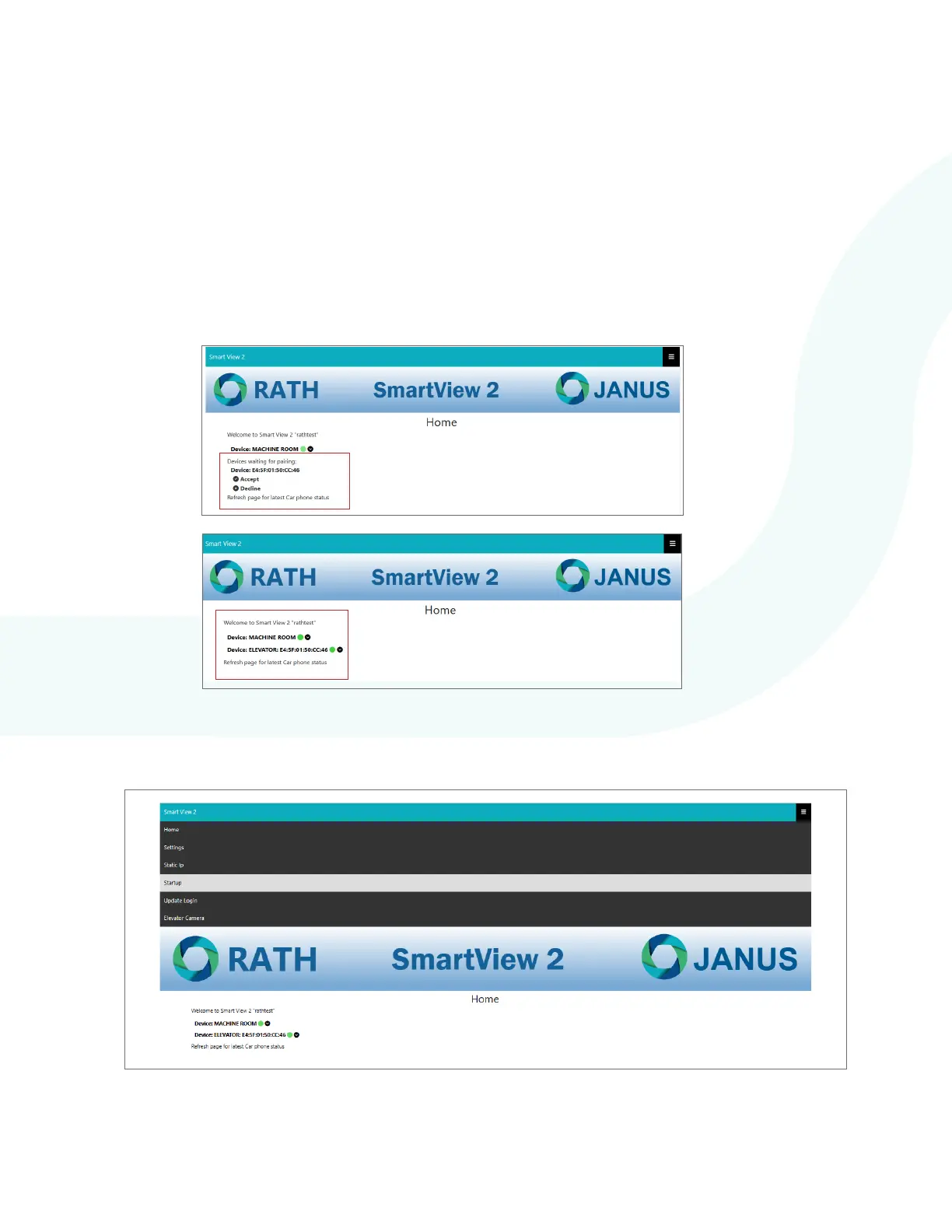
4. After logging in, the home page will appear. The home page will show Online status for both the machine
room unit, as well as the elevator unit and MAC address information for the system.
5. If this is the rst time logging into the unit, the elevator unit will need to be accepted by the system. On the
home page under “Device waiting for pairing” click “Accept”. System will not work until pairing completed.
NOTE: This step will only need to be performed upon initial set-up. If already paired, this can be skipped.
BEFORE
AFTER


 To Next Page